Electronics / RFID Barcode Scanners
Quick Start Guide for Honeywell Granit Ultra 2100i Industrial Area-Imaging Scanner
Quick start guide for the Honeywell Granit Ultra 2100i industrial scanner. Learn how to connect the device via USB, RS232, or Keyboard Wedge, configure settings using barcodes, and perform initial setup.
Quick answers from the manual
Quick answer
- The Honeywell Granit Ultra 2100i is an industrial area-imaging scanner. This guide provides instructions for physical connection (USB, Keyboard Wedge, RS232) and basic configuration using barcodes. p. 1, 2, 3, 4
Key actions
- Connect the scanner p. 2, 3, 4
- Configure settings p. 5, 6, 7, 8
First start
- Power off the computer, connect the scanner, then power on the computer. p. 2
Show 2 more answers Show less
Maintenance and reset
- Reset to standard product defaults p. 6
Where to find it in the PDF
- Getting Started p. 2
- Connection Diagrams p. 3, 4
- Configuration Barcodes p. 5, 6, 7, 8
Table of contents
Manual images
Click an image to enlargeQuick guide from the manual
This guide provides essential instructions for setting up and configuring the Honeywell Granit Ultra 2100i industrial area-imaging scanner. It covers physical connection methods, cable security, and basic configuration using barcodes.
Getting started
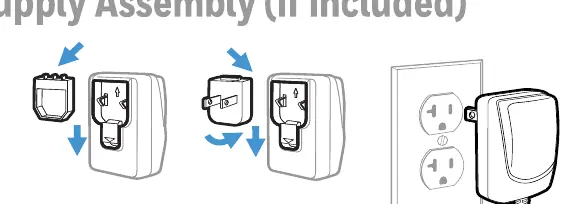
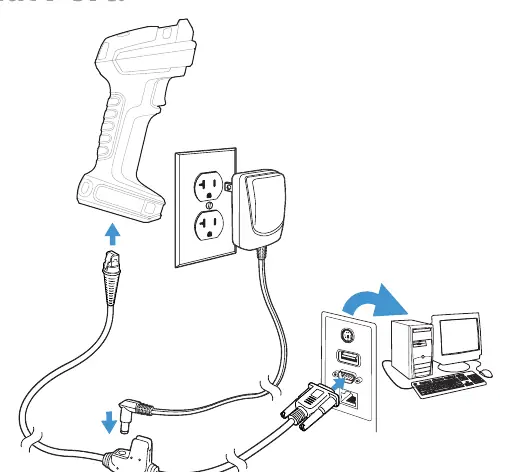
Before connecting the scanner, ensure the computer is powered off. Connect the scanner to the appropriate port on your computer, then power on the computer. Note that the power supply must be ordered separately if required for your specific setup.
Connecting the scanner
To ensure a secure connection and maintain the scanner's integrity:
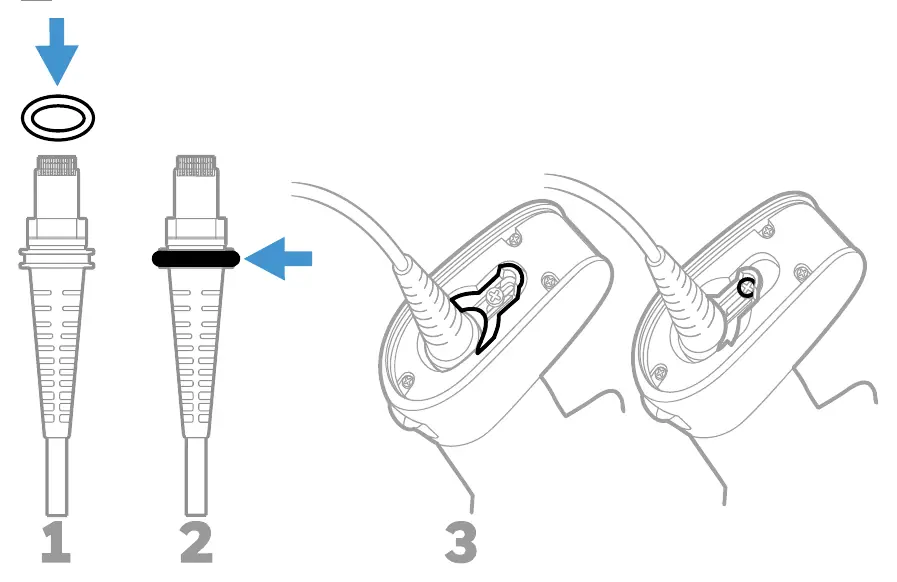
- Push the cable tightly into the scanner base.
- Loosen the locking plate on the cable connector.
- Slide the locking plate over the base of the cable connector.
- Tighten the screw to lock the cable in place.
The scanner supports three primary connection types:
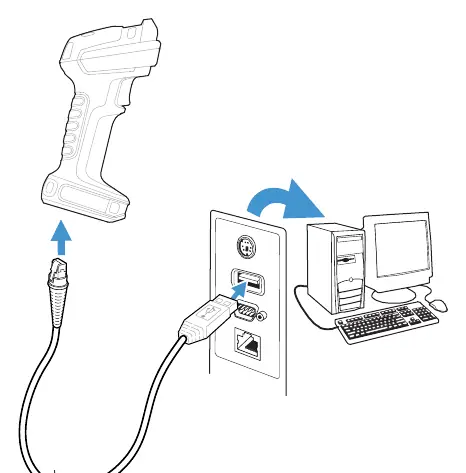
- USB: Connect directly to a USB port on the computer.
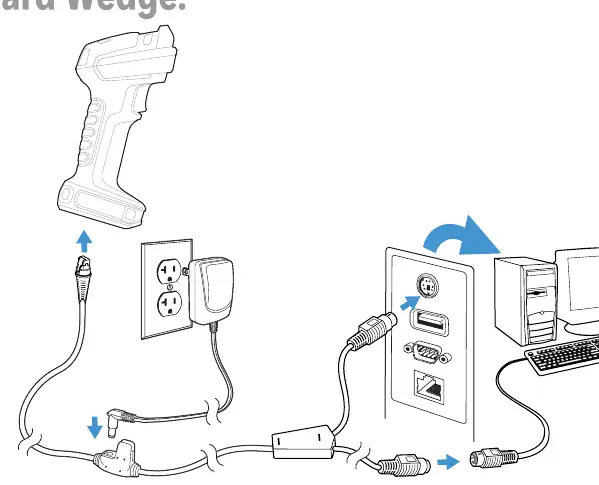
- Keyboard Wedge: Connect via the keyboard port, typically requiring the power supply assembly.
- RS232 Serial Port: Connect via the serial port, typically requiring the power supply assembly.
Configuration barcodes
The scanner can be configured by scanning specific barcodes provided in this guide:
- Standard Product Defaults: Resets the scanner to factory settings.
- USB Serial: Configures the scanner to emulate a regular RS232-based COM Port. Note: Windows PCs may require a driver from automation.honeywell.com.
- USB PC Keyboard: Configures the scanner for standard keyboard input.
- Keyboard Country: Scan the barcode corresponding to your country's keyboard layout to ensure correct character mapping.
- Suffixes: Options to add a Carriage Return (CR) or Tab after the barcode scan, or to remove existing suffixes.
- Code ID Prefix: Adds a Code ID prefix to all symbologies.
Support
For technical support, knowledge base access, or to report a problem, visit honeywell.com/PSStechnicalsupport. For user documentation and warranty information, visit automation.honeywell.com.
Official resources from the manual
Manufacturer information
Honeywell International Inc.
Practical help
Common problems
Scanner not recognized by the computer
Ensure the cable is pushed tightly into the scanner and the locking plate is fully tightened.
Incorrect characters appearing when scanning
Scan the 'Keyboard Country' barcode corresponding to your specific keyboard layout.
Need to emulate a COM port on Windows
Scan the 'USB Serial' barcode and download the necessary driver from automation.honeywell.com.
Before use
- Turn off the computer's power before connecting the scanner.
- Ensure the cable is fully inserted into the scanner base.
- Tighten the locking screw on the cable connector to secure the connection.
- Power up the computer only after the scanner is fully connected.
- Verify if a power supply is required for your connection type (e.g., RS232 or Keyboard Wedge).
Show more Show less
Images and diagrams
- The cable connector features a locking plate that must be loosened, slid over the base, and tightened to secure the connection.
- The scanner supports USB, Keyboard Wedge, and RS232 Serial Port connections, each requiring specific cable routing.
Model compatibility
- Power supply must be ordered separately if needed.
- Windows PCs may require a driver from automation.honeywell.com for USB Serial emulation.
- Apple Macintosh computers recognize the scanner as a USB CDC class device automatically.

Manual page author
David Miller
Documentation analyst