Electronics / RFID Barcode Scanners
Quick Start Guide for Honeywell Granit XP 1991i Scanner
Quick start guide for the Honeywell Granit XP 1991i cordless industrial scanner. Includes setup, connection instructions (USB, RS232, Keyboard Wedge), configuration barcodes, and troubleshooting tips.
Quick answers from the manual
Quick answer
- The Honeywell Granit XP 1991i is a cordless industrial scanner. To set it up, connect the base to your computer, power on the computer, and place the scanner in the base to link. Use the provided barcodes to configure trigger modes, keyboard layouts, and interface settings. p. 2
Key actions
- Reset to factory defaults p. 6
- Unlink a scanner p. 10
First start
- Connect base to computer, power on computer, place scanner in base. p. 2
Problems and fixes
Scanner beeps 3 times
Link not established.
p. 6Maintenance and reset
- Scan 'Standard Product Defaults' barcode. p. 6
Where to find it in the PDF
- Getting Started p. 2
- Connection Diagrams p. 3, 4, 5
- Configuration Barcodes p. 6, 7, 8, 9
Table of contents
Manual images
Click an image to enlargeGetting Started
To set up your scanner, first turn off your computer's power. Connect the base to the computer using the appropriate cable (USB, Keyboard Wedge, or RS232). Once the base is connected and powered up, place the scanner in the base to establish a link. The green LED on the base will flash to indicate the scanner's battery or charge pack is charging.
Connecting the Base
The scanner supports multiple connection types. Ensure the computer is powered off before making connections.
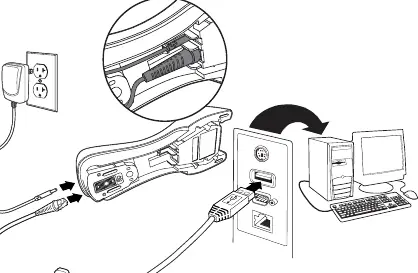
- USB: Connect the USB cable to the computer. Note that charging via USB is slower than using an external power supply.
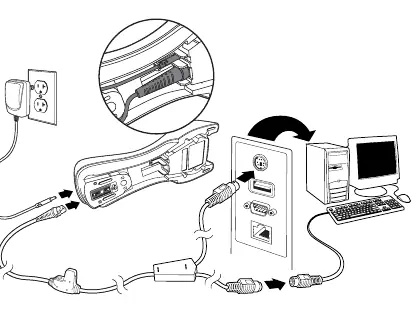
- Keyboard Wedge: Connect the cable to the keyboard port on the computer.
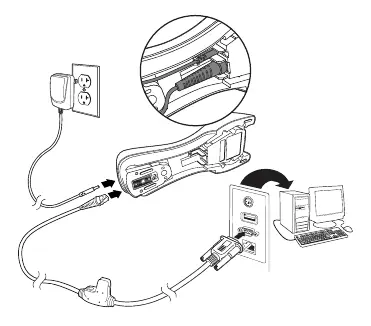
- RS232 Serial Port: Connect the serial cable to the computer's COM port.
Reading Techniques
The scanner projects an aiming beam. Center this beam over the barcode for a successful read. If the scanner beeps 3 times when scanning, the link has not been established. If it beeps once, the link is established.

Configuration
You can configure the scanner by scanning specific barcodes provided in the guide:
- Standard Product Defaults: Resets all settings to factory defaults.
- USB Modes: Configure for USB Serial (requires driver on Windows) or USB PC Keyboard.
- Keyboard Country: Scan the barcode corresponding to your country's keyboard layout to ensure correct character mapping.
- Trigger Modes: Switch between Manual Trigger (default), Presentation Mode (activated when it 'sees' a barcode), or Streaming Presentation Mode.
- Suffixes: Add a carriage return (CR) or tab after the barcode scan.
Scanner Linking
If you use Locked Link Mode, other scanners are blocked from linking to the base. To replace a scanner, you can use the 'Override Locked Scanner' barcode with a new scanner. To link a different scanner, you must first scan the 'Unlink Scanner' barcode.
Support and Warranty
For technical support, visit honeywell.com/PSStechnicalsupport. For warranty information, visit sps.honeywell.com and navigate to Support > Warranties.
Official resources from the manual
Manufacturer information
Honeywell International Inc.
Practical help
Common problems
Scanner beeps 3 times when scanning
The link between the scanner and the base has not been established. Ensure the scanner is properly seated in the base.
Scanner charging is slow via USB
Charging via USB cable provides reduced current. Use an external power supply for faster charging.
Scanner not linked to base
If using Locked Link Mode, you must unlink the previous scanner or use the 'Override Locked Scanner' barcode with the new scanner.
Before use
- Turn off the computer's power.
- Connect the base to the computer using the appropriate cable.
- Power up the computer.
- Place the scanner in the base to establish a link.
- Verify the green LED on the base is flashing (charging).
Images and diagrams
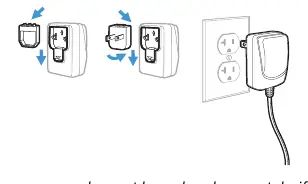
- Power Supply Assembly: Shows how to attach the plug adapter to the power supply unit.
- Connecting the Base: Illustrates the cable routing and port connections for USB, Keyboard Wedge, and RS232 interfaces.
Model compatibility
- USB Serial mode on Windows PCs requires a driver download from the Honeywell website.
- Apple Macintosh computers automatically recognize the scanner as a USB CDC class device.

Manual page author
Emily Carter
User documentation editor
Prepares concise manual descriptions and highlights the most useful setup, operation, and maintenance information for readers.