Electronics / RFID Barcode Scanners
Quick Start Guide for Honeywell Xenon Ultra 1962x Series Scanner
This quick start guide provides essential setup, connection, and configuration instructions for the Honeywell Xenon Ultra 1962x series cordless area-imaging scanner, including linking procedures, trigger modes, and healthcare-specific...
Quick answers from the manual
Quick answer
- To set up the Honeywell Xenon Ultra 1962x, connect the base to your computer, power it up, and link the scanner by scanning the barcode on the base and placing the scanner into the base. p. 2, 6
Key actions
- Link the scanner to the base p. 6
- Unlink the scanner p. 6
First start
- Connect the base to the computer, power it up, and link the scanner. p. 1, 6
Maintenance and reset
- Reset to standard product defaults p. 7
Where to find it in the PDF
- Getting Started p. 1
- Connecting the Scanner p. 3, 4, 5
- Link/Unlink Scanner p. 6
- Healthcare Settings p. 12, 13
Table of contents
Manual images
Click an image to enlargeQuick Start Guide
This guide covers the setup and configuration of the Honeywell Xenon Ultra 1962x series cordless area-imaging scanner. Before using the device, ensure you have read all safety documentation provided online at sps.honeywell.com.
Getting Started
To begin using your scanner:
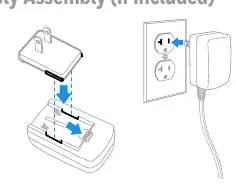
- Turn off the computer's power before connecting the scanner.
- Connect the base to the computer and power it up.
- Link the scanner to the base by scanning the barcode on the base, placing the scanner into the base, and power cycling the base.
Note: Charging via the USB cable is slower than using a dedicated power supply. If you need to order a power supply, please do so separately.
Connecting the Scanner
The scanner supports multiple connection types:
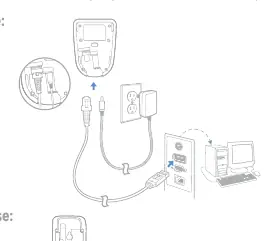
- USB: Connect the USB cable to the base and the computer.
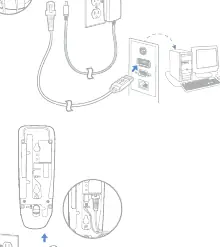
- Keyboard Wedge: Connect the appropriate cable to the base and the computer keyboard port.
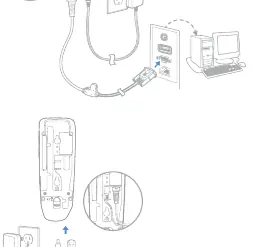
- RS232 Serial Port: Connect the serial cable to the base and the computer's serial port.
Scanner Configuration
You can configure the scanner by scanning specific barcodes provided in this guide:
- Trigger Modes: Switch between Manual Trigger (default) and Presentation mode.
- Suffixes: Add a carriage return (CR) or tab after a scanned barcode.
- Keyboard Country: Scan the appropriate country code to set the keyboard layout.
- Standard Defaults: Scan the "Standard Product Defaults" barcode to reset all settings.
Healthcare Features
Specific settings for healthcare environments are supported on 1962h models:
- Epic/Meditech: Scan the respective barcodes to configure the device for these software applications.
- Quiet Operations: Configure the scanner and base to quiet modes to avoid disturbing patients.
Maintenance and Support
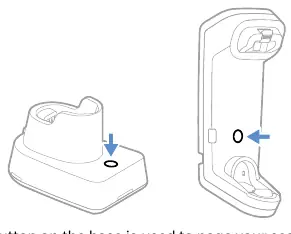
The page button on the base can be used to locate the scanner (it will beep) or to enter Temporary Streaming Presentation mode. For further support, knowledge base articles, or to report a problem, visit honeywell.com/PSStechnicalsupport.
Official resources from the manual
Manufacturer information
Honeywell International Inc.
Practical help
Common problems
Scanner not linking to base
Scan the barcode on the base, place the scanner into the base, and power cycle the base to establish communication.
Scanner charging slowly
Charging via USB cable is slower than using a dedicated power supply. Use a power supply for faster charging.
Scanner not reading barcodes
Ensure the aiming beam is centered over the barcode. You can also try changing the trigger mode to Presentation mode.
Before use
- Turn off computer power before connecting the scanner.
- Ensure the base is connected and powered up.
- Read all labels and product documentation provided in the box or online.
- If using a 1962h model, check healthcare-specific configuration requirements.
Images and diagrams
- Power supply assembly: Shows how to attach the plug to the base.
- Connection diagrams: Illustrate how to connect the base to a PC using USB, Keyboard Wedge, or RS232 cables.
- Page button: Shows the location of the button on the base and how to use it to page the scanner.
Model compatibility
- Healthcare settings (Epic/Meditech) are only supported on 1962h models.
- USB charging is supported but slower than power supply charging.

Manual page author
David Miller
Documentation analyst
Organizes user manual content into clear summaries, with attention to model details, product context, and everyday usability.