Electronics / RFID Barcode Scanners
Quick Start Guide for Honeywell Xenon XP 1950h Barcode Scanner
A comprehensive quick start guide for the Honeywell Xenon XP 1950h healthcare barcode scanner. Includes instructions for hardware connection, interface configuration, scanning modes, and system settings.
Table of contents
Manual images
Click an image to enlargeQuick Start Guide
This guide provides essential setup and configuration instructions for the Honeywell Xenon XP 1950h healthcare barcode scanner. Before connecting the scanner, ensure your computer is powered off. Connect the scanner to the computer, then power on the computer to complete the installation.
Connecting the Scanner
The scanner supports multiple connection interfaces. Ensure you use the correct cable for your setup:
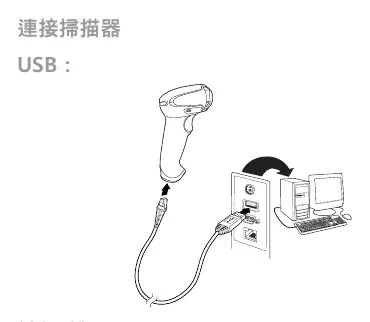
- USB: Connect the USB cable directly to the scanner and the computer's USB port.
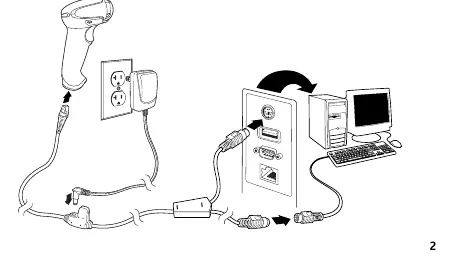
- Keyboard Wedge: Connect the cable to the scanner, the keyboard port on the PC, and the keyboard itself.
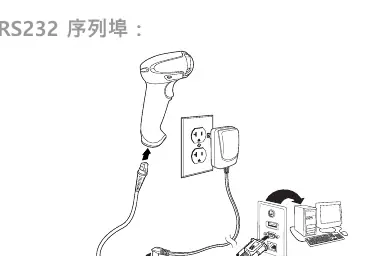
- RS232: Connect the serial cable to the scanner and the computer's serial port.
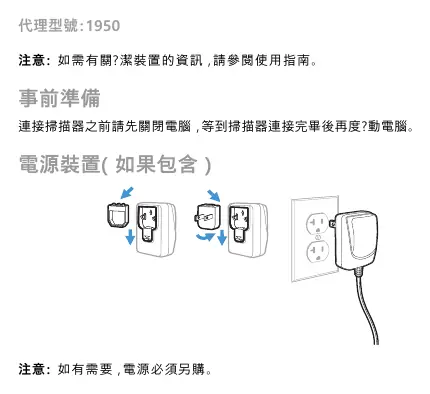
If an external power supply is included, connect it to the interface cable as shown in the diagram. Note that if an external power supply is required but not included, it must be purchased separately.
Scanning Basics
To scan a barcode, aim the red beam from the scanner's window at the center of the barcode. The orientation of the beam is not critical, provided the scanner can successfully read the code.
Configuration Barcodes
The scanner is configured by scanning specific barcodes provided in this guide. Key configurations include:
- Standard Defaults: Scan the "Standard Product Defaults" barcode to reset the scanner to factory settings.
- Interface Selection: Choose between USB Serial (requires driver on Windows), USB PC Keyboard, or specific application settings like Epic or Meditech.
- Trigger Modes: Select between "Manual Trigger - Normal" (default), "Semi-Automatic Trigger", or "Streaming Presentation" (scanner light stays on and continuously searches).
Advanced Settings
You can further customize the scanner's behavior:
- Silent Operation: Configure the scanner for silent mode to avoid disturbing patients.
- Beep Volume: Adjust the buzzer volume to "Very Low" (Night Mode) or "Low" (Day Mode).
- Suffixes: Add a carriage return (CR) or tab character after a scan.
- Keyboard Layout: Scan the appropriate country/region barcode to match your local keyboard configuration.
Support and Resources
For additional features, use the EZConfig-Scanning software tool available on the Honeywell website. For technical support, visit www.hsmcontactsupport.com. Product documentation and warranty information can be found at www.honeywellaidc.com.
Official resources from the manual
Manufacturer information
Honeywell International Inc.
Practical help
Common problems
Scanner not communicating with the computer
Ensure the computer was powered off before connecting the scanner. If using USB Serial, ensure the driver is installed from the Honeywell website.
Incorrect keyboard characters
Scan the specific country/region barcode on page 9 of the manual to match your local keyboard layout.
Scanner does not beep or scan
Check if the scanner is in 'Silent Mode' or 'Night Mode'. Scan the standard default barcode to reset settings.
Before use
- Power off the computer before connecting the scanner.
- Identify the correct interface cable (USB, Keyboard Wedge, or RS232).
- If using an external power supply, ensure it is properly connected.
- Reboot the computer after connecting the scanner.
Specs in practice
- Streaming Presentation
- The scanner light remains on and continuously searches for barcodes without needing a trigger pull.
- Manual Trigger
- The scanner only reads when the trigger is pulled.
Images and diagrams
- The connection diagrams illustrate the cable routing from the scanner to the PC and the optional power supply connection.
- The power supply diagram shows the assembly of the power adapter plug.
Model compatibility
- Supports integration with Epic and Meditech software applications via specific configuration barcodes.
- USB CDC class devices are automatically recognized by Apple Macintosh computers.

Manual page author
Emily Carter
User documentation editor
Prepares concise manual descriptions and highlights the most useful setup, operation, and maintenance information for readers.