General / Accessories
User Guide for HORI Racing Wheel APEX
Quick guide for HORI Racing Wheel APEX. Learn about button layout, system connections, sensitivity adjustments for steering and pedals, and troubleshooting common PC hardware issues.
Table of contents
Quick guide from the manual
This guide provides essential information for setting up and troubleshooting the HORI Racing Wheel APEX. It covers system connections, button functions, and sensitivity adjustments for both the steering wheel and foot pedals.
System Layout
The system connects to a computer via USB and an I/O board. The setup includes connections for the steering wheel, speakers, and a coin acceptor. Ensure all cables are securely connected to the I/O board and the computer for proper operation.
Buttons Layout
The steering wheel features various controls for game navigation and gameplay:
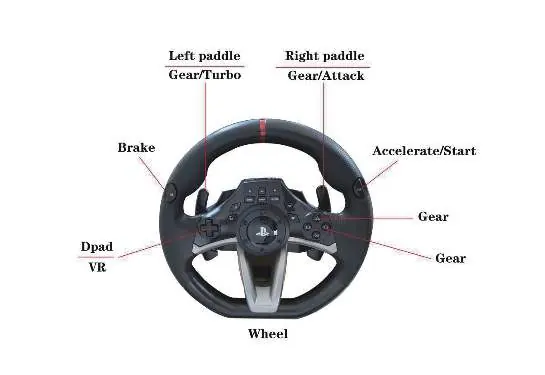
- Select games: Turn the wheel left or right.
- Launch game: Press the designated button.
- Start game: Press the designated button.
- Exit game: Long press the designated button.
- Shifting/Combat: Use the left paddle to shift gears and the right paddle to fire or attack.
- Navigation/Gears: Use the DPad cross button to change views or switch gears in manual mode.
- Brake/Accelerator: L2 functions as the brake, and R2 functions as the accelerator.
Adjustable Sensitivity
Both the steering wheel and foot pedals have seven sensitivity levels, indicated by LED colors. To adjust:
- Press the ASSIGN button for 3 seconds until the Program LED turns on.
- Press the OPTIONS button.
- Use the Directional Pad to increase or decrease sensitivity.
- Press the ASSIGN button again to save settings.
Sensitivity Levels (LED Colors):
- 1 (Green): Gradual (Steady steering)
- 2 (Yellow): Gradual
- 3 (Red): Default
- 4 (Purple): Default
- 5 (Blue): Responsive
- 6 (Light Blue): Responsive
- 7 (White): Responsive (Easy to turn)
Troubleshooting
If you encounter issues with the game system, follow these steps:
- No video, CPU fan working: Turn off power, remove the power wire, and reinstall the DDR2 RAM. If the issue persists, replace the RAM.
- "Reboot and Select proper boot device" error: Turn off power, check that hard disk data and power cables are connected securely, and restart. If the issue persists, replace the hard disk.
- No video, CPU fan not working: Check the power supply fan and cable connections. Check the fuse. If the issue persists, the mainboard battery (CR2032) may be dead; replace it and trigger the mainboard power pins.
- Cannot enter game system: Turn off power, remove the power cord, restart, or replace the SSD.
Practical help
Common problems
No video/picture, but CPU fan is working
Turn off power, remove power wire, and reinstall the DDR2 RAM. If it still fails, replace the DDR2 RAM.
Monitor displays 'Reboot and Select proper boot device'
Turn off power, check that hard disk data and power cables are connected securely, and restart. If it still fails, replace the hard disk.
No video/picture, and CPU fan is not working
Check power supply fan and cable connections. Check the fuse. If it still fails, the mainboard battery (CR2032) may be dead; replace it and trigger the mainboard power pins.
Cannot enter game system
Turn off power, remove the power cord, restart, or replace the SSD.
Before use
- Ensure all cables are securely connected to the I/O board and the computer.
- Verify that the power supply is functioning if the system does not boot.
- Check the fuse if there is no power to the system.
- Ensure the DDR2 RAM is properly seated if the system powers on but shows no video.
Specs in practice
- Sensitivity Levels
- 7 levels indicated by LED colors (Green to White) for both steering and pedals.
Images and diagrams
- System Layout: Illustrates connections between the computer, I/O board, speakers, coin acceptor, and the steering wheel.
- Buttons Layout: Shows the specific functions of the steering wheel paddles, DPad, and buttons.
Model compatibility
- Sensitivity settings are applicable to a specific list of MAME games provided in the manual.

Manual page author
David Miller
Documentation analyst
Organizes user manual content into clear summaries, with attention to model details, product context, and everyday usability.