Electronics / Monitors
Calibration Reset Guide for Thrustmaster Joysticks and Rudder Pedals
Step-by-step instructions to reset Windows calibration for Thrustmaster joysticks and rudder pedals. Resolve issues with non-progressive axes by uninstalling drivers and resetting controller settings.
Table of contents
Manual images
Jump to the sectionQuick guide from the manual
This guide provides instructions on how to reset the Windows calibration for your Thrustmaster product. This procedure is necessary if you have configured your product via Windows, as it may conflict with the default product calibration and the calibration performed by the official driver.
Driver Uninstallation
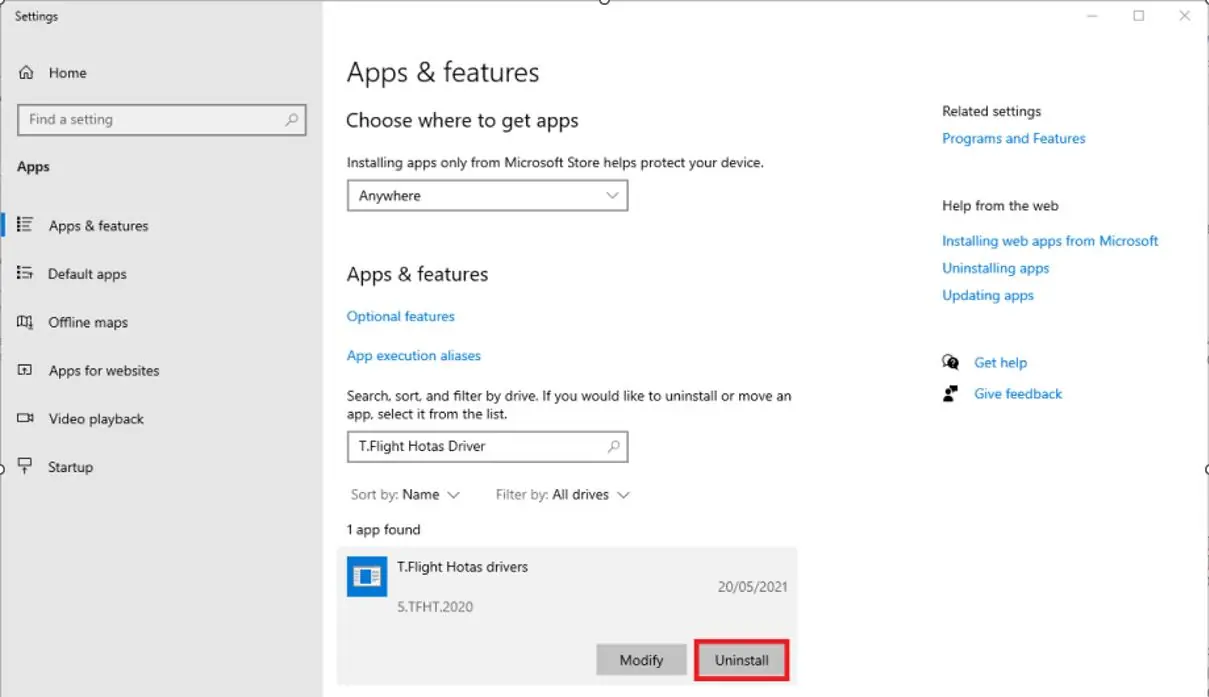
- Right-click the Windows Start button in the bottom left-hand corner of your screen.
- Select Apps & features.
- In the search bar, type T.Flight Hotas drivers or Flight.
- Click on the driver and select Uninstall.
- Once the uninstallation is complete, restart your computer.
Resetting Windows Calibration
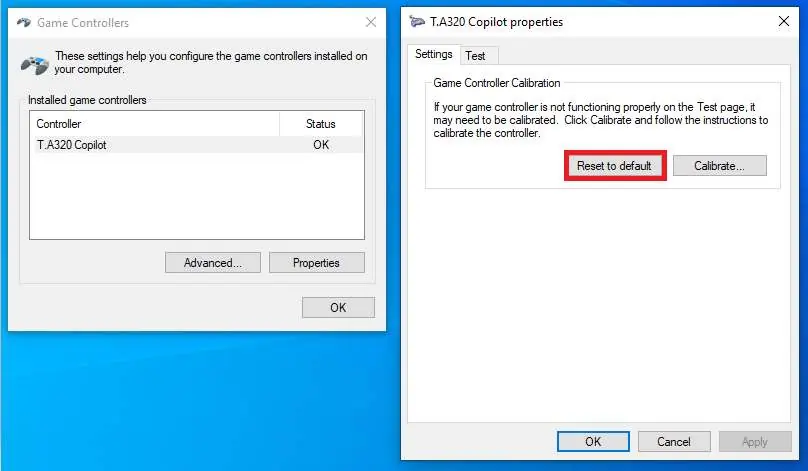
- Connect your joystick or pedal set to your computer.
- Simultaneously press the Windows and R keys on your keyboard.
- In the window that opens, type joy.cpl and press Enter.
- The Game Controllers window will open. Select your joystick or pedal set from the list.
- Click Properties.
- In the new window, select the Settings tab.
- Click Reset, then click OK to close the window.
Finalizing
After resetting the calibration, disconnect the product from your computer. You must now reinstall your product's driver. If you need a download link for your driver, please contact the customer service team.
Troubleshooting
If any of these steps do not proceed correctly, please contact the customer service team. Providing screenshots or photos illustrating the issue or any error messages displayed will help the support team assist you more effectively.
Official resources from the manual
Practical help
Common problems
Device axes are not progressive after Windows calibration
Follow the steps in this guide to uninstall the driver, reset the calibration via joy.cpl, and reinstall the driver.
Before use
- Ensure your joystick or pedal set is connected to the computer.
- Have your product driver installer ready for reinstallation.
- Save all open work before restarting your computer.
Images and diagrams
- The driver uninstallation window shows where to find and remove the T.Flight Hotas drivers.
- The Game Controllers properties window highlights the Reset to default button.
Model compatibility
- This guide applies to Thrustmaster joysticks and rudder pedals.
- The default name of the device in the Game Controllers window may vary depending on the specific product (e.g., T.A320 Pilot for TCA Sidestick).

Manual page author
Michael Turner
Technical manual editor
Reviews PDF manuals for structure, safety notes, and practical product details so readers can find the right information quickly.