Electronics / Paper Shredders
User Manual for HP OneShred Auto 100CC Paper Shredder
Quick guide for the HP OneShred Auto 100CC paper shredder. Learn how to set up, operate, clear paper jams, oil the cutters, and troubleshoot common issues.
Table of contents
Manual images
Click an image to enlargeQuick Start Guide
To begin using your HP OneShred Auto 100CC, ensure the waste bin is fully inserted until it clicks into place. Connect the power cable to a wall outlet and press the Power button. The status LED will light up blue when ready. The shredder features an automatic feed tray for up to 100 sheets and a manual feed slot for up to 9 sheets.
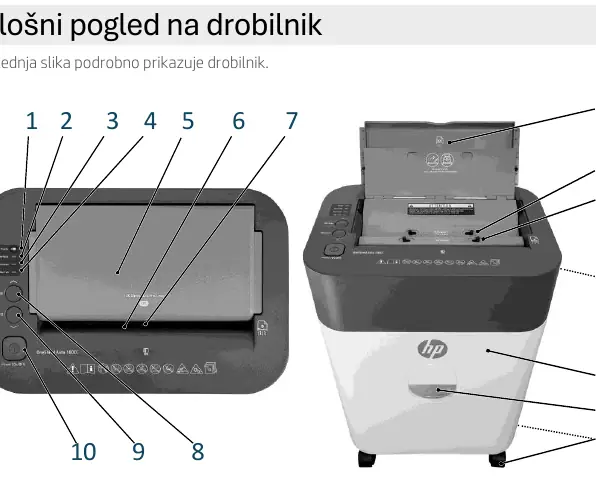
Safety Information
- Keep away from children: This device is not intended for use by children.
- Avoid contact: Keep hands, loose clothing, hair, jewelry, and ties away from the feed slot.
- Flammable materials: Never use aerosol sprays near the shredder as they may ignite.
- Environment: Use only indoors. Keep away from heat sources and maintain at least 10 cm distance from walls.
- Maintenance: Always unplug the device before cleaning or performing maintenance.
Setup and Operation
Auto-Feed Shredding
- Open the automatic feed tray lid.
- Insert up to 100 sheets of paper.
- The device will automatically pull and shred the paper. It stops when the tray is empty.
Manual Shredding
- Insert paper (up to 9 sheets) or a single credit card into the center of the manual feed slot.
- The shredder will automatically detect the material and begin shredding.
- If the sensor does not detect the material, press the Forward button.
Troubleshooting and Jam Clearance
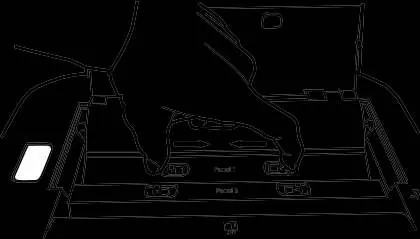
Overheating and Overload
- Overheating: If the shredder overheats, it will stop automatically. Wait at least 40 minutes for it to cool down.
- Overload: If the overload LED lights up, press the Reverse button to clear the material.
Clearing Paper Jams
- Press the Reverse button to back out the jammed paper.
- If the paper is stuck in the rollers, unplug the device.
- Open the top access panel (Panel 1) by moving the two access pins inward and lifting the panel.
- If further access is needed, open the lower access panel (Panel 2) in the same manner.
- Remove the jammed material carefully.
- Ensure both panels are securely locked back into place before resuming operation.
Maintenance
To extend the life of your shredder, oil the cutting mechanism regularly. Use only special shredder oil. Do not use aerosol oils. You can apply oil by spreading it across a sheet of paper and feeding it through the shredder, or by using pre-oiled sheets.
Technical Specifications
- Auto-feed capacity: 100 sheets
- Manual feed capacity: 9 sheets
- Bin volume: 17 liters
- Security level: P-4 (DIN 66399-2)
- Dimensions: 331 x 218 x 502 mm
- Weight: 8.4 kg
Manufacturer information
HP Inc.
Practical help
Common problems
Shredder stops and Overheat LED is on
The device has overheated. Wait at least 40 minutes for it to cool down.
Overload LED is on
Too much paper was inserted. Press the Reverse button and remove the excess material.
Paper jam in auto-feed
Press the Reverse button to clear the jam. If it persists, open the access panels to remove the paper manually.
Before use
- Place the shredder on a stable, level surface.
- Ensure the waste bin is fully inserted and clicks into place.
- Keep the device at least 10 cm away from walls for proper cooling.
- Remove all staples, paperclips, and rubber bands from documents.
- Ensure the power cable is not damaged.
Specs in practice
- Security Level P-4
- Suitable for sensitive and confidential documents; particle size <= 160 mm².
- Auto-feed capacity
- Maximum of 100 sheets of paper can be loaded for automatic shredding.
- Manual feed capacity
- Maximum of 9 sheets of paper or 1 credit card at a time.
Images and diagrams
- Access Panels 1 and 2: Located on top of the unit, these can be opened to clear severe paper jams from the cutting mechanism.
Model compatibility
- Credit cards must be inserted vertically into the manual feed slot.

Manual page author
Michael Turner
Technical manual editor
Reviews PDF manuals for structure, safety notes, and practical product details so readers can find the right information quickly.