Computers / Laptops
User Manual for HyperGear Power Brick 24,000mAh Laptop Power Bank
Quick guide for the HyperGear Power Brick 24,000mAh laptop power bank. Includes charging instructions, AC outlet usage, LED flashlight operation, safety warnings, and troubleshooting.
Table of contents
Quick guide from the manual
The HyperGear Power Brick is a 24,000mAh portable power bank featuring a built-in AC outlet, USB-C PD, and USB-A ports. It is designed for charging small electronics like laptops, tablets, drones, and cameras. Important: Fully charge the power bank before first use. Only use the included 20W USB-C PD wall charger and cable to recharge the unit; using third-party chargers may damage the device and void the warranty.
Device Overview
The device features the following components:
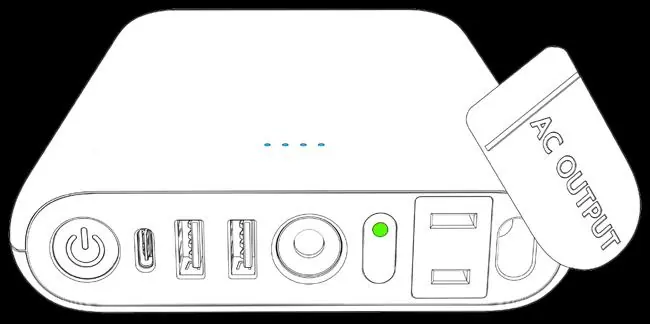
- Power button for USB
- USB-C port (Input/Output)
- USB-A ports
- Power level indicator (4 LEDs)
- LED flashlight
- AC power button & indicator
- AC power outlet
- AC outlet cover
Charging the Power Bank
Connect the power bank to a power source using the included 20W USB-C PD wall charger and cable. The blue LED lights will blink to indicate charging progress. When all four lights remain solid, the unit is fully charged. A full charge takes approximately 2.5 to 3 hours.
Using the Power Bank
USB Charging: Connect your device to the USB-C or USB-A port. Charging should start automatically; if not, press the power button. You can charge up to three USB devices simultaneously if the AC outlet is not in use.
AC Outlet: Open the AC outlet cover. Press and hold the AC power button for 2-3 seconds until the indicator light turns blue. Connect your AC-powered device. When finished, press and hold the AC power button for 2-3 seconds to turn off the output and disconnect your device.
LED Flashlight: Double-press the power button to toggle the LED flashlight on or off.
Safety and Maintenance
- Do not disassemble, modify, or attempt to repair the unit.
- Avoid extreme temperatures (below 40°F or above 90°F).
- Keep away from liquids, flammable gases, and heat sources.
- Charge the unit at least once every 3 months if not in use.
- If the device shows signs of damage, abnormal heat, or odor, discontinue use immediately.
- The unit is not waterproof.
Troubleshooting
If you experience buzzing sounds in audio equipment or interference with TV signals, increase the distance between the power bank and the affected electronics, or adjust the orientation of the devices.
Practical help
Common problems
Charging does not start automatically
Press and hold the power button until the LED indicators light up.
Buzzing sound in audio systems/radios
This is due to inadequate power supply filtering in the audio device; use an audio product with a higher-quality filter.
TV signal interference
Increase the distance between the power bank and the TV/antenna, or use a shielded antenna cable.
All four LEDs flashing
Indicates a general device malfunction. Do not use the unit until repaired.
Before use
- Fully charge the power bank before first use.
- Verify the wattage requirement of your device to ensure compatibility.
- Ensure you are using the included 20W USB-C PD charger.
- Check that the AC outlet cover is clear of obstructions.
Specs in practice
- Battery Capacity
- 24,000mAh (88.56Wh) total energy storage.
- USB-C Output
- Supports up to 65W Power Delivery for fast charging laptops.
- Operating Temperature
- 32-104°F for charging; 14-104°F for discharging.
Images and diagrams
- The power bank features a dedicated AC power button and blue indicator light to prevent accidental activation of the AC outlet.
- The four blue LEDs provide a visual representation of the remaining battery capacity (0% to 100%).
Model compatibility
- Ideal for small electronics like laptops, tablets, and drones.
- Not suitable for large home appliances like refrigerators.
- If using the AC outlet, it is recommended to charge only one USB device simultaneously.

Manual page author
David Miller
Documentation analyst
Organizes user manual content into clear summaries, with attention to model details, product context, and everyday usability.