Electronics / USB Extenders
User Guide for Icron Raven 3301 USB Extender
Quick guide for the Icron Raven 3301 USB 3.1 100m Extender. Includes installation steps, cabling requirements, mounting options, LED status indicators, and troubleshooting tips.
Table of contents
Manual images
Click an image to enlargeQuick Start Guide
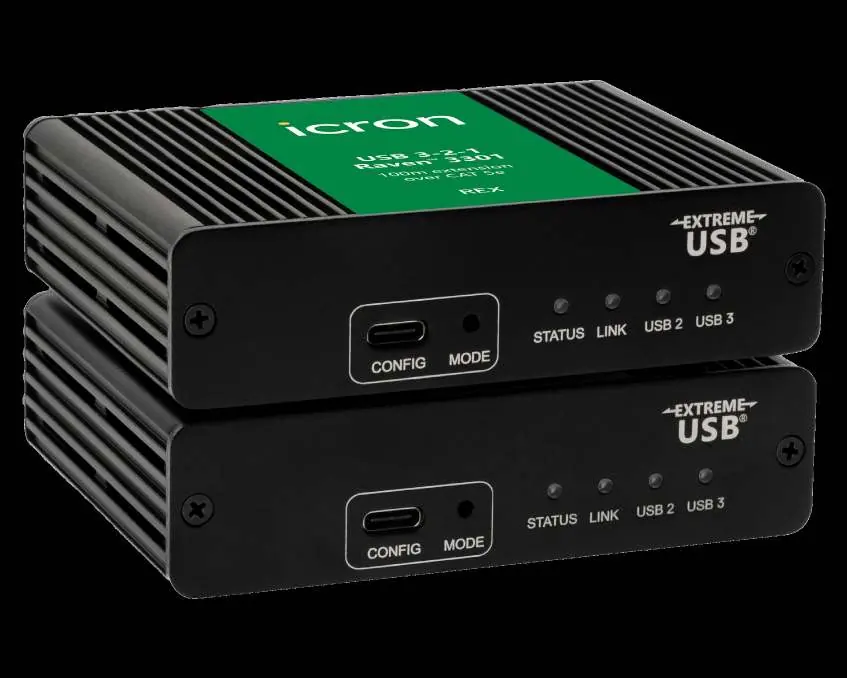
The Icron Raven 3301 is a USB 3.1 extender system that allows you to extend USB 3.2 Gen 1, 2.0, and 1.1 devices up to 100m over a single CAT 5e cable. Before starting, ensure all necessary drivers for your USB devices are installed on the host computer.
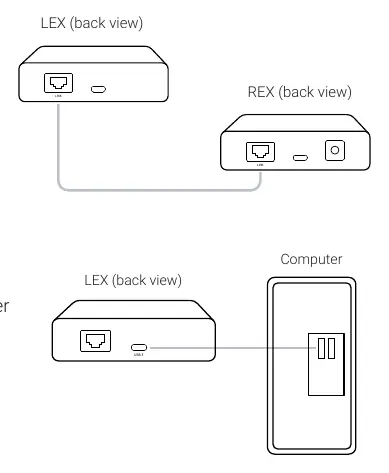
- Place the LEX (Local Extender) near the host computer and the REX (Remote Extender) near the USB devices.
- Connect the CAT 5e extension cable to the Link ports (RJ45) on both the LEX and REX units.
- Connect the LEX to the host computer using a USB-C cable.
- Connect the REX to the provided 5V 4A power adapter and plug it into a power source.
- Attach your USB device(s) to the REX unit.
Product Overview
The system consists of two units:
- LEX (Local Extender): Powered by the USB connection to the host computer. Features a Link port and a USB-C host port.
- REX (Remote Extender): Powered by an external 5V 4A power adapter. Features a Link port, a USB-C device port, and a DC power port.
Both units feature LED indicators for Status, Link, USB 2, and USB 3 connectivity. A solid LED indicates normal operation, while blinking may indicate booting or temperature warnings.
Installation
For optimal performance, use shielded or foiled CAT 5e cable. The total distance, including patch cables, must not exceed 100m. If using premise cabling, ensure patch cords do not exceed 10m total.
- Requirements: USB compatible computer, USB devices, and CAT 5e cabling with RJ45 connectors.
- Site Preparation: Ensure the cable run is isolated from interference sources like power lines or fluorescent lighting. Do not bundle, loop, or coil the cable.
- Checking Installation: Verify that the Status, Link, USB 2, and USB 3 LEDs are illuminated on both units. If Link LEDs are off, check the cabling.
Mounting Options
The Raven 3301 enclosure includes four pre-drilled holes for mounting.
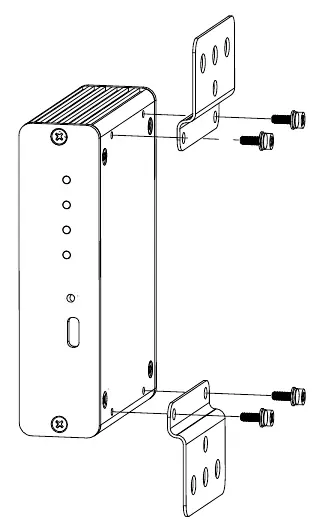
- Option 1 (Mounting Kit): Requires the optional USB Extender Mounting Kit (Part #10-00536).
- Option 2 (Direct Surface): Use M2.5 screws and locking washers. Drill 3.70mm holes spaced 42.0mm x 88.5mm apart. Do not exceed a screw depth of 10mm into the unit.
Troubleshooting
If you encounter issues, follow these steps:
- All LEDs OFF: Check power connections. Ensure the REX is powered and the LEX is connected to the host.
- Link LEDs OFF: Verify CAT 5e cable integrity and length (max 100m). Try a short patch cable to test the link.
- USB LEDs OFF: Ensure the host computer is on and the USB cable is connected properly. Try a different USB port or cable.
- Device Not Detected: Update host computer drivers (BIOS/chipset/USB controller). Test the device directly on the host computer to rule out device failure.
Specifications
- Range: 100m over CAT 5e UTP or better.
- USB Support: USB 3.2 Gen 1, 2.0, 1.1 (up to 5Gbps).
- REX Power: 5V DC 4A (supplies 3A at the USB-C port).
- Operating Temperature: 0°C to 40°C.
- Storage Temperature: -20°C to 70°C.
Manufacturer information
Icron Technologies Corp
Practical help
Common problems
All LEDs are OFF
Ensure the REX power adapter is connected to a live outlet and the LEX is connected to the host via USB.
Link LEDs are OFF
Check that the CAT 5e cable is not longer than 100m and is not damaged. Test with a short patch cable.
USB 2/3 LEDs are OFF
Ensure the host computer is powered on and the USB cable is securely connected. Try a different USB port.
Device detected as Unknown
Update host computer BIOS, chipset, or USB controller drivers. Test the device directly on the host.
Before use
- Ensure USB drivers are installed on the host computer.
- Verify CAT 5e cabling is available (max 100m).
- Prepare a USB 3 cable for the LEX unit.
- Ensure a power outlet is available for the REX unit.
- Check that the mounting surface can accommodate the 42mm x 88.5mm hole pattern if mounting.
Specs in practice
- USB Standards
- Supports USB 3.2 Gen 1, 2.0, and 1.1 up to 5Gbps.
Images and diagrams
- LEX Unit: Connects to host computer via USB-C.
- REX Unit: Connects to USB devices and external power.
- Link Port: RJ45 connection between LEX and REX units.
Model compatibility
- Does not support DP Alt mode for USB-C.
- Compatible with Windows, macOS, Linux, and ChromeOS.
- Supports up to 31 devices via USB hubs.

Manual page author
Emily Carter
User documentation editor
Prepares concise manual descriptions and highlights the most useful setup, operation, and maintenance information for readers.