Electronics / Amplifiers Receivers
User Manual for AmpliTube TONEX Pedal
Comprehensive user guide for the AmpliTube TONEX Pedal. Learn how to set up, manage presets, configure external controls, use as an audio interface, and optimize your tone models.
Table of contents
Manual images
Jump to the sectionQuick guide from the manual
The TONEX Pedal is an advanced guitar and bass pedal utilizing AI Machine Modeling (AIMM) technology to recreate the sound of amplifiers, cabinets, and pedals. This guide provides essential information for setup, operation, and configuration.
Ecosystem Overview
The TONEX ecosystem includes several components:
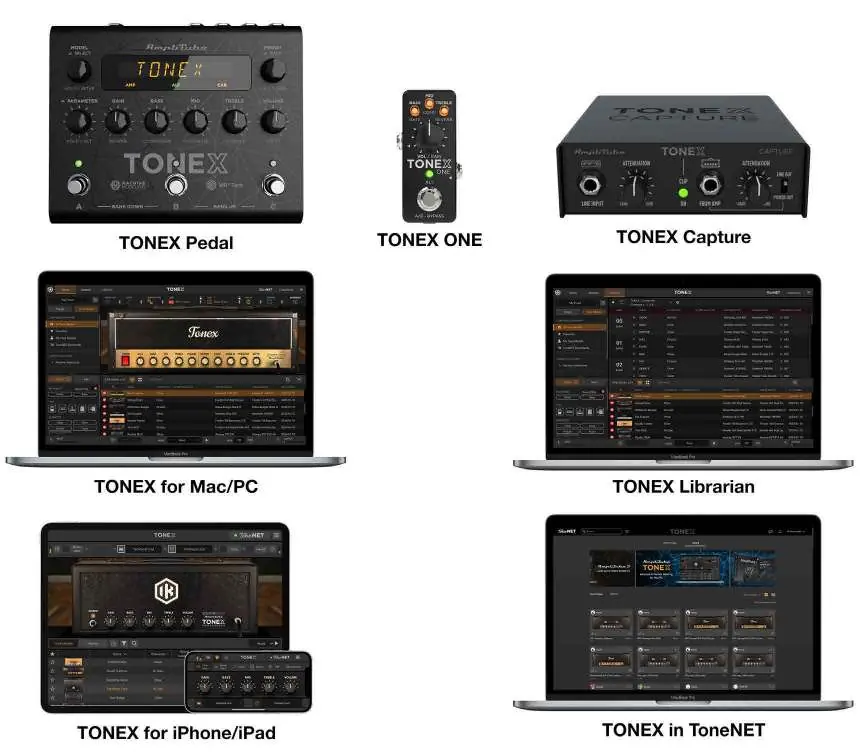
- TONEX Pedal: Hardware for playing Tone Models live.
- TONEX Software (Mac/PC): For playing, managing, and modeling Tone Models.
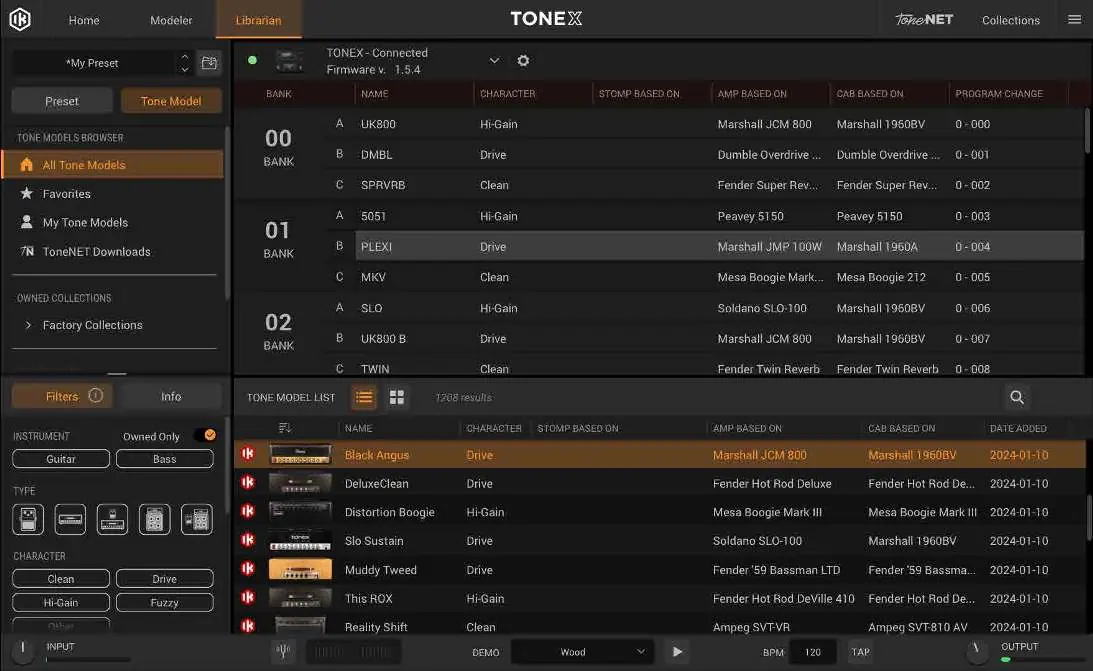
- TONEX Librarian: Integrated into the software for transferring presets between computer and pedal.
- ToneNET: Online platform for sharing and downloading Tone Models.
Getting Started
To begin using your TONEX Pedal:
- Download and install the IK Product Manager from the official website.
- Log in or create an account.
- Register your TONEX Pedal using the provided serial number.
- Download and install the TONEX software.
- Connect the pedal to your computer via USB to manage presets and update firmware.
Connections
The pedal supports various connection scenarios:
- Power Amp/Cabinet: Connect to a power amp. Ensure the CAB section is bypassed in your presets.
- FRFR/Powered Speaker: Connect directly. Keep the CAB section active.
- PA/Mixer: Use a DI box for direct connection. Keep the CAB section active.
- Silent Play: Connect headphones directly to the pedal.
- Recording: Connect via USB to use as an audio interface.
Front Panel Controls
The front panel allows for direct manipulation of your sound:
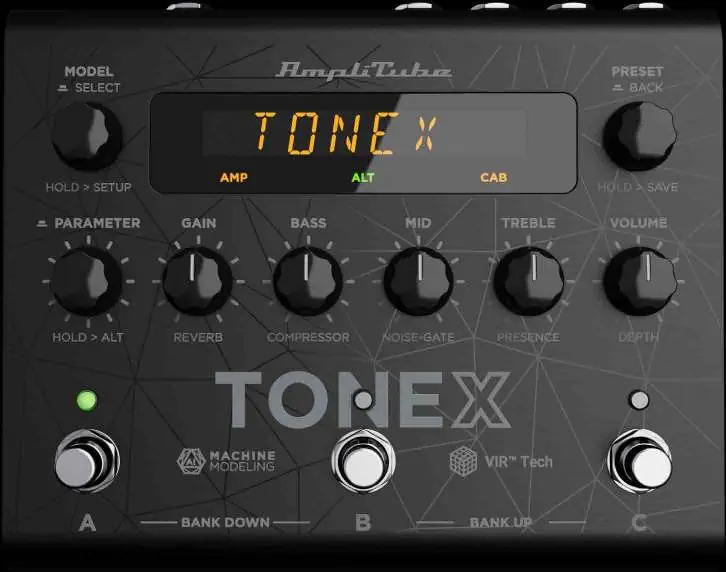
- MODEL Encoder: Browse and select Tone Models. Hold to access Setup menus.
- PRESET Encoder: Browse presets. Hold to save.
- PARAMETER Encoder: Access advanced parameters. Hold to toggle between main and alternative parameters.
- Footswitches: Used for preset/bank navigation, tuner access, and tap tempo.
Rear Panel
The rear panel provides all necessary I/O:
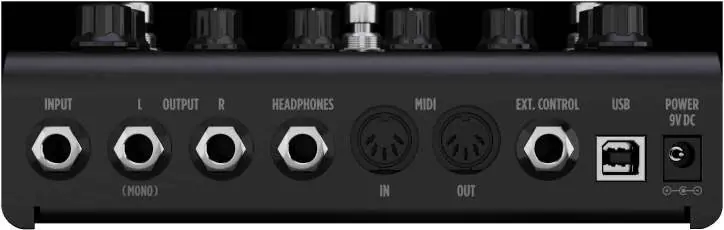
- Input: Mono/unbalanced instrument input.
- Output: Stereo/unbalanced outputs. Use only the left output for mono configurations.
- Headphones: Dedicated output for silent practice.
- MIDI: In/Out ports for MIDI control.
- Ext. Control: Input for expression pedals or external switches.
- USB: For computer connection and audio interface functionality.
- Power: 9V DC center negative input.
Preset Management
Presets are organized into 50 banks, each containing 3 slots (A, B, C), totaling 150 presets. You can rename banks and presets directly on the pedal or via the TONEX Librarian software. The pedal automatically manages memory, removing unused Tone Models when new ones are imported.
Parameters
Parameters are divided into three categories:
- Main Parameters: Gain, Bass, Mid, Treble, Volume.
- Alternative Parameters: Accessed by holding the PARAMETER encoder (Reverb Mix, Compressor Threshold, Noise-Gate Threshold, Presence, Depth).
- Additional Parameters: Accessed via the PARAMETER menu (Model, Gate, Comp, EQ, VIR, Mod, Delay, Reverb).
Configuration
The Global Setup menu allows you to configure:
- BPM: Set global or preset-specific tempo.
- External Control: Configure expression pedals or switches (Single/Dual).
- MIDI: Set MIDI channel, MIDI Thru behavior, and Clock settings.
- General: Naming formats, footswitch behavior, global cabinet bypass, and operation mode (Live/Interface).
Interface Mode
To use the TONEX Pedal as an audio interface:
- Navigate to GLOBAL SETUP > OPERATION MODE > INTERFACE.
- Connect the pedal to your computer via USB.
- Use the pedal's outputs or headphone jack for monitoring.
- Adjust the INTERFACE VOL in the Global Setup menu to control the output level.
Practical help
Common problems
Clip indicator on screen
Reduce the volume of the TONEX pedal to avoid clipping the output stage.
Expression pedal not working
Ensure it is calibrated in the GLOBAL SETUP > EXP.CTRL > EXP.CALIB menu.
No sound in Interface Mode
Ensure the pedal is set to INTERFACE mode in GLOBAL SETUP > OPERATION MODE.
Before use
- Download and install IK Product Manager.
- Register your TONEX Pedal using the serial number.
- Connect the pedal to your computer via USB for firmware updates.
- Check your output configuration (Power Amp, FRFR, or PA) and adjust the CAB section accordingly.
Images and diagrams
- Front Panel: Features 5 encoders for parameter control, a main display, and 3 footswitches for preset/bank navigation and tuner access.
- Rear Panel: Includes Input, Stereo Outputs, Headphones, MIDI In/Out, External Control, USB, and 9V DC power.
Model compatibility
- Compatible with Windows 10 or later (requires ASIO drivers).
- Supports external expression pedals, single switches, and dual switches.

Manual page author
David Miller
Documentation analyst
Organizes user manual content into clear summaries, with attention to model details, product context, and everyday usability.