Electronics / Televisions
User Manual for Insignia 32-inch LED TV NS-32D510NA19
Quick setup guide for the Insignia 32-inch 1080p LED TV (NS-32D510NA19). This guide covers stand installation, wall mounting, device connections, audio setup, and remote control programming.
Table of contents
Manual images
Click an image to enlargeQuick guide from the manual
This document provides essential setup instructions for the Insignia 32-inch LED TV. Before plugging in the power cord, ensure all external devices are connected. The TV supports various input methods including HDMI, AV, and Coaxial. For advanced audio setups, digital optical output is available.
Stand installation
To attach the TV stands for tabletop use:
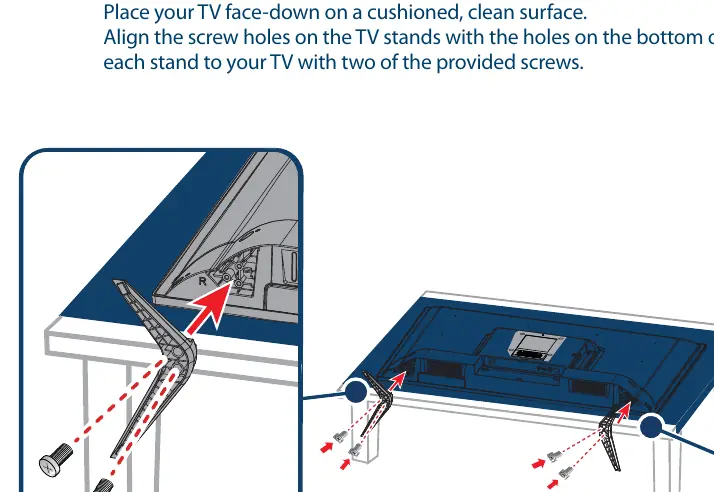
- Place the TV face-down on a cushioned, clean surface to prevent screen damage.
- Align the screw holes on the TV stands with the holes on the bottom of the TV.
- Secure each stand to the TV using the two provided M4 screws (12 mm length).
Wall mounting
If you prefer to mount the TV on a wall:
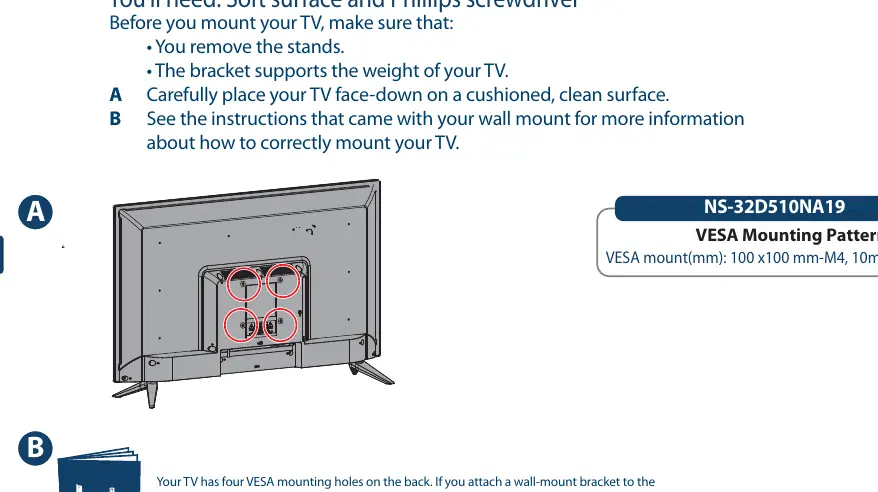
- Remove the stands from the TV.
- Ensure the wall-mount bracket supports the weight of the TV.
- Use all four VESA mounting holes on the back of the TV (100 x 100 mm pattern).
- Warning: Failure to use all four mounting holes may cause the TV to fall, resulting in property damage or personal injury.
Making connections
The TV features multiple input ports on the back:
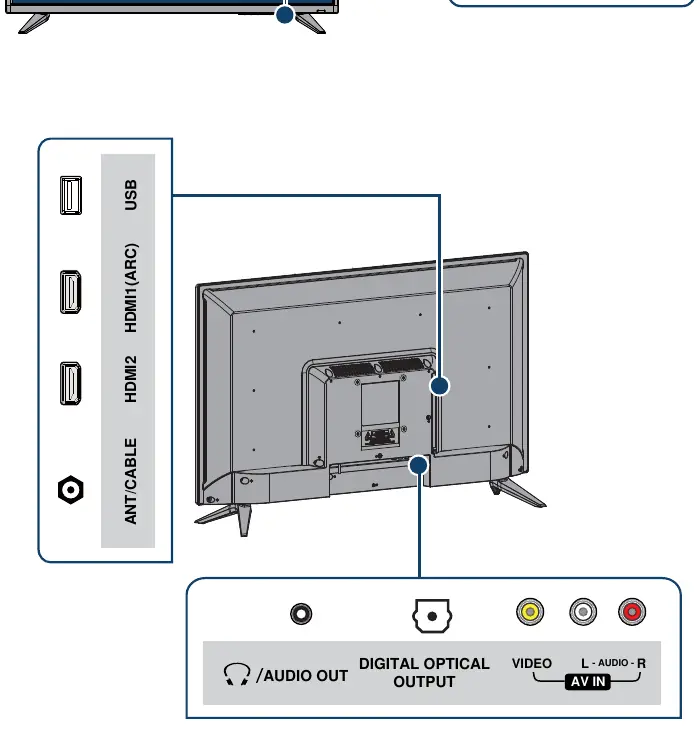
- HDMI (Best): Use for high-quality video. Connect devices to any HDMI jack. Note that certain devices require the HDMI 1 (ARC) jack.
- AV (Good): Use for older devices with composite video and audio cables.
- Coaxial (Good): Use for antenna or cable connections.
Connecting audio devices
To connect external speakers or a soundbar:
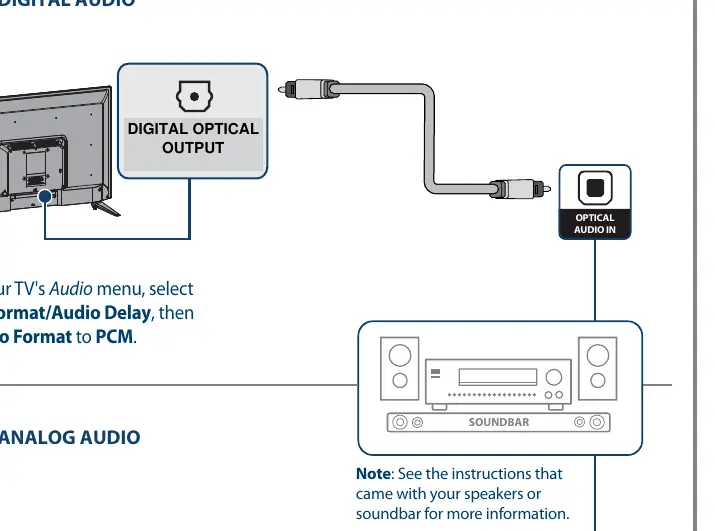
- Digital Audio: Connect via the Digital Optical Output. In the TV's Audio menu, select Audio Format/Audio Delay and set Audio Format to PCM.
- Analog Audio: Connect via the Audio Out jack.
Remote control usage
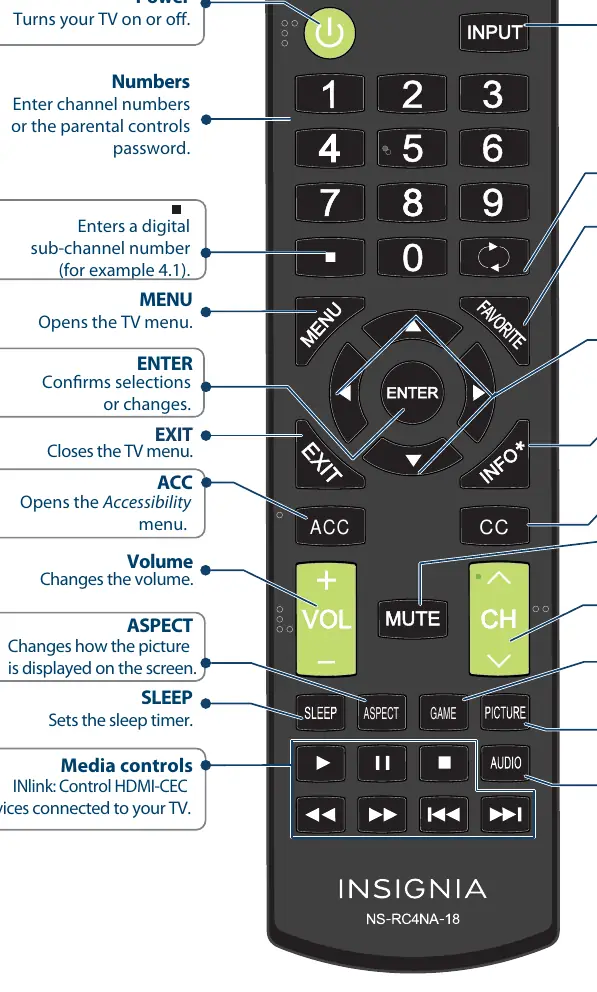
The included remote control allows you to navigate menus, change channels, adjust volume, and select inputs. If you wish to use a universal remote, the manual provides a list of common codes for major cable and satellite providers. Visit www.insigniaproducts.com/remotecodes for the most up-to-date list of codes.
Turning on the TV
- Plug the power cord into a power outlet.
- Remove the remote control cover and install the two included AAA batteries.
- Press the Power button on the remote control.
- Follow the on-screen instructions to complete the initial setup.
Official resources from the manual
Practical help
Common problems
TV will not turn on
Ensure the power cord is securely plugged into a power outlet.
No sound when using external speakers
If using digital audio, ensure the Audio Format is set to PCM in the TV's Audio menu.
Universal remote not controlling TV
Ensure you are using the correct code for your provider from the list in the manual or visit the Insignia website for updates.
Before use
- Place TV face-down on a cushioned, clean surface.
- Have a Phillips screwdriver ready for stand installation.
- Ensure all external devices are connected before plugging in the power cord.
- Remove stands before attempting wall mounting.
- Verify the wall mount bracket supports the TV weight.
Specs in practice
- Audio Format: PCM
- Required setting for digital audio output to function correctly with external speakers.
Images and diagrams
- Stand attachment: Shows aligning the stand with the bottom of the TV and securing with two screws per side.
- Wall mount: Illustrates the VESA hole pattern on the back of the TV.
- Connections: Displays the layout of HDMI, AV, and Coaxial ports on the back panel.
Model compatibility
- Compatible with HDMI, AV, and Coaxial input devices.
- Supports universal remote programming for major providers like AT&T, Comcast, DirecTV, and others.

Manual page author
Michael Turner
Technical manual editor
Reviews PDF manuals for structure, safety notes, and practical product details so readers can find the right information quickly.