Electronics / Televisions
Insignia 40" 1080p 60Hz LED TV User Guide
Quick guide for the Insignia 40" 1080p 60Hz LED TV. Includes setup, connection instructions, remote control usage, and troubleshooting.
Table of contents
Manual images
Click an image to enlargeQuick guide from the manual
This guide provides essential information for setting up and using your Insignia 40" 1080p 60Hz LED TV. Before using the product, ensure you have read the safety instructions, particularly regarding proper television placement to prevent injury. The TV requires a stable surface or a compatible wall mount. The initial setup is guided by an on-screen Easy Setup wizard that helps configure language, time, and channel settings.
Installing the stand or wall-mount bracket
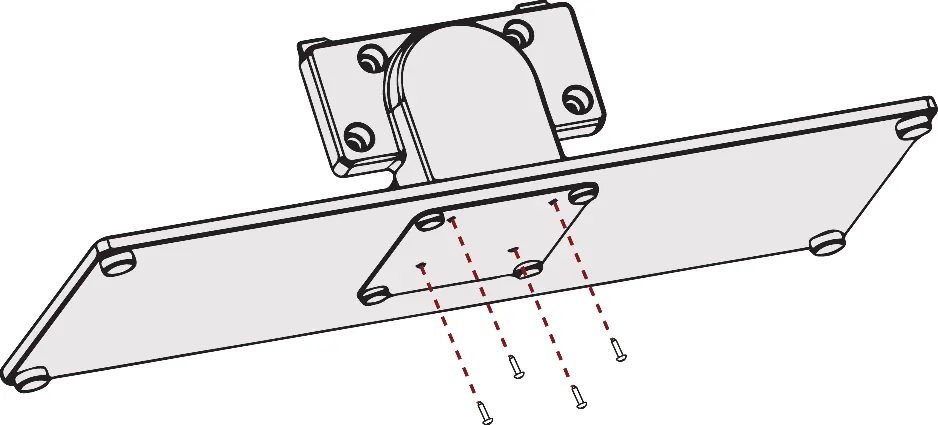
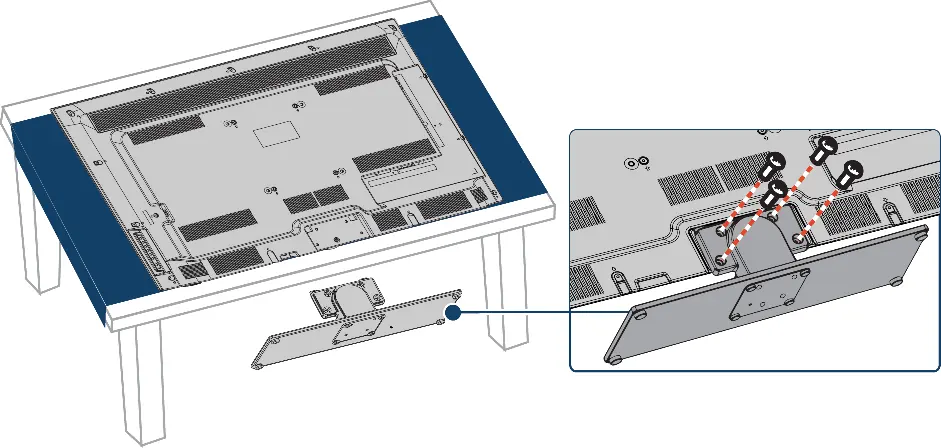
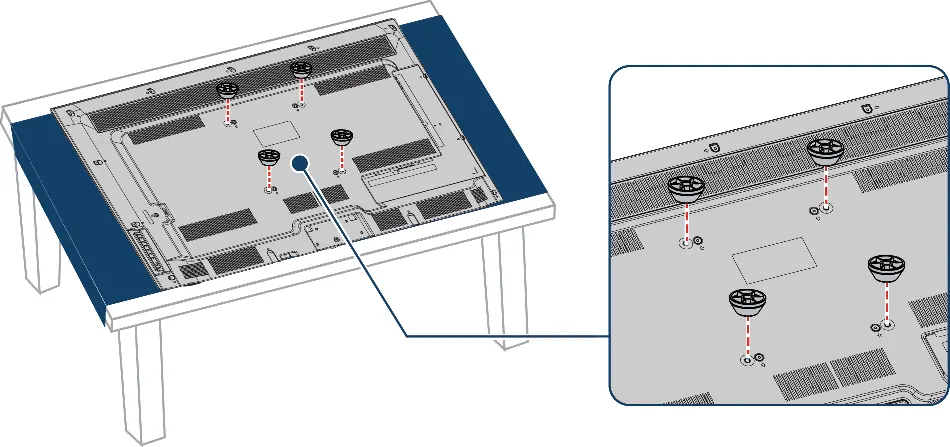
If placing the TV on a table, align the stand column with the base and secure it with the four provided ST4 x 16 mm screws. Then, attach the column to the back of the TV using the four M5 x 12 mm screws. If wall-mounting, ensure you use a UL-listed bracket and secure it using all four VESA mounting holes on the back of the TV. Use the provided spacers if necessary.
TV components
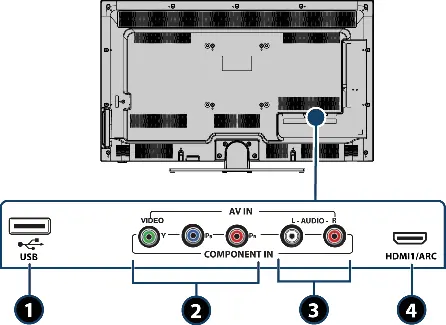
The TV features built-in controls on the side for basic operation (Menu, Input, Volume, Channel, Power). The back panel includes ports for USB, Component/AV, and HDMI/ARC connections. The remote control provides direct access to input selection, picture modes, and media controls.
Connections
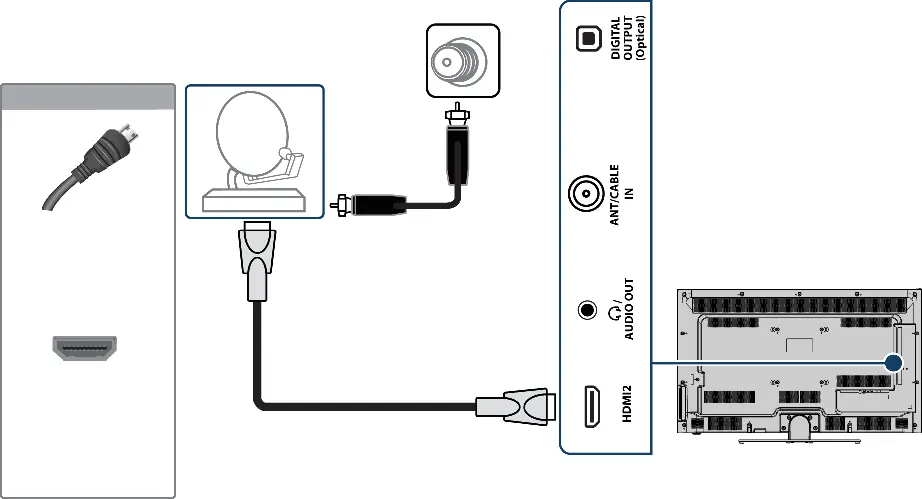
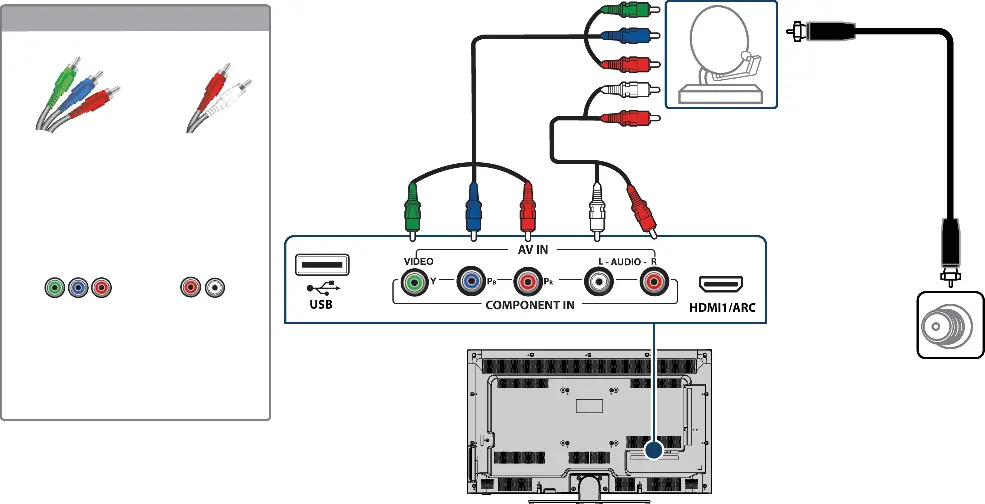
For the best video quality, use an HDMI connection for devices like cable/satellite boxes, DVD/Blu-ray players, game consoles, and computers. Component and AV (composite) connections are available for older devices. Note that the Component and AV jacks share audio inputs. You can also connect an antenna or cable TV directly to the ANT/CABLE IN jack.
Using the remote control
Install two AAA batteries, ensuring correct polarity. Point the remote directly at the sensor on the front of the TV. You can program universal remotes using codes found in the on-screen Help menu.
Settings and adjustments
Access the on-screen menu by pressing MENU. You can adjust picture settings (Vivid, Standard, Energy Savings, Movie, Game, Custom), sound settings (Audio Mode, Balance, Bass, Treble), and time settings. Parental controls allow you to block unrated TV or set rating levels using a password (default is 0000).
USB flash drive
Connect a USB flash drive to the USB port to view JPEG photos. Use the PHOTOS menu to browse, view favorites, or start a slideshow. Do not remove the drive while the TV is accessing it.
Troubleshooting
If you encounter issues, try these steps:
- No power: Check the power cord connection and ensure the outlet is working.
- No picture/sound: Verify the input source, check cable connections, and ensure the Audio Only setting is Off.
- Remote not working: Check batteries, remove obstructions, and ensure you are pointing at the sensor.
- No channels: Run the Auto Channel Search from the Channels menu.
Practical help
Common problems
No power
Ensure the power cord is plugged into a working outlet. Unplug the cord, wait 60 seconds, and plug it back in.
No picture or sound
Check that the correct input source is selected. Ensure cables are connected securely and the Audio Only setting is set to Off.
Remote control does not work
Check batteries, remove any obstructions between the remote and the sensor, and ensure you are pointing the remote directly at the TV.
No channels found
Run the Auto Channel Search from the Channels menu. Ensure the antenna or cable is connected securely.
Before use
- Install two AAA batteries in the remote control.
- Connect your antenna, cable, or satellite box.
- Connect the power cord to a power outlet.
- Place the TV on a stable surface or mount it securely using all four VESA holes.
- Turn on the TV and follow the on-screen Easy Setup wizard.
Specs in practice
- Refresh rate
- 60Hz.
- Power consumption
- 70W when on, less than 1W in standby mode.
Images and diagrams
- The back panel contains the USB port, Component/AV input jacks, and HDMI/ARC ports.
- The remote control features dedicated buttons for input selection, picture/sound modes, and media playback.
Model compatibility
- Supports JPEG image files via USB.
- INlink (HDMI CEC) allows control of compatible devices via the TV remote.
- Wall mount must be UL-listed and use all four VESA mounting holes.

Manual page author
Emily Carter
User documentation editor
Prepares concise manual descriptions and highlights the most useful setup, operation, and maintenance information for readers.