Electronics / Speakers & Soundbars
JBL On Time 200ID User Guide
Quick guide for the JBL On Time 200ID speaker dock and clock radio. Learn how to set up your iPod, configure alarms, tune the radio, and troubleshoot common issues.
Quick answers from the manual
Quick answer
- The JBL On Time 200ID is a speaker dock and clock radio for iPod. It features alarm settings, radio tuning, and backup battery support. p. 4
Key actions
- Setting the Clock p. 6
- Setting an Alarm p. 8
First start
- Install 3x AAA batteries, connect antennas, plug in power, and select the correct iPod adapter. p. 5
Problems and fixes
No power
Check wall outlet and power connections.
p. 13
iPod not charging
Check adapter and seating.
p. 14Maintenance and reset
- The system memory is maintained by a backup battery. p. 4
Technical specifications
| Parameter | Value | Meaning | Pages |
|---|---|---|---|
| Power Consumption | 30 Watts maximum | Maximum power draw | p. 13 |
| Dimensions | 11-3/16" x 5-3/4" x 2-3/4" | Physical size | p. 13 |
Where to find it in the PDF
- Controls p. 6, 10
- Troubleshooting p. 13, 14
Table of contents
Manual images
Click an image to enlargeQuick guide from the manual
The JBL On Time 200ID is a high-performance loudspeaker dock and clock radio for iPod. This guide covers the essential setup, operation, and troubleshooting steps to help you get started quickly.
Setup and Installation
Follow these steps to prepare your device for use:
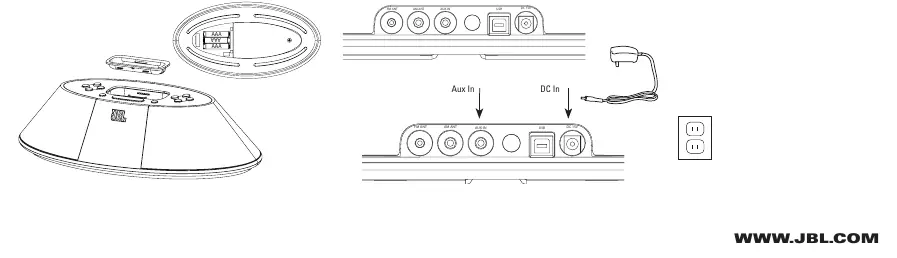
- Unpack: Identify all components, including the power supply, antennas, and iPod adapters.
- Backup Batteries: Install three AAA batteries in the compartment underneath the unit to maintain memory settings during power outages.
- Antennas: Connect the external AM antenna for better reception. Unwind and straighten the FM antenna wire.
- Power: Plug the power adapter into the DC In jack and then into a wall outlet.
- iPod Connection: Choose the appropriate adapter for your specific iPod model, place it into the docking station, and insert your iPod.
- Auxiliary Input: If using an additional audio source, connect it to the Aux In jack.
Controls and Navigation
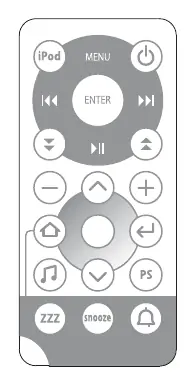
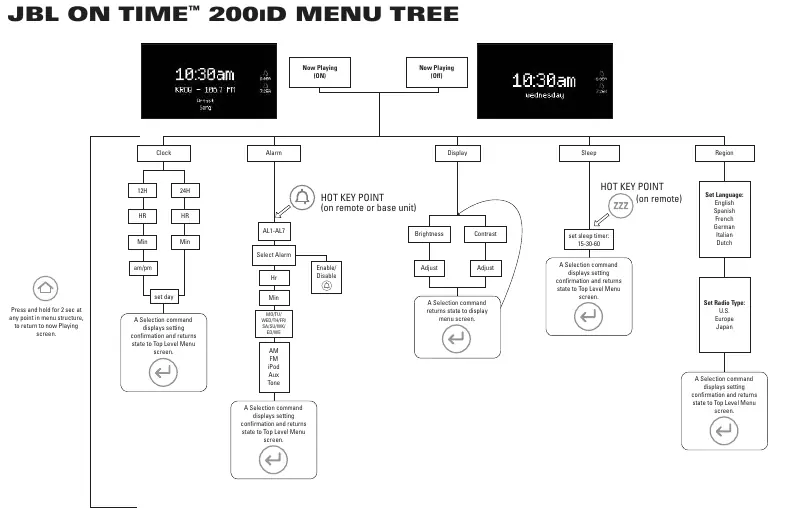
The system is controlled via the base unit buttons or the included IR remote. Use the Menu/Up Level button to access the main menu tree for settings like Clock, Alarm, Display, Sleep, and Region. The remote control provides direct access to source selection, volume, and iPod navigation.
Clock and Alarm Settings
To set the clock or alarms, navigate to the respective menu option using the Up/Down arrows and confirm with the Enter button. You can set multiple alarms and choose different sources (iPod, AM, FM, Aux) to wake up to.
Troubleshooting
If you encounter issues, check the following:
- No power: Ensure the wall outlet is active and the power adapter is connected.
- No sound: Verify the correct source is selected and the volume is turned up.
- iPod not charging: Ensure the correct adapter is used and the iPod is seated securely in the dock.
- Weak radio signal: Reposition the unit or connect the external AM antenna.
Manufacturer information
JBL
Practical help
Common problems
No sound from the unit
Check power connections, ensure the correct source is selected, and verify the volume is turned up.
iPod will not charge
Ensure the correct adapter is used for your specific iPod model and that the iPod is seated securely in the docking station.
No sound or weak signal from radio
Reposition the unit for better reception or connect the external AM antenna.
Distortion or static
Check volume levels on the source device and ensure cables are not near interference sources like monitors.
Before use
- Install 3x AAA batteries for backup memory.
- Select the correct iPod adapter for your device.
- Connect the external AM antenna.
- Unwind and straighten the FM antenna wire.
- Plug in the power adapter.
Specs in practice
- Frequency Response
- 70Hz – 20kHz
- Power Output
- 12 Watts per satellite at 1% THD
- Remote Battery
- CR2025
Images and diagrams
- The menu tree diagram illustrates how to navigate settings for Clock, Alarm, Display, Sleep, and Region.
- The rear panel diagram shows connections for FM/AM antennas, Aux In, USB, and DC power.
Model compatibility
- Designed for iPod.
- Requires specific adapter for different iPod models.

Manual page author
Emily Carter
User documentation editor
Prepares concise manual descriptions and highlights the most useful setup, operation, and maintenance information for readers.