Home / Clocks
User Manual for La Crosse Technology 11.8-Inch Atomic Metal Wall Clock
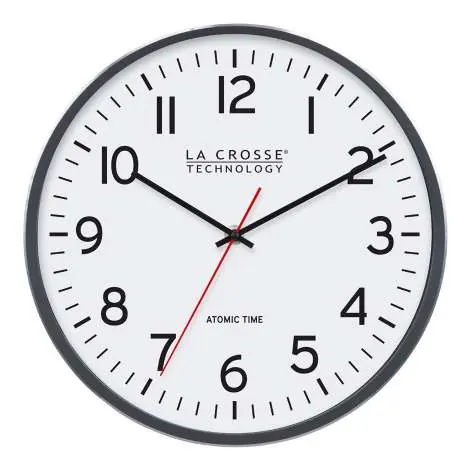
Quick guide for the La Crosse Technology 11.8-Inch Atomic Metal Wall Clock (Model 404-3730). Learn how to set up the atomic time signal, manually adjust the time, and maintain your clock.
Table of contents
Manual images
Click an image to enlargeQuick guide from the manual
To set up your La Crosse Technology Atomic Wall Clock, follow these steps:
- Select your desired Time Zone and DST (Daylight Saving Time) settings using the switches on the back of the clock.
- Insert one fresh AA alkaline battery into the battery compartment.
- The clock hands will automatically move to the 12:00 position and begin searching for the WWVB Atomic Time Signal for up to 8 minutes.
- If no signal is found, the clock will begin running from 12:00. It will continue to search for the signal periodically; allow up to 5 nights for the clock to receive the transmission.
Controls and Components
The back of the clock features the following controls:
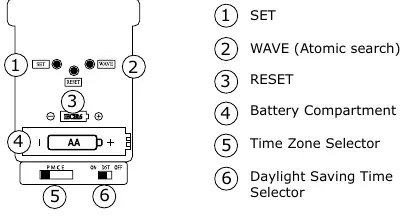
- SET: Used to manually set the time.
- WAVE: Initiates the atomic time search.
- RESET: Restarts the clock mechanism if it becomes unresponsive.
- Battery Compartment: Holds one AA battery.
- Time Zone Selector: Sets the correct time zone.
- Daylight Saving Time Selector: Enables or disables automatic DST adjustments.
Manual Time Setting
If the atomic signal is unavailable, you can set the time manually:
- Hold SET for 3 seconds: Enters manual time setting mode.
- Press and hold SET: Moves the hands quickly.
- Press and release SET: Moves the hands forward step by step.
Note: If the clock receives the Atomic Time Signal in the future, it will override your manual settings.
Resetting the Clock
If the clock does not respond when attempting to set the time manually, press the RESET button once. The hands will move to the 12:00 position and begin searching for the WWVB signal again.
Care and Maintenance
- Do not mix old and new batteries.
- Do not mix alkaline, standard, or rechargeable batteries.
- Clean battery contacts before installation.
- Ensure batteries are installed with correct polarity (+ and -).
- Remove batteries during long periods of non-use to prevent leakage and corrosion.
Specifications
- Movement: Atomic - Step Motion
- Time Zones: Pacific, Mountain, Central, Eastern
- Power: 1 AA Alkaline Battery (not included)
- Battery Life: 12+ months
- Dimensions: 11.81 in (30.0cm) Diameter, 1.69 in (4.3cm) Depth
- Placement: Indoor, Wall Mount
Manufacturer information
La Crosse Technology
Practical help
Common problems
Clock is not receiving the atomic signal.
Place the clock on an exterior wall near a window with the front or back facing Fort Collins, CO. Signal reception depends on local strength and interference.
Clock does not respond to manual setting.
Press the RESET button once to restart the mechanism.
Hands are not moving.
Check that the battery is installed correctly with the right polarity and that the battery is fresh.
Before use
- Ensure you have one fresh AA alkaline battery.
- Set the Time Zone switch to your local zone.
- Set the DST switch to your preference.
- Clean the battery contacts before inserting the battery.
Specs in practice
- Atomic - Step Motion
- The clock automatically synchronizes with the WWVB atomic time signal for precision.
Images and diagrams
- The back panel contains the battery compartment and switches for Time Zone and DST.
- The SET button is used for manual time adjustments.
- The WAVE button is used to manually trigger an atomic signal search.
Model compatibility
- The clock may not receive the WWVB signal in certain areas due to interference or distance.
- Manual setting is available as a fallback if the atomic signal cannot be received.

Manual page author
Emily Carter
User documentation editor
Prepares concise manual descriptions and highlights the most useful setup, operation, and maintenance information for readers.