Electronics / Monitors
Installation Guide for LG 24BK550Y-B LED LCD Monitor
Quick installation and setup guide for the LG 24BK550Y-B LED LCD monitor. Includes assembly instructions, connection guide, and compatibility tips.
Quick answers from the manual
Quick answer
- This guide provides instructions for assembling the stand, connecting cables, and setting up the LG 24BK550Y series monitor. p. 1, 4, 5
Key actions
- Assemble the stand p. 4
- Connect video and power cables p. 5, 8
First start
- Assemble the stand to the monitor, connect the power cable, and connect the necessary video cables (HDMI, DP, or DVI). p. 4, 5, 8
Show 2 more answers Show less
Problems and fixes
Compatibility issues with video
Use the supplied cables.
p. 5, 6, 7Where to find it in the PDF
- Assembly p. 4
- Connections p. 5
Table of contents
Manual images
Click an image to enlargeQuick Guide from the Manual
This document provides essential instructions for the assembly and connection of the LG 24BK550Y series LED LCD monitor. It is recommended to use the components supplied with the product to ensure proper functionality and avoid compatibility issues.
Safety Information
- Eye Health: It is recommended to rest for 10 minutes after every 30 minutes of use.
- Age Restrictions: Children under 2 years old should not watch the screen. For children over 2 years old, screen time should not exceed 1 hour per day.
- Vision Warning: Excessive use may harm eyesight.
Assembly Instructions
Follow these steps to assemble the monitor stand:
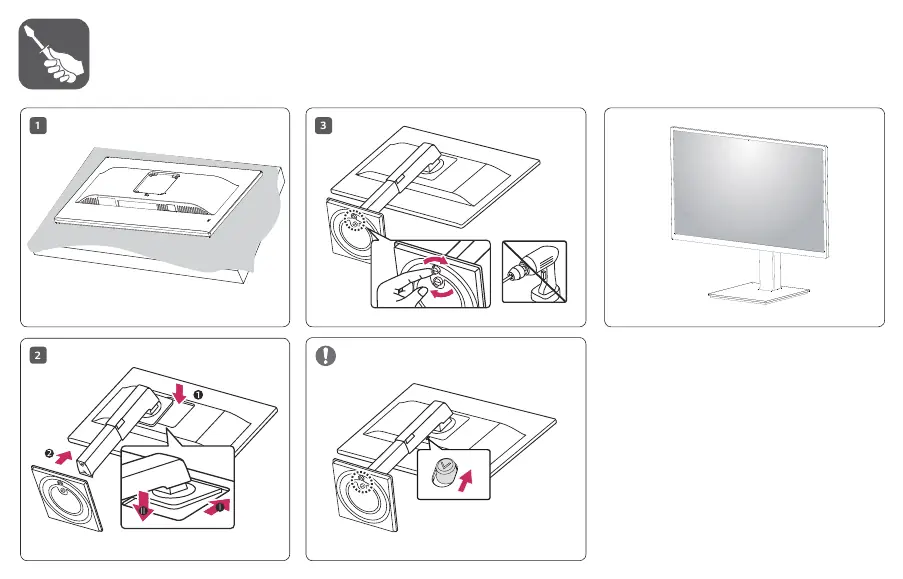
- Place the monitor face down on a soft, flat surface to protect the screen.
- Attach the stand base to the monitor body as shown in the diagram, ensuring it clicks into place.
- Secure the stand using the provided screws if necessary, using a screwdriver.
Connections
The monitor supports various input types. Ensure you use the cables provided with the product to prevent malfunctions or compatibility issues.
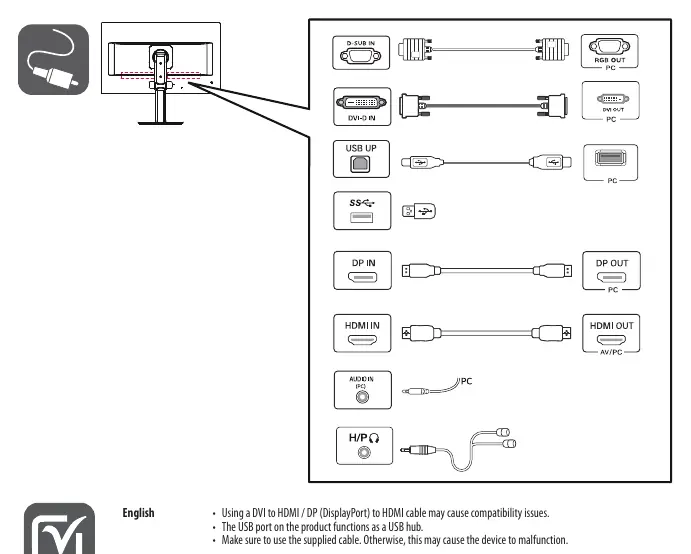
- Video Inputs: D-SUB, DVI-D, HDMI, and DisplayPort (DP).
- Audio: Audio In (PC) and Headphone/Audio Out (H/P).
- USB: The USB port on the monitor functions as a USB hub.
Note: Using third-party DVI to HDMI or DisplayPort to HDMI cables may cause compatibility issues. Always prioritize the supplied cables.
Power and Controls
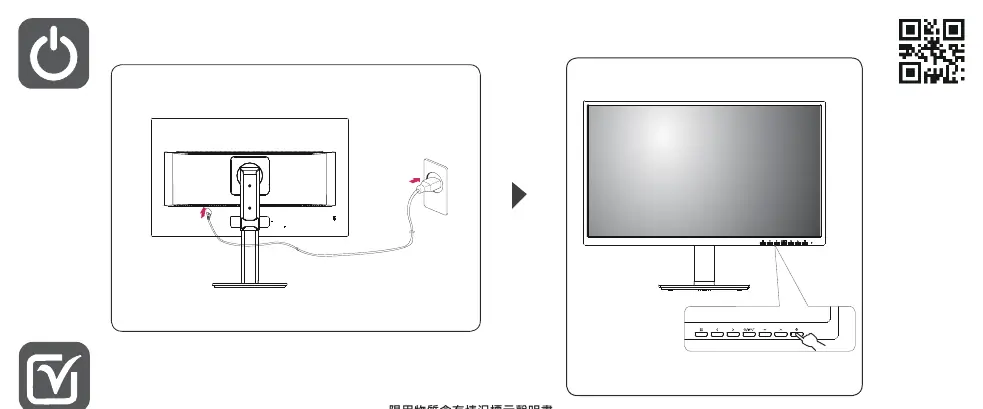
Connect the power cable to the back of the monitor and plug it into a power outlet. The OSD (On-Screen Display) control buttons are located on the bottom edge of the monitor frame.
Manufacturer information
LG Electronics
Practical help
Common problems
Compatibility issues with video signal
Use the supplied cables. Avoid using third-party DVI to HDMI or DP to HDMI adapters if possible.
Monitor not functioning correctly
Ensure all supplied cables are used and properly connected.
Before use
- Check box contents (monitor, stand, cables)
- Assemble the stand to the monitor
- Connect the power cable
- Connect video cables (HDMI/DP/DVI)
Show more Show less
Images and diagrams
- Page 4: Stand assembly steps
- Page 5: Port layout and cable connections
- Page 8: Power connection and OSD button location
Model compatibility
- USB port functions as a USB hub.
- Using non-supplied DVI/DP to HDMI cables may cause compatibility issues.

Manual page author
Michael Turner
Technical manual editor