Computers / Laptops
User Manual for LG 11TC50Q Chromebook
Quick guide for the LG 11TC50Q Chromebook. Learn about setup, charging, using the stylus, tablet mode, and troubleshooting common issues.
Table of contents
Manual images
Click an image to enlargeQuick guide from the manual
This guide provides essential information for operating your LG 11TC50Q Chromebook. Before first use, ensure the battery is fully charged. You will need a Google account and a wireless network connection to complete the initial setup.
Product Tour
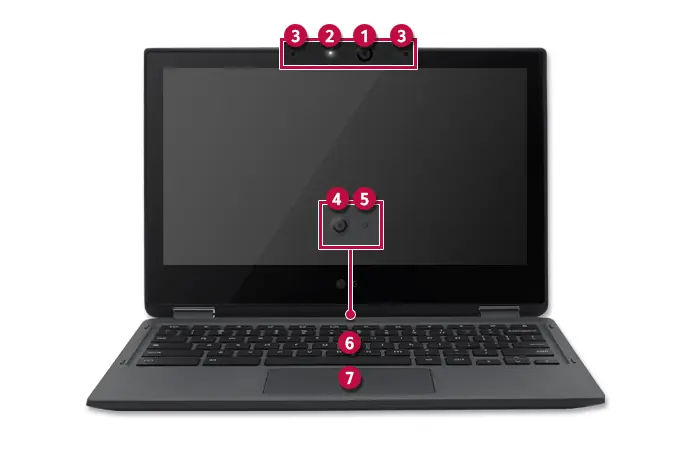
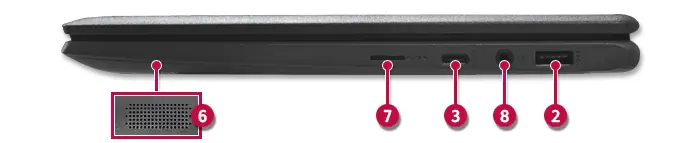
The Chromebook features a front-facing camera, built-in microphone, and status lamps. The sides contain various ports, including USB-C (supporting Power Delivery and external display output), a standard USB port, a 4-pole ear microphone port, and a microSD card slot. The power button and volume controls are located on the side of the device.
Using the Chromebook
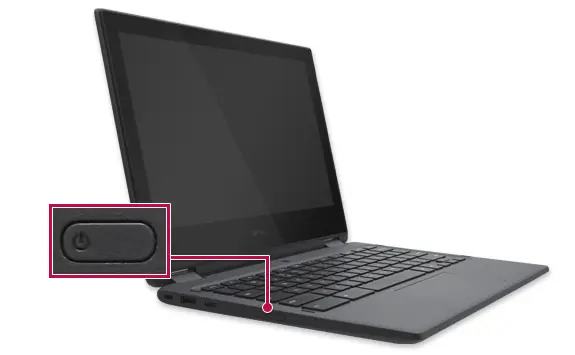
Powering On/Off: The system turns on automatically when the cover is opened. To turn it off, use the System Tray menu or hold the power button for 3 seconds.
Tablet Mode: Unfold the device and rotate the screen to use it in tablet mode. Always close the device when moving it to protect the screen.
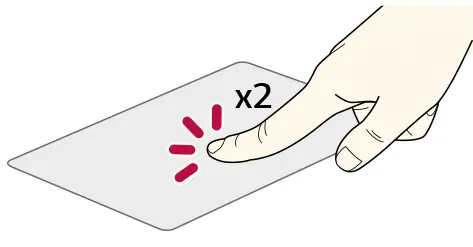
Keyboard and Touchpad: Use the hot keys for functions like screen capture, brightness, and volume. The touchpad supports gestures like clicking, double-clicking, and zooming. If using a mouse, the touchpad remains active.
Stylus Pen: The stylus allows for fine touch operations. It features a charging port and should be stored in the holder attached to the USB port when not in use.
Connectivity and Storage
USB-C Port: Supports charging (Power Delivery) and external display output via Alternate Mode. Ensure you use cables that support these standards.
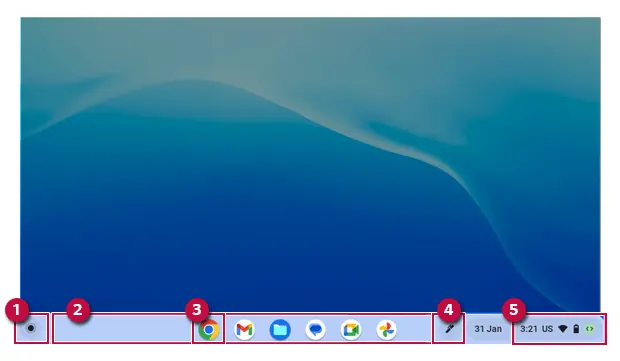
Wireless LAN: Connect to Wi-Fi via the System Tray menu.
microSD Slot: Supports microSD memory cards for storage. Push the card in until it clicks to seat it; push again to eject.
Chrome OS Features
The device runs on Chrome OS. You can manage apps via the Launcher, use the Chrome Browser, and install apps from the Web Store or Play Store. If system issues occur, you can use the PowerWash (Initialization) feature in Settings to reset the device, or use external storage to restore the system image.
Safety and Maintenance
Battery Care: Keep the battery level around 50% if not used for a long period. Do not disassemble the battery or expose it to extreme heat (above 140°F). Use only certified LG adapters.
Cleaning: Disconnect all power before cleaning. Use a soft cloth and designated agents for the screen.
Specifications
The device features an 11.6-inch IPS LCD with touch, Intel Celeron processor, eMMC storage, and Bluetooth 5.1. The power adapter supports 100-240V input.
Manufacturer information
LG Electronics
Practical help
Common problems
System freezes or will not turn on
Connect the AC adapter and charge the battery fully before use.
Battery not charging
Ensure the AC adapter is connected properly and use only certified LG adapters.
System overheating
Ensure ventilation holes are not blocked and allow the system to cool down.
Memory card cannot be formatted
Check if the write protection tab on the memory card is locked.
Before use
- Charge the battery completely before first use.
- Ensure you have a Google account for initial setup.
- Check that the memory cover is securely closed.
- Remove battery protective material from the Stylus Pen.
- Verify the AC adapter is certified by LG.
Specs in practice
- Power Rating
- 45 W AC adapter.
Images and diagrams
- Front view identifies the camera, microphone, and status lamps.
- Side views identify the USB ports, power button, volume button, and microSD slot.
- Stylus pen diagram shows the pen tip, indicator lamp, and charging port.
Model compatibility
- USB-C port supports Power Delivery (PD) and Alternate Mode for external displays.
- 4-pole ear microphone port supports US standards, not European.
- Some games (online, 3D or 2D) may not be supported.

Manual page author
David Miller
Documentation analyst
Organizes user manual content into clear summaries, with attention to model details, product context, and everyday usability.