Electronics / Monitors
LG LED LCD Monitor 24BA650/24BA750/27BA650/27BA750 Owner's Manual
Official owner's manual for LG LED LCD Monitors (24BA650, 24BA750, 27BA650, 27BA750). This guide covers assembly, installation, connection instructions, OSD menu settings, troubleshooting, and technical specifications.
Quick answers from the manual
Quick answer
- This manual provides setup, connection, and configuration instructions for LG LED LCD Monitors (24BA650, 24BA750, 27BA650, 27BA750). Use the joystick button on the back to navigate the OSD menu. p. 4, 15
Key actions
- Powering on/off p. 4
- Adjusting stand height p. 6
- Wall mounting p. 11
First start
- Connect power and video cables. p. 5, 12
- Power on using the joystick button. p. 4
Show 4 more answers Show less
Problems and fixes
No signal
Check cable connection or reset to initial settings if DP OUT is on.
p. 25
Screen flickering
Change resolution to 1080p.
p. 25Maintenance and reset
- Reset to Initial Settings p. 24
Technical specifications
| Parameter | Value | Meaning | Pages |
|---|---|---|---|
| Resolution | 1920 x 1080 | Max 100Hz, Recommended 60Hz | p. 27, 28 |
| Power | 100-240 V ~50/60 Hz 2.5A | Power Rating | p. 27, 28 |
Where to find it in the PDF
- Assembly p. 3, 5, 6, 7
- Settings p. 15, 16, 17, 18
- Troubleshooting p. 25, 26
- Specifications p. 27, 28, 29, 30
Table of contents
Manual images
Click an image to enlargeQuick Guide
This manual provides instructions for the LG LED LCD Monitor series (24BA650, 24BA750, 27BA650, 27BA750). Key operations include using the joystick button for OSD control, connecting via HDMI, DisplayPort, or USB-C, and adjusting the stand for height, tilt, and pivot.
Assembling and Preparing
Caution: Always use genuine LG components. Do not apply foreign substances to screws. When lifting or moving, do not touch the screen directly to avoid damage.
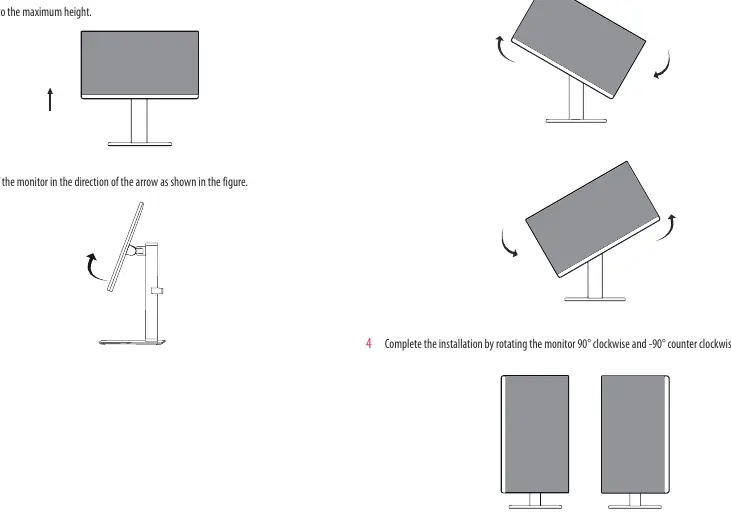
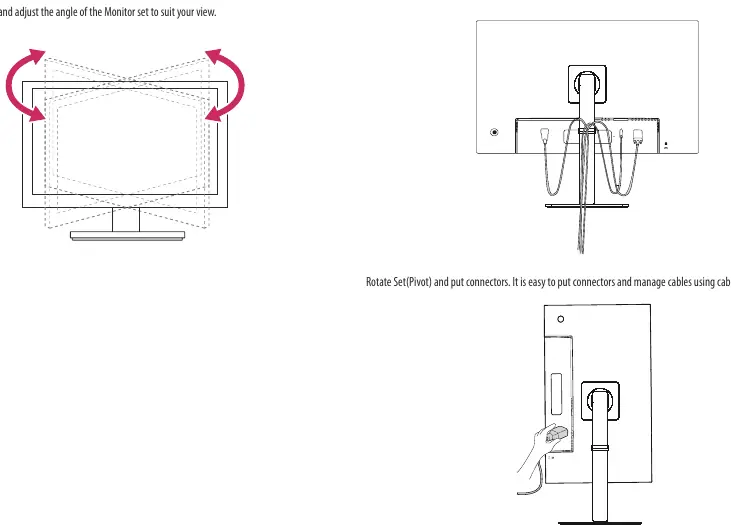
- Installing on a Table: Place the monitor on a flat surface, ensuring at least 100 mm of space from the wall for ventilation.
- Adjusting Stand Height: The stand height can be adjusted up to 150 mm. Use both hands for safety.
- Adjusting Angle: The screen can be tilted from -5° to 21°.
- Pivot Feature: The monitor can rotate 90° clockwise and -90° counter-clockwise. Ensure the stand does not make contact with the monitor during rotation.
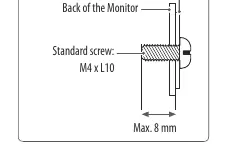
- Wall Mounting: Use a VESA-compliant wall mount (100 x 100 mm). Use M4 x L10 screws. Ensure the wall mount is securely fixed.
Using the Monitor
The monitor is controlled via a joystick button located on the right back side.
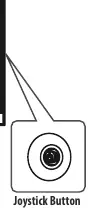
- Power On: Press the joystick button once.
- Power Off: Press and hold the joystick button for more than 3 seconds.
- Volume Control: Move the joystick left or right.
- Connections: The monitor supports HDMI, DisplayPort, and USB-C. For LAN connection (on 24BA750/27BA750), connect the router to the monitor and ensure the USB-C cable is connected to the PC.
User Settings
The On-Screen Display (OSD) menu allows for extensive customization:
- Quick Settings: Adjust brightness, contrast, volume, and color temperature.
- Input: Select input mode and toggle Auto Input Switch.
- Picture: Adjust Picture Mode (Custom, Vivid, Reader, Cinema, FPS, RTS, Color Weakness), Super Resolution+, Black Level, and Game Adjust (Response Time, Black Stabilizer).
- General: Configure language, Smart Energy Saving, Deep Sleep Mode, Automatic Standby, and OSD Lock.
Troubleshooting
- No Signal: Check if the signal cable is connected. If DP OUT is on, try resetting to initial settings.
- Screen Flickering: Ensure the resolution is set to the recommended 1080p.
- No Sound: Check headphone connections, increase volume, and verify PC audio output settings.
- OSD Locked: Disable OSD Lock in the General settings menu.
Manufacturer information
LG Electronics
Practical help
Common problems
No signal message
Check if the signal cable is connected. If DP OUT is enabled, execute 'Reset to Initial Settings' in the General menu.
Screen flickering
Change the resolution to 1080p or the recommended resolution. Avoid using interlaced signals if possible.
No sound from headphones
Ensure the headphone connection is secure, increase volume using the joystick, and verify the PC audio output is set to the monitor.
OSD menu not accessible
The OSD is likely locked. Disable 'OSD Lock' in the General settings menu.
Before use
- Ensure the monitor is placed on a stable surface with 100mm clearance.
- Connect the power cord to a grounded outlet.
- Connect the appropriate video cable (HDMI, DP, or USB-C).
- Install the latest monitor driver from the LG website.
- Check that the wall mount (if used) is VESA compliant (100x100mm).
Show more Show less
Specs in practice
- Power Rating
- 100-240 V ~50/60 Hz 2.5A.
- Operating Temperature
- 0 °C to 40 °C.
- Wall Mount Screw
- M4 x L10 (4 screws required).
Images and diagrams
- Joystick button is located on the bottom right back of the monitor.
- Pivot rotation allows 90-degree clockwise and counter-clockwise movement.
- Cable holder is located on the stand for cable management.
Model compatibility
- USB-C port supports Power Delivery and DP Alternate Mode.
- LAN connection requires USB-C connection to the PC.
- Mac OS does not support DP OUT (MST).

Manual page author
Emily Carter
User documentation editor