Electronics / RFID Barcode Scanners
User Guide for Marson Technology 2D Wireless (2.4G) Barcode Scanner
Quick setup and configuration guide for the Marson Technology 2D Wireless (2.4G) Barcode Scanner. Learn how to connect, pair, use memory mode, and configure settings via barcode.
Quick answers from the manual
Quick answer
- The scanner connects automatically to the charging cradle in 2.4G mode. To pair, plug in the cradle, power on the scanner, and scan the 'Pair' barcode within 30 seconds. p. 1
Key actions
- Pairing the scanner p. 1
- Uploading stored data p. 1
First start
- Plug the charging cradle to host device with an USB cable, power up the scanner by pressing the trigger. p. 1
Show 4 more answers Show less
Problems and fixes
Connection lost
Perform the pairing operation.
p. 1
Low power
Charge the device (indicated by flashing red LED or five short beeps).
p. 1Maintenance and reset
- Erase memory data p. 1
Technical specifications
| Parameter | Value | Meaning | Pages |
|---|---|---|---|
| Memory Capacity | 4096 barcodes | Maximum offline storage capacity. | p. 1 |
Where to find it in the PDF
- Quick Guide and Setup p. 1
- Configuration Barcodes p. 2
Table of contents
Quick guide from the manual
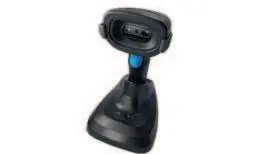
This guide provides instructions for the Marson Technology 2D Wireless (2.4G) Barcode Scanner. The scanner is designed to connect automatically to its charging cradle via a 2.4G wireless connection. Key operations include initial setup, pairing, memory mode management, and configuration via scanning specific barcodes.
Getting connected
By default, the scanner connects to the charging cradle in 2.4G mode right out of the box. Follow these steps to set up the device:
- Plug the charging cradle into the host device using the provided USB cable.
- Power up the scanner by pressing the trigger.
- The scanner will automatically connect to the charging cradle.
- Barcode data will be transmitted to the host device via the USB cable in keyboard data format.
Pairing operation
You typically do not need to perform manual pairing. Follow these steps only if the connection is lost or if you need to connect to a new charging cradle:
- Plug the charging cradle into the host device using the USB cable.
- Power up the scanner by pressing the trigger.
- Scan the Pair barcode within 30 seconds after connecting the charging cradle to the host device.
Memory mode
When Memory Mode is enabled, the scanner stores barcode data offline. It has a storage capacity of 4096 barcodes (assuming characters per barcode is less than 500). Use the configuration barcodes provided in the manual to toggle this mode on or off, upload data, or erase memory.
Beeper and LED indications
The scanner provides feedback through beeps and LED lights:
- Single beep: Good read.
- Two beeps (low tune): Wireless connection or charging.
- Two beeps (high tune): Wireless disconnection.
- Two beeps (high-low): Good read (Memory Mode) or data transmission failed.
- Three beeps: Power up.
- Three beeps (high-medium-low): Power down.
- Five short beeps: Low power.
- Solid green LED: Charging.
- Solid red LED: Power on.
- Flashing red LED: Low power.
Configuration settings
The scanner can be configured by scanning specific barcodes found in the manual. Available settings include:
- Reading Mode: Trigger mode, continuous mode, auto-sensing mode.
- Sleep Timeout: Adjust idle time before sleep.
- Buzzer Volume: Low, medium, high.
- Upper/Lower Case: Adjust text output format.
- Charging Cradle - USB Mode: USB HID or USB COM.
- Terminator: CR, LF, TAB, CR+LF, or None.
- Symbologies: Enable/Disable 1D or 2D codes.
- Keyboard Layout: Select language-specific layouts (e.g., English, German, French, Spanish, Polish).
Safety and warnings
Observe the following safety precautions:
- Do not touch terminals with metal objects.
- Do not use the scanner near inflammable gases.
- Do not expose the scanner to high temperatures, direct sunlight, or extremely humid environments.
- Do not use the scanner with wet hands.
- Do not stare into the light source from the scanning window.
- If the interface cable is damaged, stop using the device immediately.
Practical help
Common problems
Connection lost with charging cradle
Follow the pairing operation steps: plug in the cradle, power on the scanner, and scan the 'Pair' barcode within 30 seconds.
Scanner not charging
Ensure the charging cradle is properly connected to the host device via USB and the scanner is seated correctly.
Data not transmitting
Check if the scanner is within range of the cradle. If Memory Mode is on, data may be stored offline; scan 'Upload Memory Data' to transfer.
Before use
- Connect the charging cradle to the host device using the USB cable.
- Power on the scanner by pressing the trigger.
- Verify the scanner connects automatically (indicated by beeps).
- Ensure the scanner is charged (check LED status).
Show more Show less
Images and diagrams
- The scanner connects to a charging cradle which acts as the USB interface to the host computer.
Model compatibility
- The scanner supports various keyboard layouts including English, German, French, Spanish, and Polish.

Manual page author
Michael Turner
Technical manual editor