Power / Power Banks
User Manual for myCharge myLaptopCharge 20100
Quick guide for the myCharge myLaptopCharge 20100 power bank. Learn how to recharge the unit, charge your devices, understand LED indicators, and follow safety guidelines.
Quick answers from the manual
Quick answer
- To recharge the myCharge myLaptopCharge 20100, connect the included cable to a USB-C power source. To charge devices, plug them into the unit; if charging doesn't start automatically, press the power button. p. 1
Key actions
- Recharge the power bank p. 1
- Charge a laptop p. 1
Problems and fixes
Charging does not start
Press the power button.
p. 1Technical specifications
| Parameter | Value | Meaning | Pages |
|---|---|---|---|
| Output | 45W | Power Delivery output for laptops | p. 1 |
Where to find it in the PDF
- Quick Start Guide p. 1
Table of contents
Quick guide from the manual
The myCharge myLaptopCharge 20100 is a portable power bank designed to charge mobile devices and laptops. This document provides instructions on how to recharge the power bank, charge your devices, and maintain safety.
Recharging the power bank
To recharge the unit, connect the included recharging cable to any USB-C power source. You can recharge the power bank using a wall outlet, car charger, or computer. A fully charged unit is indicated by 4 solid, non-blinking LEDs.
Charging your devices
To charge your devices, plug one end of your cable into the myCharge unit and the other end into your device. Charging should begin automatically. If charging does not start, press the power button.
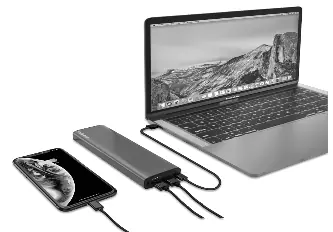
Charging laptops: The unit provides a 45-Watt output. You must use the included USB-C to USB-C Power Delivery cable. Note that Power Delivery is not supplied from USB-A ports; you must use the USB-C port for charging laptops.
LED indicators
Press the power button at any time to see the current battery level. The status is shown by the number of solid LEDs illuminated.
Safety information
Read all warnings before use. Failure to follow instructions may result in fire, explosion, or injury.
- Do not expose the battery to extreme temperatures, including direct sunlight, stoves, or hot cars.
- Do not drop or damage the battery.
- Do not attempt to disassemble or repair the battery or its casing.
- Use only accredited accessories to recharge the battery.
- Dispose of batteries at a recycling center; do not throw them in the garbage.
Support and warranty
For warranty information, visit mycharge.com/warranty and select your model. Register your product at myCharge.com. For support, visit support.mycharge.com.
Official resources from the manual
Manufacturer information
myCharge
Practical help
Common problems
Charging does not start automatically when a device is plugged in.
Press the power button on the unit to manually initiate charging.
Laptop is not charging.
Ensure you are using the included USB-C to USB-C Power Delivery cable and that it is connected to the USB-C port. Power Delivery is not supported via USB-A ports.
Before use
- Register your product at myCharge.com
- Ensure you have the included recharging cable
- Check the battery level by pressing the power button
Specs in practice
- 45-Watt output
- The power capacity required for charging laptops via USB-C Power Delivery.
Model compatibility
- Power Delivery is not supplied from USB-A ports.
- Only use the USB-C port for charging laptops.

Manual page author
Michael Turner
Technical manual editor
Reviews PDF manuals for structure, safety notes, and practical product details so readers can find the right information quickly.