Power / Power Banks
User Manual for myCharge RAZORTURBO 20100 Power Bank
Quick guide for the myCharge RAZORTURBO 20100 power bank. Learn how to recharge the unit, charge your devices, interpret LED indicators, and follow safety guidelines.
Quick answers from the manual
Quick answer
- The myCharge RAZORTURBO 20100 is a portable power bank. Recharge it via a wall outlet, car, or computer. Charge devices by connecting them to the output port; charging starts automatically or by pressing the power button. p. 1
Key actions
- Recharging the unit p. 1
- Charging a device p. 1
First start
- Connect the unit to a USB power source to ensure it is fully charged before use. p. 1
Problems and fixes
Charging does not start
Press the power button.
p. 1Where to find it in the PDF
- Quick Start and Safety Guide p. 1
Table of contents
Quick Start Guide
The myCharge RAZORTURBO 20100 is a portable power bank designed to charge your mobile devices. Before first use, ensure the unit is fully charged.
Recharging the Power Bank
You can recharge the RAZORTURBO 20100 using any USB power source. There are three ways to recharge:
- From a wall outlet
- From a car charger
- From a computer
Note: For the fastest possible recharge, an 18W adapter and a fast-charging data cable are required.
Charging Your Devices
To charge your devices using the power bank:
- Plug one end of your own charging cable into the RAZORTURBO output port.
- Plug the other end into your device.
- Charging should begin automatically. If it does not, press the power button.
Note: An Apple Lightning to Type-C cable is required for fast charging Apple devices (not included).
LED Indicators
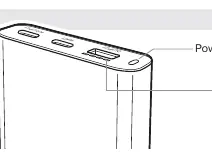
The unit features LED indicators to show the battery level. Press the power button to check the current battery level. When the unit is fully charged, it will show 4 solid, non-blinking LEDs.
Safety Information
To ensure safe operation and prevent damage, follow these guidelines:
- Do not expose the battery to heat sources, extended direct sunlight, or high-temperature environments.
- Avoid dropping or subjecting the battery to excessive impacts.
- Do not disassemble, attempt to repair, or replace any part of the housing or battery.
- Do not attempt to charge the battery using any method or connections other than the device's charging cable.
- Never dispose of batteries in the garbage; take them to a local battery-recycling center.
Support and Warranty
myCharge provides a one-year limited warranty from the date of purchase. Keep a copy of your receipt as proof of purchase. You are encouraged to register your product at mycharge.com to receive product updates. For warranty instructions and support, visit support.mycharge.com.
Official resources from the manual
Manufacturer information
myCharge
Practical help
Common problems
Charging does not start automatically
Press the power button on the unit.
Slow recharge time
Ensure you are using an 18W adapter and a fast-charging data cable.
Before use
- Check the package contents (Power bank, recharging cable, quickstart guide).
- Register your product at myCharge.com.
- Ensure you have an 18W adapter for the fastest recharge speed.
Specs in practice
- 4 Solid LEDs
- Indicates the unit is fully charged.
Images and diagrams
- The LED indicators show the remaining battery level.
- The power button is used to check the battery level or manually start charging.
Model compatibility
- Apple Lightning to Type-C cable is required for fast charging Apple devices (not included).

Manual page author
David Miller
Documentation analyst
Organizes user manual content into clear summaries, with attention to model details, product context, and everyday usability.