Power / Batteries & Chargers
myCharge Power & Go User Guide
Quick start guide for the myCharge Power & Go power bank. Learn how to recharge the unit, check battery levels, and charge your devices using the USB-A and USB-C ports.
Table of contents
Manual images
Click an image to enlargeQuick Start Guide
The myCharge Power & Go is a portable power bank designed to charge your devices on the go. This guide covers the essential steps for recharging the unit and using it to charge your electronics.
Recharging the Power Bank
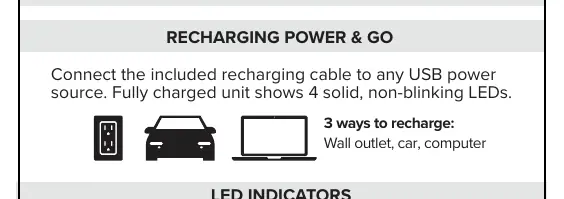
To recharge the unit, connect the included recharging cable to any USB power source. You can recharge via a wall outlet, car charger, or computer. The unit is fully charged when 4 solid, non-blinking LEDs are displayed.
Charging Your Devices
To charge your devices, plug your own cable into the Power & Go and the other end into your device. Charging should begin automatically. If it does not start, press the power button.
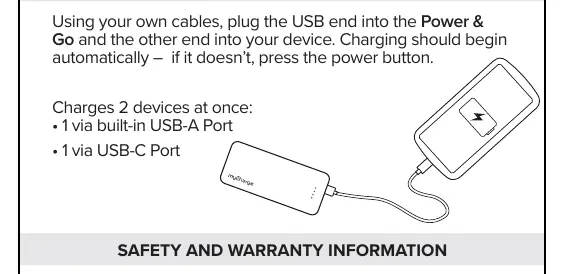
- You can charge 2 devices at once: 1 via the built-in USB-A port and 1 via the USB-C port.
LED Indicators
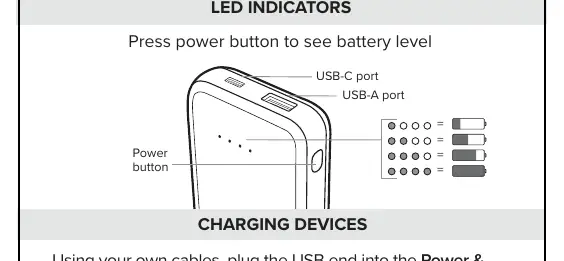
Press the power button to check the current battery level. The LEDs indicate the remaining charge.
Safety Information
Read all instructions before use. Do not expose the power bank to heat sources, direct sunlight, or extreme low temperatures. Do not disassemble or attempt to repair the unit. Dispose of batteries according to local environmental laws.
Manufacturer information
myCharge
Practical help
Common problems
Charging does not start automatically
Press the power button on the unit to initiate charging.
Device not charging
Ensure the cable is securely connected to both the power bank and your device. Try pressing the power button.
Before use
- Fully charge the unit before first use.
- Ensure you have the included recharging cable.
- Identify the USB-A and USB-C ports on your device for compatibility.
Specs in practice
- LED Indicators
- Show remaining battery level (4 solid LEDs = fully charged).
Images and diagrams
- The power button is located on the side to check battery levels.
- The unit features both USB-A and USB-C ports for simultaneous charging.
Model compatibility
- Compatible with devices that charge via USB-A or USB-C cables.

Manual page author
Michael Turner
Technical manual editor
Reviews PDF manuals for structure, safety notes, and practical product details so readers can find the right information quickly.