Electronics / Monitors
User Manual for Philips 243B1 LCD Monitor
Comprehensive user guide for the Philips 243B1 LCD monitor. Includes setup instructions, USB docking configuration, webcam setup, power management, and troubleshooting.
PDF source: NO · summary: English
Quick answers from the manual
Quick answer
- The Philips 243B1 is a 23.8-inch LCD monitor featuring USB-C docking, a pop-up webcam with Windows Hello, and PowerSensor technology. It supports daisy-chaining via DisplayPort. p. 1, 15, 17, 25
Key actions
- Install stand p. 7
- Connect to PC p. 8
- Setup Windows Hello p. 15, 17
First start
- Connect power and signal cables, then power on the monitor and PC. p. 8
Show 4 more answers Show less
Problems and fixes
No image
Check cables and power.
p. 37Maintenance and reset
- Use OSD menu: Setup > Reset. p. 41
Technical specifications
| Parameter | Value | Meaning | Pages |
|---|---|---|---|
| Resolution | 1920 x 1080 @ 60Hz | Optimal resolution | p. 30 |
| Power Delivery | 90W | Max power via USB-C1 | p. 30 |
Where to find it in the PDF
- Technical Specs p. 28, 30
Table of contents
Manual images
Click an image to enlargeQuick Guide from the Manual
The Philips 243B1 is a 23.8-inch LCD monitor designed for productivity. Key features include USB-C docking, a pop-up webcam with Windows Hello, PowerSensor for energy efficiency, and daisy-chaining capabilities. Ensure you have the necessary drivers installed for full functionality, especially for USB docking and the webcam.
Safety and Maintenance
- Do not block ventilation openings.
- Use only the provided power cable.
- Clean with a dry cloth; avoid alcohol or ammonia-based cleaners.
- Keep away from oil and extreme temperatures (0-40°C).
- Do not press hard on the LCD panel.
Setup and Installation
Stand Assembly: Place the monitor face down on a flat surface. Attach the base to the stand, tighten the screw, and attach the stand to the VESA mount area until it clicks.
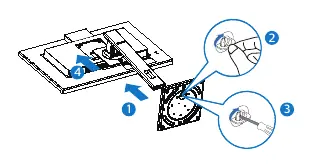


Connections: Connect the power cable, signal cable (HDMI, DisplayPort, or USB-C), and peripherals. Ensure the monitor is powered on.
Webcam Setup
The monitor features a pop-up webcam with Windows Hello. To use it, press the top of the webcam to pop it up. Connect the USB-C cable to the USB-C1 port. Configure Windows Hello in Windows 10 settings under Accounts > Sign-in Options.

USB Docking
The monitor acts as a USB docking station. For USB-C to C connections, video, audio, data, and power are transferred via one cable. For USB-C to A connections, you must install the DisplayLink driver from the Philips support website or the included CD.

Power Management
Smart Power: Allows up to 90W power delivery via USB-C1. Ensure the monitor is not using the DC OUT port simultaneously for maximum power delivery.
PowerSensor: Detects user presence to reduce power consumption by up to 80%. Adjust sensitivity in the OSD menu if necessary.
Daisy-Chaining
You can connect multiple monitors using DisplayPort Multi-Stream (MST). Ensure your GPU supports MST and use the latest drivers.
Troubleshooting
- No Image: Check power and signal cable connections.
- USB Docking Issues: Ensure the correct USB-C port is used and drivers are installed.
- Webcam Issues: Check Windows Hello settings and ensure the WbioSrvc service is running.
Manufacturer information
Philips
Practical help
Common problems
No image on screen
Check if the power cable is connected, the monitor is turned on, and the signal cable is securely attached to the PC.
USB docking not working
Ensure the USB-C cable is connected to the USB-C1 port. If using USB-C to A, install the DisplayLink driver.
Webcam not recognized
Check Windows Hello settings. If the device is greyed out, restart the 'WbioSrvc' service in Windows Task Manager.
Before use
- Check power cable connection
- Ensure monitor is on a stable surface
- Install necessary drivers for USB docking and webcam
- Adjust height and tilt for ergonomics
Show more Show less
Specs in practice
- USB-C Power Delivery
- Provides up to 90W via USB-C1 port for charging compatible laptops.
Images and diagrams
- Stand assembly steps
- Cable connection diagram
- OSD menu structure
- Webcam activation
Model compatibility
- Windows 10 required for Windows Hello facial recognition.
- DisplayLink driver required for USB-C to A connection.
- Secondary monitor in daisy-chain must support DisplayPort Multi-Stream.

Manual page author
David Miller
Documentation analyst