Electronics / Monitors
Quick Start Guide for Philips 245S9DR LCD Monitor
Quick start guide for the Philips 245S9DR LCD monitor. Includes assembly instructions, connection guide, OSD menu navigation, and ergonomic adjustments.
Quick answers from the manual
Quick answer
- This guide covers the assembly, cable connection, OSD menu navigation, and ergonomic adjustments for the Philips 245S9DR monitor. p. 1
Key actions
- Assemble the stand base to the monitor. p. 1
- Connect power, HDMI, or DisplayPort cables. p. 1
First start
- Assemble the stand, connect the power and video cables, and power on the monitor. p. 1
Show 2 more answers Show less
Technical specifications
| Parameter | Value | Meaning | Pages |
|---|---|---|---|
| Height Adjustment | 130mm | Vertical height range | p. 1 |
| Tilt | -5 to 25 degrees | Screen tilt range | p. 1 |
Where to find it in the PDF
- Quick Start Guide p. 1
Table of contents
Manual images
Click an image to enlargeQuick Start Guide
This guide provides essential information for setting up and using your Philips 245S9DR LCD monitor. Please follow the steps below to ensure proper installation and configuration.
Assembly
Follow these steps to assemble the monitor stand:
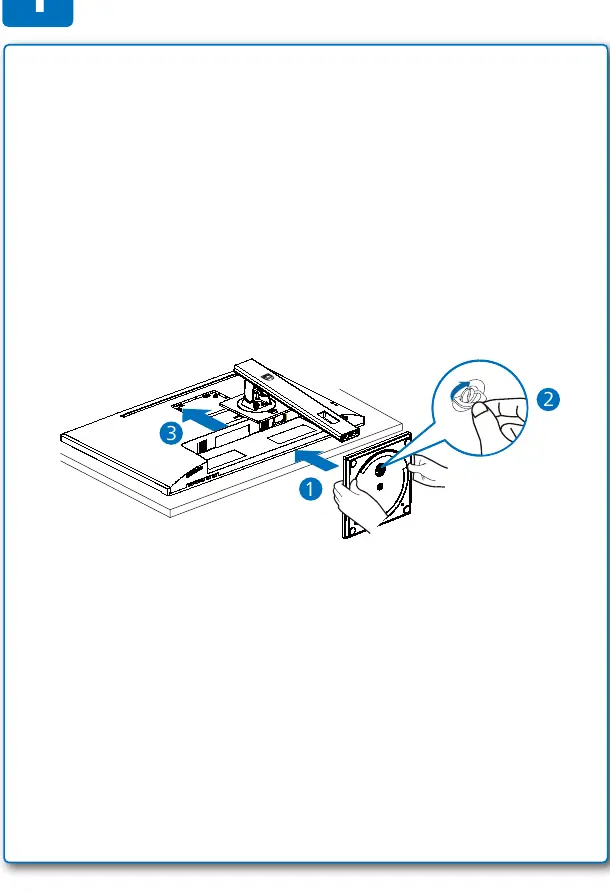
- Attach the stand base to the monitor arm.
- Ensure the connection is secure before placing the monitor on a flat surface.
Connections
Connect your devices to the monitor using the appropriate cables:
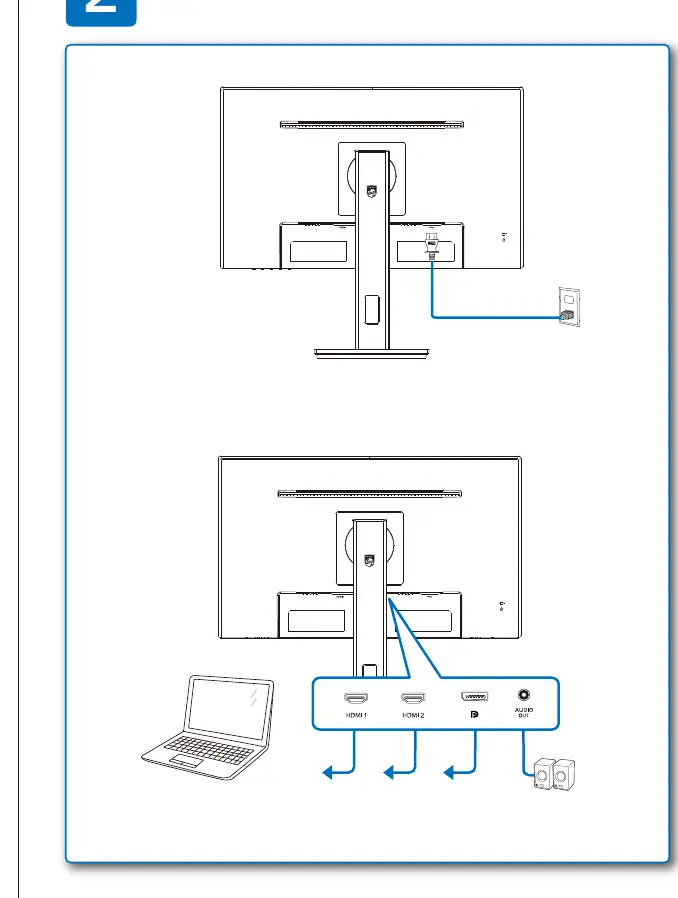
- Power: Connect the power cable to the monitor and a wall outlet.
- HDMI: Connect an HDMI cable from your computer to the monitor's HDMI port.
- DisplayPort (DP): Connect a DisplayPort cable from your computer to the monitor's DP port.
Note: Cable types may vary depending on your region.
OSD Menu and Controls
Use the monitor's control buttons to navigate the On-Screen Display (OSD) menu:
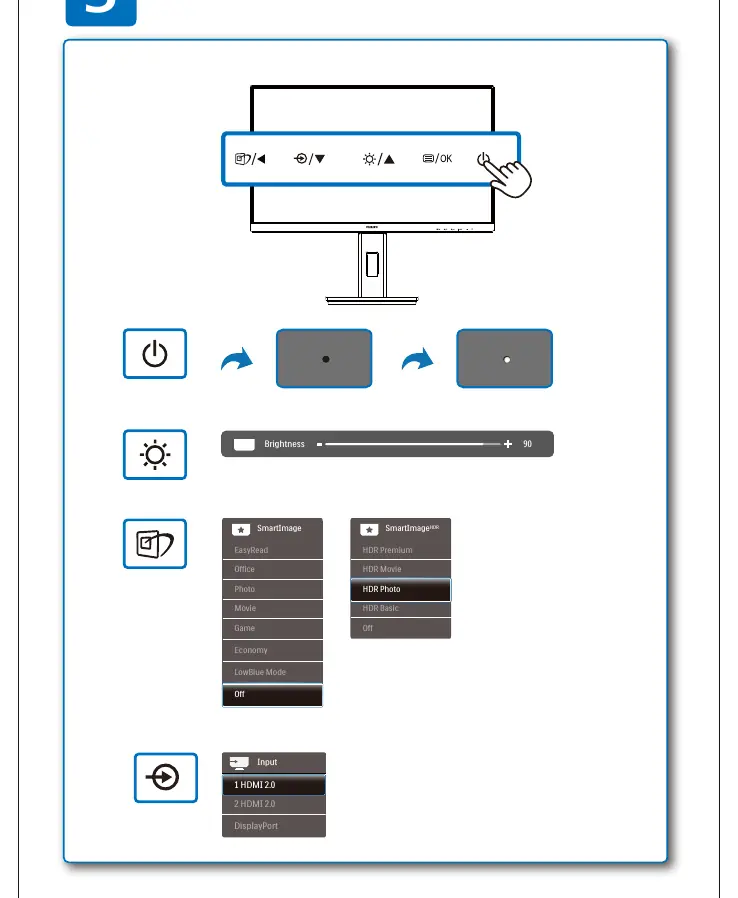
- Navigation: Use the directional buttons to move through the menu options.
- Selection: Press the OK button to select an option.
- Settings: You can adjust parameters such as Brightness, LowBlue Mode, Picture, Color, Language, Audio, and Input source.
- SmartImage: Access preset modes like EasyRead, Office, Photo, Movie, Game, and Economy.
Ergonomic Adjustments
The monitor supports the following ergonomic adjustments:
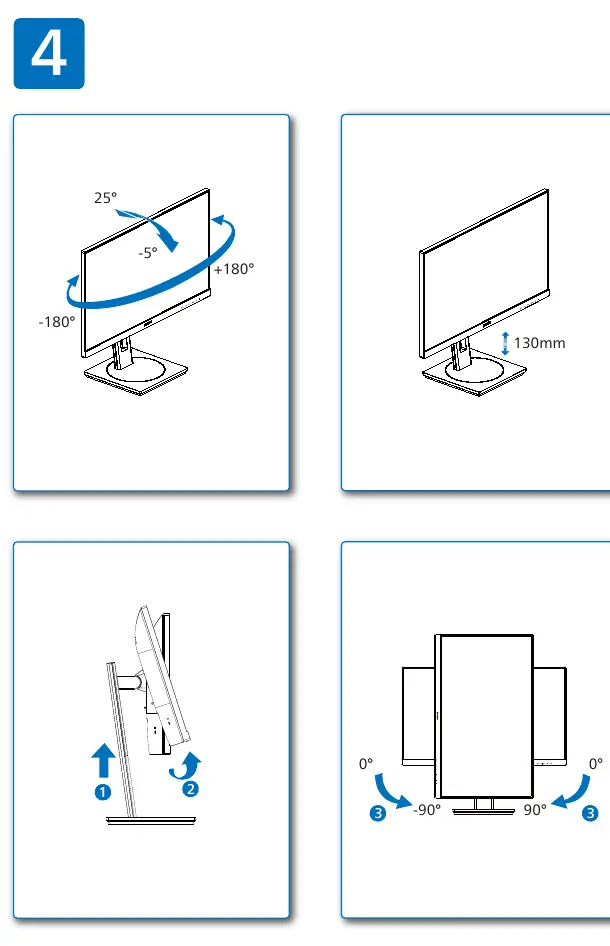
- Tilt: Adjust the screen angle from -5 to 25 degrees.
- Height: Adjust the height up to 130mm.
- Pivot: Rotate the screen 90 degrees.
Manufacturer information
Philips
Practical help
Before use
- Ensure you have the power cable and the necessary video cables (HDMI or DP).
- Verify your region-specific power requirements.
- Assemble the stand base securely before connecting cables.
- Place the monitor on a stable, flat surface.
Specs in practice
- Height Adjustment
- Vertical height adjustment range of 130mm.
Show more Show less
Images and diagrams
- Step 1: Stand assembly instructions.
- Step 2: Cable connection diagram (Power, HDMI, DP).
- Step 3: OSD menu navigation and settings.
- Step 4: Ergonomic adjustment ranges (Tilt, Height, Pivot).
Model compatibility
- Supports HDMI and DisplayPort connections.
- Display design may vary according to region.

Manual page author
Emily Carter
User documentation editor