Health / Medical Imaging
User Manual for Philips Vue PACS Version 12.2.8.x
Quick guide for Philips Vue PACS Version 12.2.8.x. Learn about system security, network safety, microphone calibration, dictionary management, and application settings for efficient reporting.
Table of contents
Manual images
Click an image to enlargeQuick guide from the manual
This document provides essential instructions for the safe and effective operation of the Philips Vue PACS Version 12.2.8.x. It covers system security, microphone calibration for speech recognition, dictionary management, and application settings. Users must read the full safety section before operating the device.
Safety and Security
The Vue PACS system requires a secure environment to protect patient health information. Key security measures include:
- Network Security: The system must be placed on a secure local network with firewall protection, NIDS, and virus scanners. Internet browsing on the server/workstation is strongly discouraged.
- Access Control: Use strong passwords (at least eight alphanumeric characters). The system supports automatic logoff and screen lock features.
- Malware Protection: The system uses whitelisting technology (CylancePROTECT/Trend Micro) to block unauthorized software.
- Data Sanitization: When discarding media containing patient data, perform proper data sanitization as per NIST publication 800-88 guidelines.
Microphone Calibration
To ensure accurate speech recognition, calibrate your microphone upon your first login:
- Connect your microphone to the Desktop Diagnostic Viewer workstation.
- Log in to the Desktop Diagnostic Viewer.
- The Speech Initialization process will run automatically.
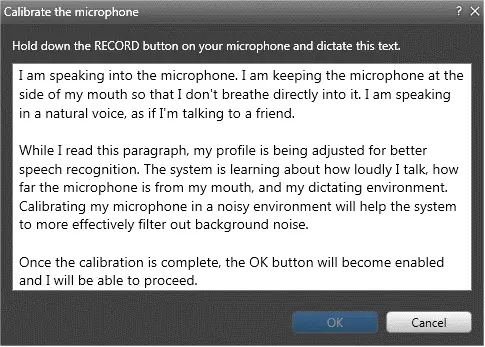
- When the Calibrate the microphone window appears, start recording and read the displayed text to adjust your profile to your voice and environment.
Manage Your Dictionary
The Personal Lexicon Manager (PLM) allows you to improve speech recognition by adding or training specific words:
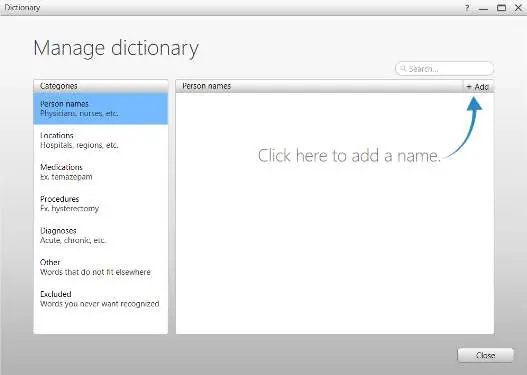
- Add new words: Open the Report Editor, click Personal Lexicon Manager under the Recognition tab, select a category, and click Add.
- Train the system: If words are not recognized correctly, select the word in the Dictionary window, click Change, and select Record pronunciation to familiarize the system with your vocal qualities.
Application Settings
You can customize your reporting environment via the Reporting Application Setting menu:
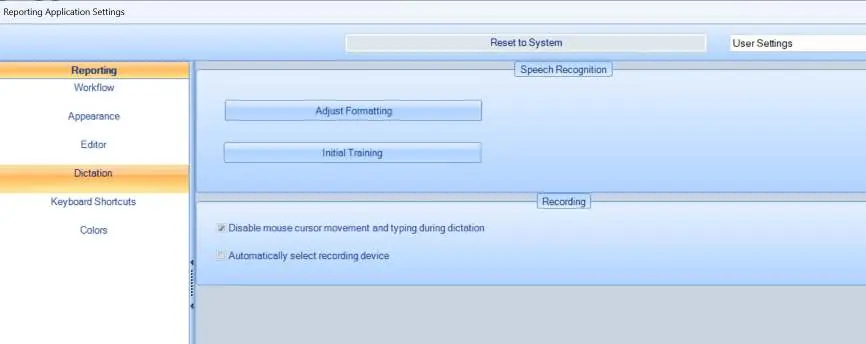
- Automatically select recording device: Enables simultaneous use of multiple devices (e.g., headset and SpeechMike).
- Disable mouse cursor movement: Prevents cursor movement and typing during dictation.
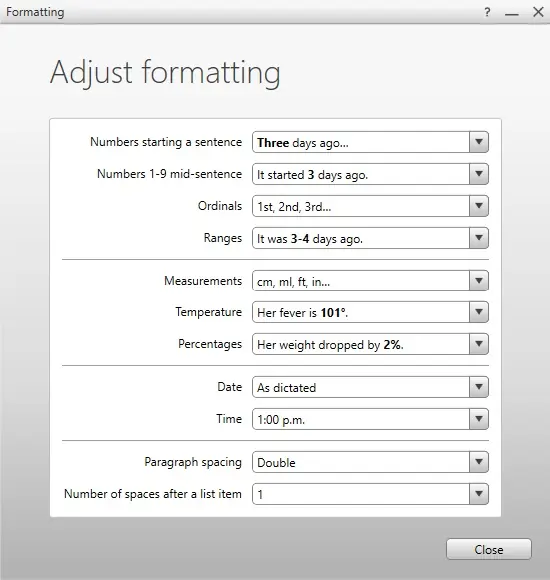
- Adjust Formatting: Allows customization of how dictated text is displayed, including date, time, and measurement formats.
Technical Support
If you encounter difficulties, contact your local Philips technical support group. Have your caller name, customer organization, location, and site number ready, along with a detailed description of the problem. Visit www.philips.com/healthcare for contact details.
Official resources from the manual
Manufacturer information
Philips
Practical help
Common problems
Microphone not recognized or poor quality
Perform microphone calibration via the 'Calibrate the microphone' window to adjust the profile to your voice and environment.
Speech recognition errors for specific words
Use the Personal Lexicon Manager to add the word or train the system on your specific pronunciation.
System security alerts or unauthorized access concerns
Contact your IT administrator immediately; ensure the system is on a secure network with firewall and NIDS.
Before use
- Ensure the system is installed on a secure local network with firewall protection.
- Verify that the workstation meets hardware and network performance requirements.
- Calibrate your microphone upon first login.
- Ensure all patient data is backed up before closing or deleting studies.
- Change pre-defined user account passwords upon system deployment.
Specs in practice
- Account Lockout
- 10 failed login attempts result in a 1-minute lockout.
Images and diagrams
- Microphone calibration window: Shows the text to read for profile adjustment.
- Personal Lexicon Manager: Interface for adding and training words.
- Reporting Application Settings: Menu for configuring recording devices and cursor behavior.
Model compatibility
- Compatible with Windows Server 2019 and Windows Desktop 10/11.
- Do not install unauthorized third-party software.

Manual page author
Michael Turner
Technical manual editor
Reviews PDF manuals for structure, safety notes, and practical product details so readers can find the right information quickly.