Electronics / Gaming Peripherals
User Manual for PXN-2119PRO Flight Joystick
Quick guide for the PXN-2119PRO Flight Joystick. Learn how to connect to PC, PS4, and Xbox One, configure settings, and understand button functions.
Quick answers from the manual
Quick answer
- The PXN-2119PRO is a flight joystick compatible with PC, PS4, and Xbox One. Setup requires connecting the throttle to the joystick and using the original console controller for authentication on consoles. p. 1
Key actions
- Connect to PC p. 1
- Connect to PS4 p. 1
- Connect to XBOX ONE p. 1
Problems and fixes
Joystick not working on console
Ensure original controller is powered off and connected to the guidance port.
p. 1Show 1 more answers Show less
Technical specifications
| Parameter | Value | Meaning | Pages |
|---|---|---|---|
| Working Current | 20mA - 100mA | Power consumption | p. 1 |
| Cable Length | 1.8m / 1.6m | Joystick and accelerator cable lengths | p. 1 |
Table of contents
Manual images
Click an image to enlargeQuick guide from the manual
The PXN-2119PRO is a flight joystick designed for PC, PS4, and Xbox One. To ensure proper functionality, follow the specific connection steps for your platform. Always ensure the original console controller is powered off when connecting to the joystick's guidance port for console authentication.
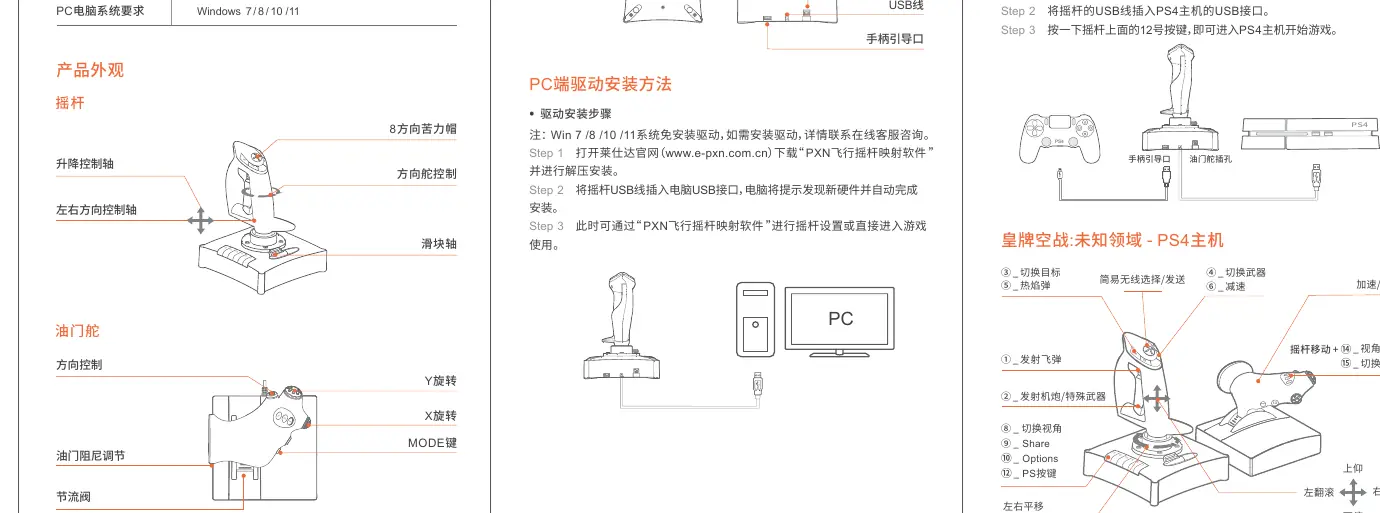
Product Overview
The system consists of a main joystick unit and a throttle unit. Key components include:
- Joystick: Features 8-way hat switch, X/Y axis control, and various function buttons.
- Throttle: Includes slider axis, rotary controls, and throttle adjustment.
- Guidance Port: Located on the back of the joystick, used to connect the original console controller.
- Vibration Switch: Toggle for vibration feedback.
PC Setup
- Visit the official PXN website (www.e-pxn.com) to download the "PXNJoystick" driver.
- Extract and install the driver software.
- Plug the joystick USB cable into the PC. Windows will detect the hardware automatically.
- Use the "PXNJoystick" software to calibrate or configure settings before playing.
Console Setup (PS4 and Xbox One)
Important: The original console controller must be powered off before connection.
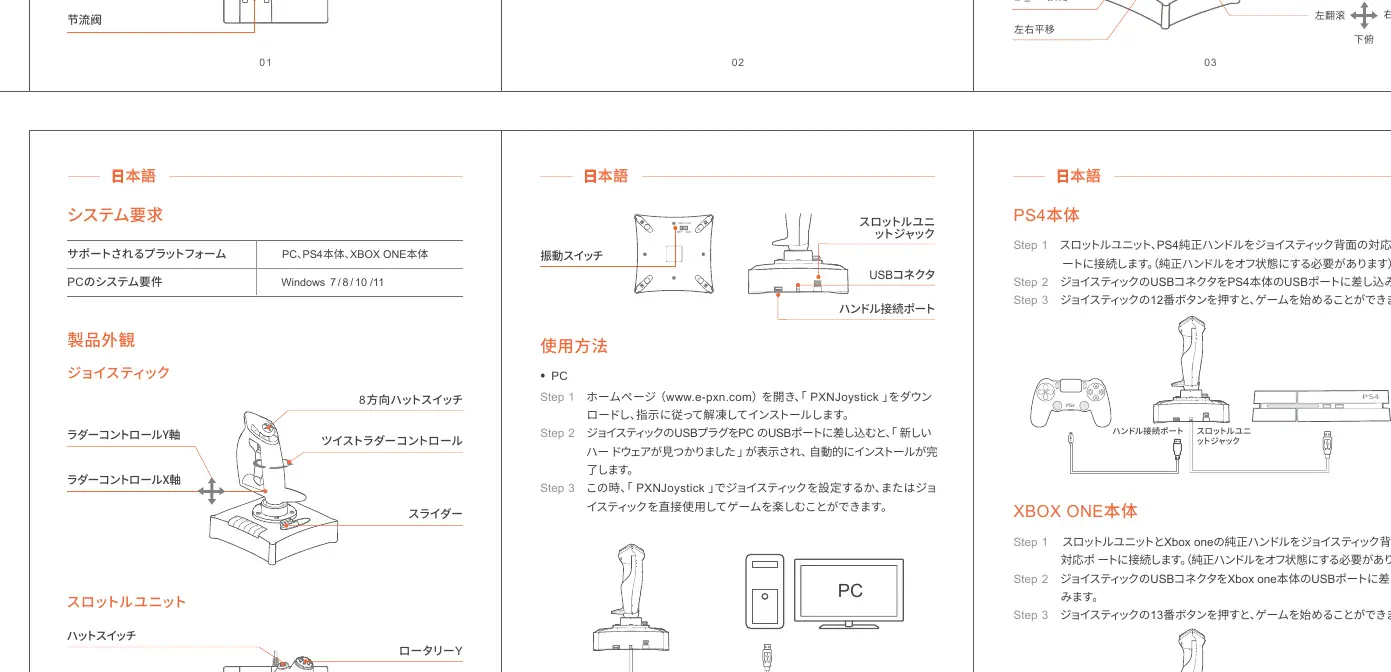
- Connect the throttle unit to the joystick base.
- Connect the original console controller to the Guidance Port on the back of the joystick.
- Plug the joystick USB cable into the console's USB port.
- Power on the console.
- Press the designated button on the joystick to activate: Button 12 for PS4 or Button 13 for Xbox One.
Button Functions and Modes
The joystick features three operational modes, indicated by the blue light:
- MODE 0: Blue indicator OFF.
- MODE 1: Blue indicator ON.
- MODE 2: Blue indicator Flash.
The POV switches and buttons can be mapped to various functions depending on the game support. Use the testing interface in the driver software to verify button and axis inputs.
Safety and Maintenance
- Avoid strong vibrations, disassembly, or unauthorized repairs.
- Keep the device away from water, high humidity, high temperatures, and soot.
- If you encounter quality issues, contact the seller or after-sales service.
Official resources from the manual
Practical help
Common problems
Joystick not detected on PC
Ensure the 'PXNJoystick' driver is downloaded and installed from the official website.
Console does not recognize the joystick
Ensure the original console controller is connected to the guidance port and is powered OFF before connecting the joystick to the console.
Before use
- Download and install the PXNJoystick driver for PC.
- Connect the throttle unit to the joystick base.
- Ensure the original console controller is powered off for console setup.
- Verify the USB connection to the console or PC.
Show more Show less
Specs in practice
- Working Current
- 20mA - 100mA (varies with vibration).
- Cable Length
- Joystick cable approx. 1.8m, Accelerator cable approx. 1.6m.
- Operating Temperature
- 10 - 40 °C.
Images and diagrams
- Guidance Port: Used to connect the original console controller for authentication.
- Throttle Rudder Port: Connects the throttle unit to the main joystick.
Model compatibility
- Compatible with PC (Windows 7/8/10/11), PS4, and XBOX ONE.

Manual page author
Emily Carter
User documentation editor