Electronics / Gaming Peripherals
XBOX ONE 2.4G Wireless Controller User Guide
User guide for the XBOX ONE 2.4G Wireless Controller. Includes connection instructions for Xbox One, PC, PS3, and Android, charging procedures, and mode switching.
Quick answers from the manual
Quick answer
- To connect the controller, plug the USB receiver into the host's USB port, then press the HOME button on the controller. Connection is successful when both the controller and receiver lights remain solid. p. 1
Key actions
- Switching modes (Xbox One/Xinpu/Dinpu) p. 1
- Charging the controller p. 1
First start
- Plug the receiver into the USB port, press the HOME button, and wait for the lights to stop flashing. p. 1
Technical specifications
| Parameter | Value | Meaning | Pages |
|---|---|---|---|
| Wireless Frequency | 2.4 GHz | Operating frequency | p. 1 |
| Effective Range | 30 feet | Maximum wireless distance | p. 1 |
Where to find it in the PDF
- Product Application and Connection p. 1
- Regulatory Information p. 2
Table of contents
Quick guide from the manual
This controller is designed for use with the Xbox One console, PC (Windows 10), PS3, and Android devices. To connect, plug the USB receiver into the host device, press the HOME button on the controller, and wait for the lights on both the controller and receiver to remain solid. To switch between modes (Xbox One, Xinpu, Dinpu), long-press the HOME button for 5 seconds.
Product Overview
The controller features 2.4GHz wireless technology with an effective range of approximately 30 feet. It includes dual motors for vibration feedback, a 256-precision 3D rocker, and sensitive key response for an immersive gaming experience.
Connection and Setup
Connecting to Xbox One:
- Plug the receiver into the host's USB port. The receiver light will flash.
- Press the HOME key on the controller. The controller light will flash.
- When both the controller light and receiver light remain solid, the connection is successful.
Connecting to PC/PS3/Android:
Follow the same connection procedure as above. The controller defaults to Xbox One mode. To switch to Xinpu or Dinpu mode for PC compatibility, long-press the HOME button for 5 seconds.
Charging
When the controller voltage is low, the 4 lights under the HOME button will flash to indicate that charging is required.
- Connect the USB charging cable to a DC 5.0V power source.
- The 4 lights under the HOME button will flash slowly while charging.
- When the controller is fully charged, the lights will remain on.
Practical help
Common problems
Controller not connecting to the host
Ensure the receiver is plugged into the USB port and the receiver light is flashing. Press the HOME button on the controller and wait until both the controller and receiver lights remain solid.
Low battery indication
The 4 lights under the HOME button will flash. Connect the controller to a DC 5.0V power source using a USB cable.
Before use
- Ensure the USB receiver is securely plugged into the host device.
- Check that the controller is charged (if lights are flashing, charge via USB).
- Verify the host device is compatible (Xbox One, PC Win10, PS3, or Android).
Specs in practice
- Wireless Frequency
- 2.4 GHz technology for wireless connectivity.
- Effective Range
- Approximately 30 feet (approx. 9 meters).
- Charging Voltage
- DC 5.0V.
Images and diagrams
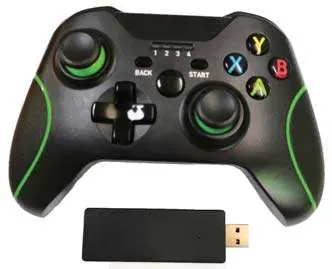
- The controller features a standard layout with a HOME button, directional pad, dual analog sticks, and action buttons (A, B, X, Y).
- The USB receiver is a separate dongle that plugs into the console or PC.
Model compatibility
- Compatible with Xbox One, PC (D-INPUT/X-INPUT, Win10 only), PS3, and Android.
- PS3 and Android systems feature automatic identification.

Manual page author
David Miller
Documentation analyst
Organizes user manual content into clear summaries, with attention to model details, product context, and everyday usability.