Toys / RC Models & Drones
User Manual for ANKO 43040414 2.4Ghz Wireless Rechargeable Gaming Mouse
Quick guide for the ANKO 43040414 gaming mouse. Learn how to connect, charge, adjust DPI, customize buttons, and use the software.
Quick answers from the manual
Quick answer
- The ANKO 43040414 is a 2.4GHz wireless rechargeable gaming mouse. It supports plug-and-play connectivity via a USB receiver, features adjustable DPI (1200-10000), and offers customizable buttons and lighting via dedicated software. p. 1, 2, 3, 4
Key actions
- Connect the mouse p. 3
- Charge the mouse p. 3
- Change DPI p. 3
First start
- Plug the USB receiver into a free USB port on the computer. The computer will recognize the receiver and install the driver automatically. p. 3
Problems and fixes
Device malfunction due to electrostatic discharge or power surge
Disconnect from your computer and then reconnect it again.
p. 3Technical specifications
| Parameter | Value | Meaning | Pages |
|---|---|---|---|
| Input Voltage | 5V | Operating voltage | p. 2 |
| Resolution | 1200/3200/4800/7200/10000DPI | Adjustable sensitivity | p. 2 |
Where to find it in the PDF
- Product Overview p. 2
- Software Interface p. 4
Table of contents
Manual images
Click an image to enlargeQuick guide from the manual
The ANKO 43040414 is a 2.4GHz wireless rechargeable gaming mouse. It features plug-and-play connectivity, adjustable DPI settings, and customizable buttons via dedicated software. Ensure you charge the device for 1.5-2 hours before initial use.
Product overview and controls
The mouse includes the following physical controls:
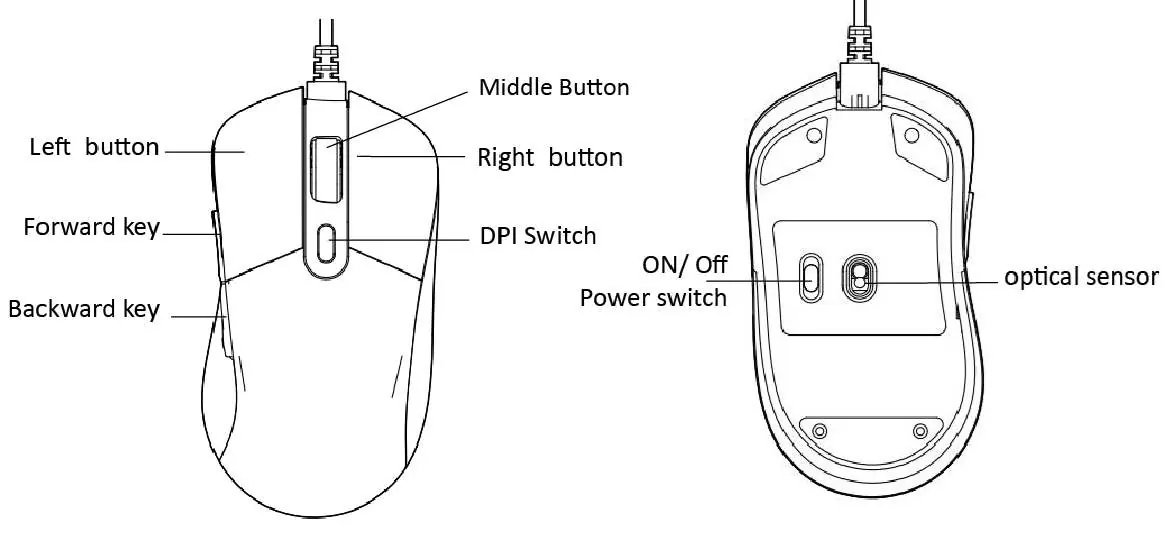
- Left/Right Buttons: Standard click functions.
- Middle Button: Scroll wheel function.
- Forward/Backward Keys: Navigation keys.
- DPI Switch: Located on the top, used to cycle through sensitivity settings.
- On/Off/Eco Switch: Located on the bottom, controls power modes.
- Optical Sensor: Located on the bottom.
Connecting and power modes
To connect the mouse, plug the USB receiver into a free USB port on your computer. The computer will automatically recognize the receiver and install the necessary drivers.
The power switch on the bottom of the mouse offers three modes:
- Off / Wired Mode: Switch off the mouse in wireless mode. Connect the provided USB-C cable to a computer to use in wired mode.
- Eco Mode: Wireless power-saving mode (roller light off, logo light on).
- ON / Wireless mode: Standard wireless mode with all LED lights on.
Charging
Connect the provided USB-C cable to the mouse's USB-C port and the other end to a free USB-A port on your computer. The wheel and logo lights will turn green for 10 seconds to indicate charging. Once fully charged, the lights will change to orange for 10 seconds.
DPI settings
The default DPI is 1200. You can cycle through the sensitivity settings by clicking the DPI switch repeatedly. The available settings are: 1200, 3200, 4800, 7200, and 10000 DPI.
Software and customization
For advanced features, download the software from the link provided in the manual. The software allows you to:
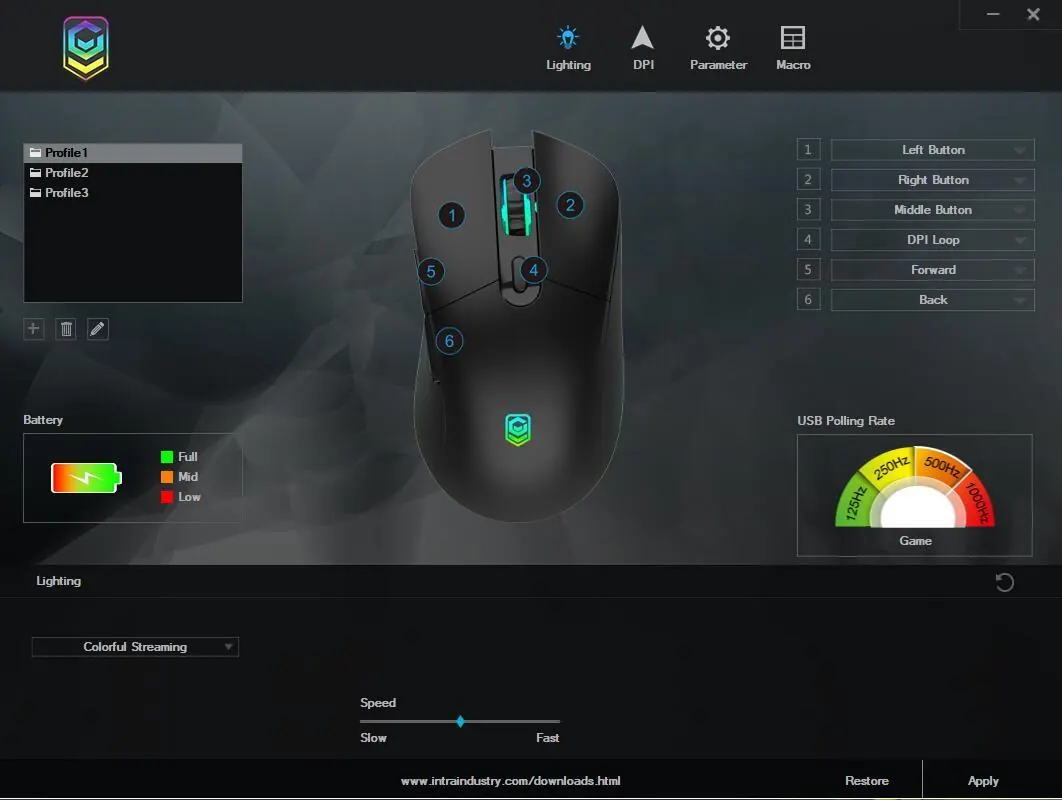
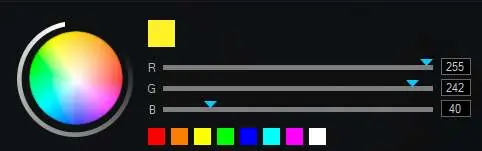
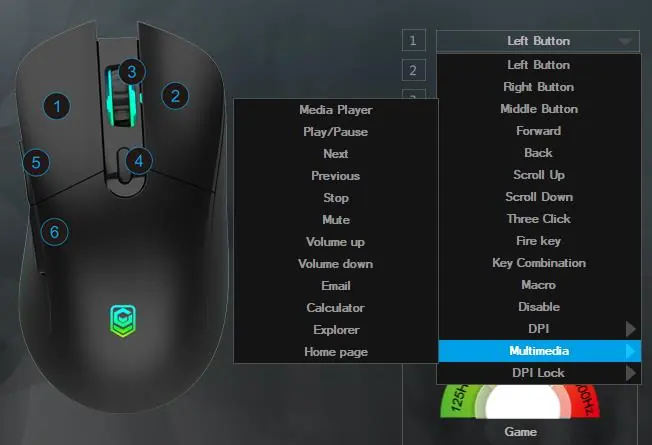
- Lighting: Customize light effects and colors.
- DPI: Adjust DPI stages and sensitivity.
- Parameter: Adjust mouse sensitivity, double-click speed, and scrolling speed.
- Macro: Create and assign custom macros to buttons.
After making changes in the software, click "Apply" to save your settings.
Safety instructions
- Use the appliance indoors only.
- Keep away from hot surfaces and naked flames.
- Place on a level, stable, clean, and dry surface.
- Protect from extreme heat, cold, dust, direct sunlight, humidity, and water.
- Do not immerse in water or other liquids.
- Do not open the housing or insert objects into the interior.
- If the device malfunctions due to electrostatic discharge or a power surge, disconnect it from the computer and reconnect it.
Manufacturer information
Anko
Practical help
Common problems
Mouse not working after electrostatic discharge or power surge
Disconnect the mouse from your computer and then reconnect it.
Mouse not charging
Ensure the USB-C cable is properly connected to the mouse and a powered USB-A port on your computer.
Before use
- Charge the mouse for 1.5-2 hours
- Plug the USB receiver into a free USB port
- Download the software from the official link for full customization
- Ensure the power switch is set to ON or Eco mode for wireless use
Specs in practice
- Input Voltage
- 5V
- Charging time
- 1.5-2 hours
- Working distance
- Up to 10m without obstructions
Images and diagrams
- The mouse features Left, Right, and Middle buttons, Forward/Backward keys, a DPI switch, and an On/Off/Eco power switch.
Model compatibility
- Supports Windows 7/8/10

Manual page author
David Miller
Documentation analyst
Organizes user manual content into clear summaries, with attention to model details, product context, and everyday usability.