Electronics / Headphones Earbuds
User Manual for Razer Boomslang 20th Anniversary Edition
Quick guide for the Razer Boomslang 20th Anniversary Edition gaming mouse. Learn about setup, charging, Razer Synapse customization, sensor calibration, and maintenance.
PDF source: RU · summary: English
Quick answers from the manual
Quick answer
- The Razer Boomslang 20th Anniversary Edition is a wireless gaming mouse. Setup requires connecting the included charging dock to your PC via USB and installing Razer Synapse for full customization of DPI, lighting, and button functions. p. 3, 4, 6
Key actions
- Charge the mouse p. 6, 7
- Customize settings p. 14, 20
First start
- Connect the dock to your PC, install Razer Synapse, and charge the mouse. p. 5, 6
Show 4 more answers Show less
Problems and fixes
Low battery
Charge the mouse using the dock.
p. 7
Tracking issues
Calibrate the sensor in Razer Synapse.
p. 24Maintenance and reset
- Clean with a soft cloth or cotton swab once a month. p. 34
Technical specifications
| Parameter | Value | Meaning | Pages |
|---|---|---|---|
| DPI | 400, 800, 1600, 3200, 6400 | Adjustable sensitivity levels. | p. 3 |
| Cable | 1.8m | Braided USB Type-A to Type-C cable. | p. 4 |
Where to find it in the PDF
- Device Overview p. 3, 4
- Setup and Charging p. 6, 7
- Razer Synapse p. 9, 32
Table of contents
Manual images
Click an image to enlargeQuick guide from the manual
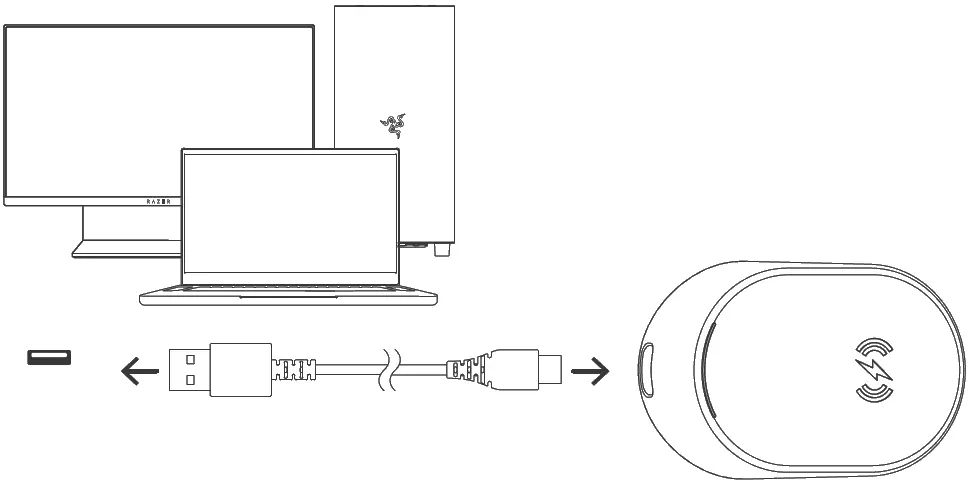
The Razer Boomslang 20th Anniversary Edition is a high-performance gaming mouse. To get started, connect the included Razer Mouse Dock Pro to your computer's USB Type-A port using the provided cable. Place the mouse on the dock to charge. For full functionality, including button customization, DPI adjustment, and lighting effects, install the Razer Synapse software.
Device overview
The mouse features several key components:
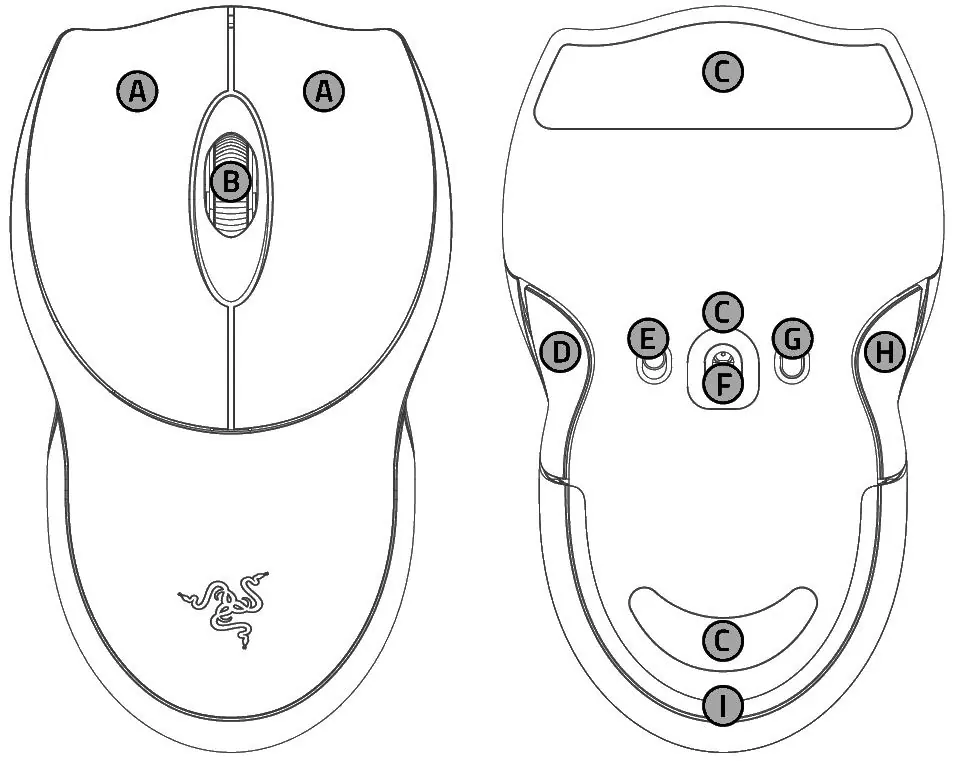
- A: Razer 4th Gen Optical Mouse Switches (Left and Right buttons).
- B: Scroll Wheel.
- C: Fluoropolymer mouse feet.
- D: Mouse button 5.
- E: Power switch.
- F: Razer Focus Pro 45k Optical Sensor.
- G: DPI cycle button.
- H: Mouse button 4.
- I: Underglow / Status indicator.
Charging
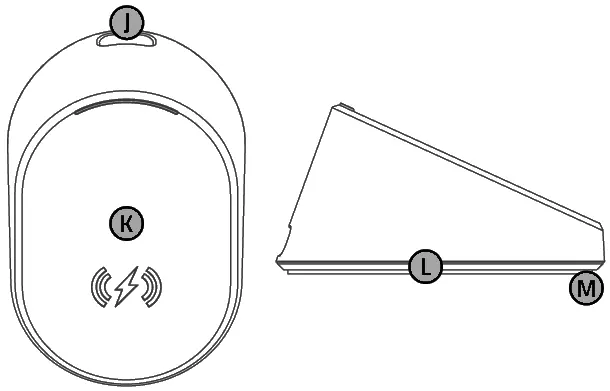
The Razer Mouse Dock Pro serves as both a charging station and a wireless receiver. A full charge for a depleted battery takes approximately 4 hours. The status indicator on the dock and mouse will change color based on the battery level:
- Green: Charged.
- Yellow (Breathing): High battery.
- Orange (Breathing): Medium battery.
- Red (Breathing): Low battery.
- Red (Blinking): Critical battery (default 5%).
Razer Synapse configuration
Razer Synapse allows you to customize your device:
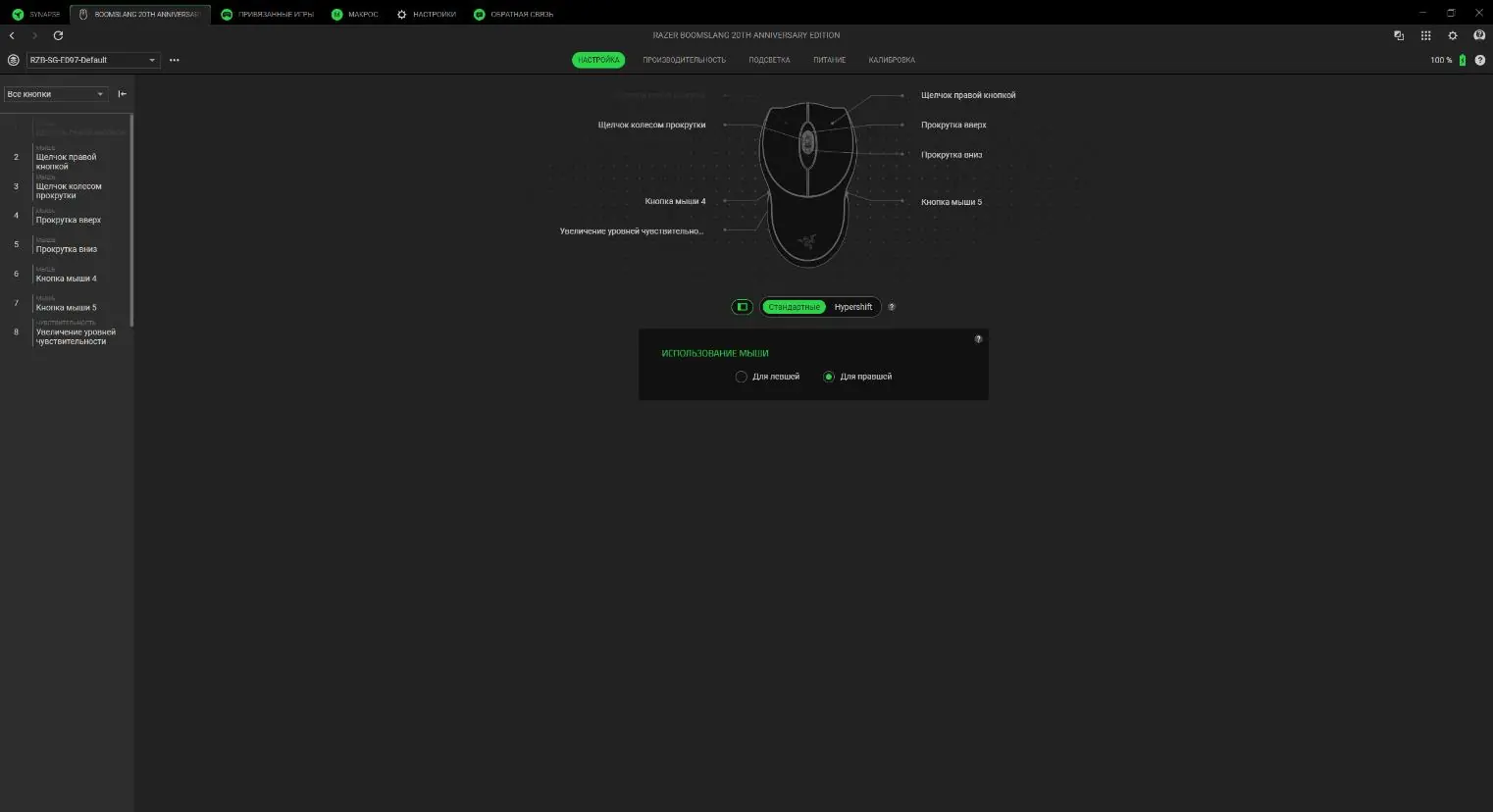
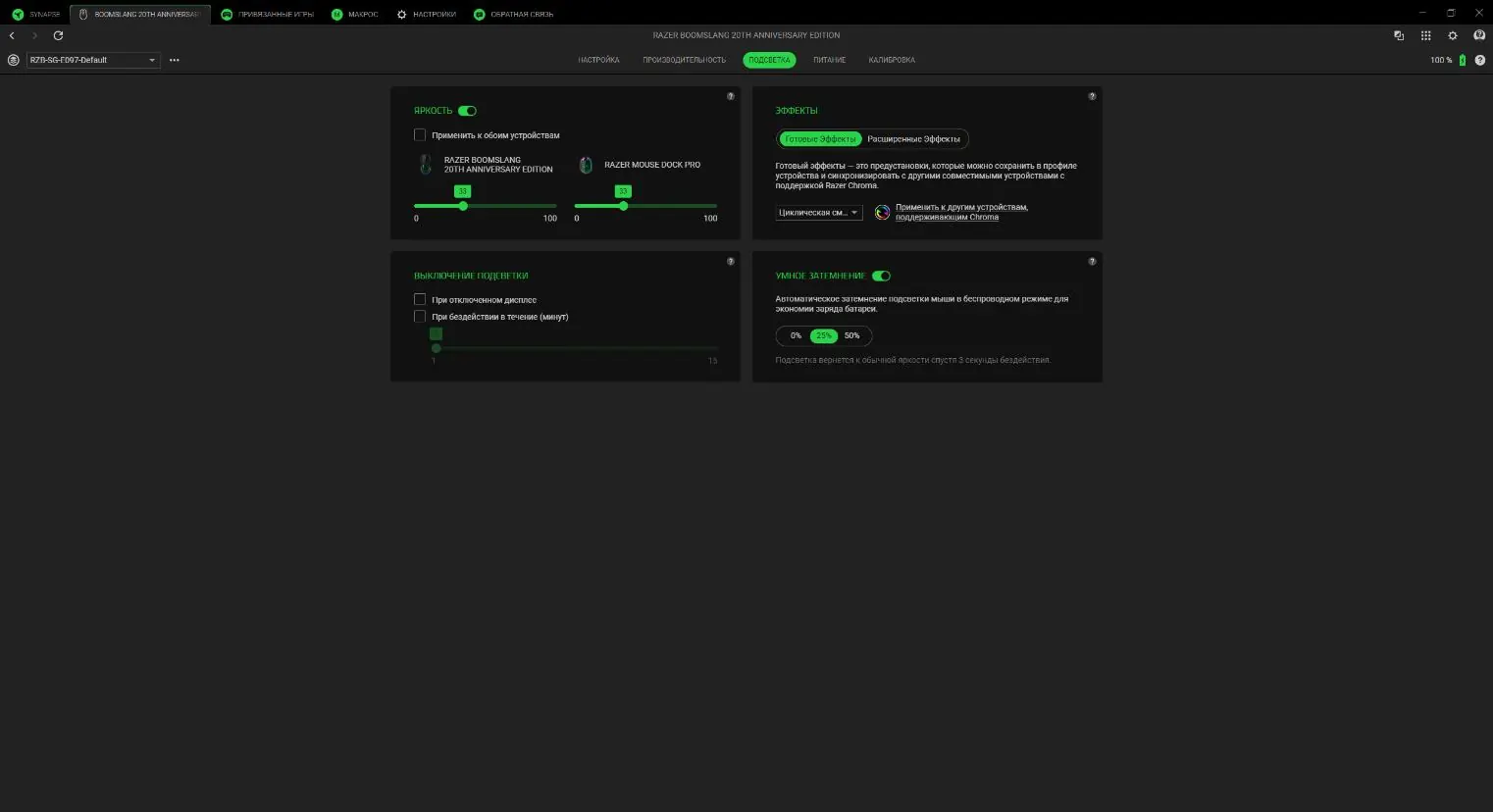
- Customize: Remap buttons, set up Hypershift (secondary function mode), and assign macros.
- Performance: Adjust DPI levels (400, 800, 1600, 3200, 6400) and polling rate.
- Lighting: Configure Chroma RGB effects and brightness.
- Calibration: Optimize the sensor for your specific mouse mat surface, including lift-off distance settings.
Maintenance and safety
To keep your mouse in optimal condition:
- Clean the device once a month by disconnecting it and wiping it with a soft cloth or cotton swab. Do not use soap or harsh cleaning agents.
- Use a Razer mouse mat for the best sensor performance.
- Do not disassemble the device or expose it to extreme temperatures (keep between 0°C and 40°C).
- If the mouse is not used for an extended period, ensure it is charged properly.
Practical help
Common problems
Mouse tracking is inconsistent
Use the Calibration tab in Razer Synapse to optimize the sensor for your surface.
Low battery warning
Place the mouse on the Razer Mouse Dock Pro to charge.
Buttons not performing assigned actions
Check your button assignments and profiles in Razer Synapse.
Before use
- Ensure you have a PC with Windows 11 or newer.
- Connect the Razer Mouse Dock Pro to a USB Type-A port.
- Install Razer Synapse software.
- Charge the mouse fully before first use (approx. 4 hours).
Show more Show less
Specs in practice
- Polling Rate
- Frequency of data updates to the PC; higher rates reduce input lag.
Images and diagrams
- Buttons A-I identify the physical controls and sensors on the mouse.
- Labels J-M identify the ports and charging surfaces on the Mouse Dock Pro.
Model compatibility
- Requires Razer Synapse software for advanced configuration.
- Sensor is optimized for use with Razer mouse mats.

Manual page author
Emily Carter
User documentation editor