Computers / PC Components
User Manual for Razer USB-C 130W GaN Charger
Quick guide for the Razer USB-C 130W GaN Charger (RC21-0170). Learn how to set up, connect devices, and maintain your charger for optimal performance.
Table of contents
Manual images
Click an image to enlargeQuick guide from the manual
This document provides essential instructions for setting up and using the Razer USB-C 130W GaN Charger (Model: RC21-0170). The charger is designed to provide high-speed power to laptops and other electronic devices. Ensure you use the correct regional plug for your wall outlet and verify the power indicator light is illuminated before connecting your devices.
What's inside
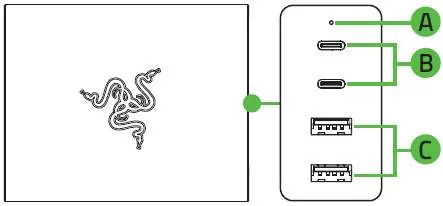
- Razer USB-C 130W GaN Charger (Model No: RC21-0170)
- Regional adapter plugs (UK/EU variants)
- 100W USB Type-C cable
- Important Product Information Guide
Setting up your Razer USB-C 130W GaN Charger
Installing the plug: Select the appropriate regional plug for your location. Slide the plug onto the charger body until it clicks into place.
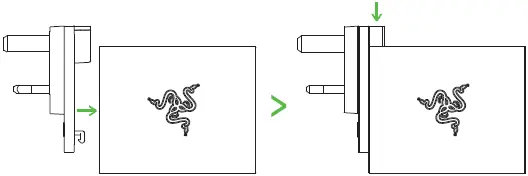
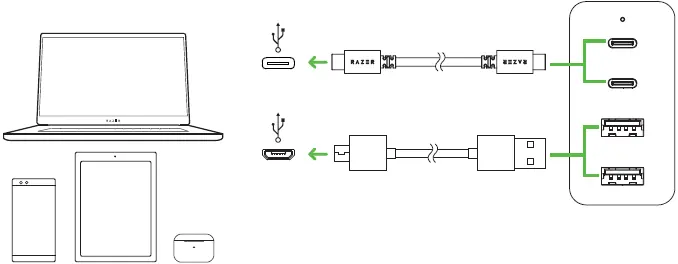
Removing the plug: To remove or change the plug, press the release button on the charger body and slide the plug off.
Connecting to power: Plug the charger into a standard AC power outlet. The power indicator light will turn on to confirm the device is receiving power.
Connecting devices: Use the provided 100W USB Type-C cable to connect your laptop or other electronic devices to the USB-C ports. You may also use the USB-A ports for other compatible devices.
Power output specifications: The maximum shared power output for USB Type-C ports is up to 112W, and up to 18W for USB Type-A ports. The combined power output for all ports is up to 130W.
Safety and maintenance
Safety guidelines:
- Do not take apart the device, as this will void your warranty.
- Do not operate the device under abnormal current loads.
- Keep the device away from liquid, humidity, or moisture.
- Operate the device only within the temperature range of 0°C to 40°C (32°F to 104°F). If the temperature exceeds this range, unplug the device and allow it to stabilize.
Maintenance: To keep the charger in optimum condition, unplug it from the computer and clean it once a month using a soft cloth or cotton swab to prevent dirt buildup. Do not use soap or harsh cleaning agents.
Practical help
Common problems
Device not charging
Ensure the charger is securely connected to a power outlet and the power indicator light is lit.
Charger overheating or operating outside temperature range
Unplug the device immediately and allow it to stabilize within the recommended 0°C to 40°C range.
Before use
- Verify you have the correct regional plug for your wall outlet.
- Ensure your laptop or device supports USB-C charging.
- Check that the power indicator light turns on after plugging into the wall.
- Use the provided 100W USB Type-C cable for optimal performance.
Images and diagrams
- The charger features a power indicator light (A), two USB Type-C ports (B), and two USB Type-A ports (C).
- Regional plugs slide onto the charger body and can be removed by pressing the release button.
Model compatibility
- Requires a laptop or device with a free USB-C port or other compatible electronic devices.

Manual page author
Emily Carter
User documentation editor
Prepares concise manual descriptions and highlights the most useful setup, operation, and maintenance information for readers.