Power / USB Chargers
User Manual for Satechi 108W Pro USB-C PD Desktop Charger
Quick start guide for the Satechi 108W Pro USB-C PD Desktop Charger. Learn how to connect your devices, understand port power distribution (90W, 18W, 12W), and optimize charging for laptops, tablets, and smartphones.
Table of contents
Manual images
Click an image to enlargeQuick Start Guide
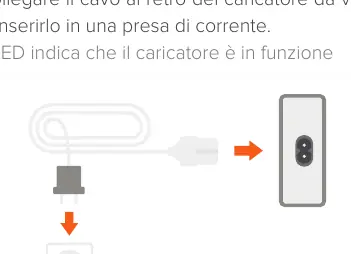
To begin using your Satechi 108W Pro USB-C PD Desktop Charger, connect the power cable to the back of the charger and plug it into a wall outlet. An LED indicator will illuminate to confirm that the charger is receiving power and is operational.
Charging Capabilities
The charger supports simultaneous charging for up to four devices with a maximum combined power output of 108W. Ensure your devices are connected to the appropriate ports to achieve optimal charging speeds.
Port Specifications
The charger features multiple ports with specific power outputs:
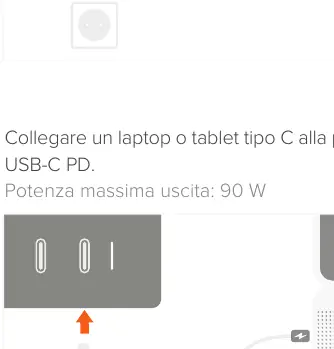
- USB-C PD Port 1: Provides a maximum output of 90W, ideal for charging laptops and tablets.
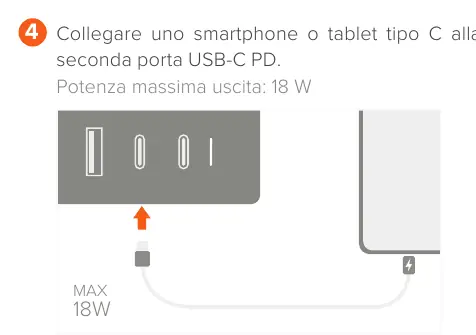
- USB-C PD Port 2: Provides a maximum output of 18W, suitable for smartphones and tablets.
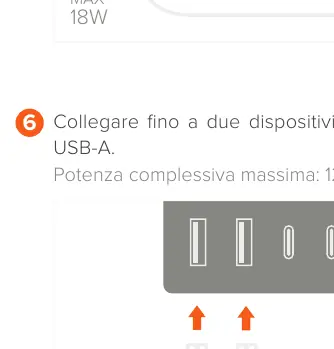
- USB-A Ports: Two ports available with a combined maximum output of 12W for smaller devices.
Important Usage Notes
- Cables: Charging cables are not included and must be purchased separately.
- Fast Charging: To fast charge USB-C PD devices, use a certified MFi Apple USB-C to Lightning cable.
- Power Distribution: The total power output is shared across all connected devices. Ensure the total power draw does not exceed the charger's capacity for optimal performance.
Manufacturer information
Satechi
Practical help
Common problems
Device is not charging
Ensure the power cable is securely connected to both the charger and the wall outlet. Verify that the LED indicator is lit.
Slow charging speed
Check that your device is connected to the correct port (e.g., use the 90W port for laptops). Ensure you are using a high-quality, compatible charging cable.
Before use
- Connect the power cable to the back of the charger.
- Plug the power cable into a wall outlet.
- Verify the LED indicator is on.
- Identify the correct port for your device (90W for laptops, 18W for phones).
- Ensure you have the necessary USB-C or USB-A cables.
Specs in practice
- USB-C PD Port 1
- 90W max output; designed for high-power devices like laptops.
- USB-C PD Port 2
- 18W max output; designed for smartphones and tablets.
Images and diagrams
- Step 1: Power connection and LED status.
- Step 2: Overview of 4-device simultaneous charging.
- Step 3: Connecting a laptop to the 90W port.
- Step 4: Connecting a smartphone to the 18W port.
- Step 5: Using an MFi cable for fast charging.
Model compatibility
- Requires MFi certified Apple USB-C to Lightning cable for fast charging Apple devices.
- Cables are not included with the charger.

Manual page author
Michael Turner
Technical manual editor
Reviews PDF manuals for structure, safety notes, and practical product details so readers can find the right information quickly.