Industrial / Electrical
User Guide for Schneider Electric SysM/SysD Connected Wireless Switch
Quick guide for the Schneider Electric SysM/SysD Connected Wireless Switch. Learn how to pair, configure, assign actions, replace the battery, and troubleshoot your device.
Table of contents
Manual images
Click an image to enlargeQuick guide from the manual
The Schneider Electric SysM/SysD Connected Wireless Switch is a battery-powered Zigbee device used to control lighting, shutters, or other Zigbee-enabled devices via the Wiser Home app. Key operations include pairing the device with the Wiser Hub, configuring actions or moments, and replacing the CR2032 battery when low.
About the device
The Wireless Switch provides a user-friendly interface for controlling smart home devices. It is easy to install without wiring and can be configured to control specific actions (e.g., light on/off) or moments (e.g., Movie Night) through the Wiser Home app.
Pairing the device
To pair the switch with the Wiser Hub:
- Open the Wiser Home app and tap the icon to add a device.
- Navigate to Devices, select Appliances, and choose Connected Wireless Switch.
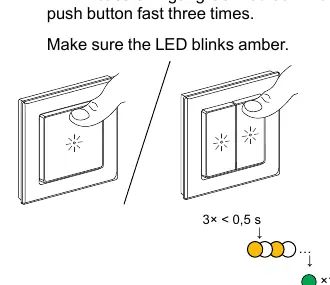
- On the 2-gang switch, press the top-right button three times rapidly. For the 1-gang switch, press the top-center button three times rapidly.
- Ensure the LED blinks amber. Wait for the LED to turn green, indicating the device is joined.
Configuring the device
Use the Wiser Home app to manage your switch:
- Setting location: Assign the switch to a specific room in the app.
- Renaming: Change the device name in the Device Details menu.
- Identifying: Use the Identify feature in the app to flash the switch LED, helping you locate the physical device.
- Removing: Delete the device from the system via the app settings.
Resetting the device
If you need to reset the switch to factory defaults (e.g., when changing from 1-gang to 2-gang or replacing the Hub):
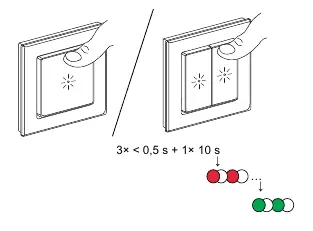
- Short press the top-right (or top-center for 1-gang) button three times.
- Immediately press and hold the button for more than 10 seconds.
- The LED will blink red, then the device will restart and blink green.
Using the device
You can operate the switch manually:
- Light: Short press for on/off; long press for dimming.
- Shutter: Long press to drive the shutter up or down.
- Moment: Short press to activate a configured Moment.
Replacing the battery
When the battery level is low (indicated by the app or a red blink when pressed):
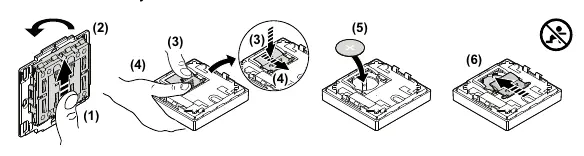
- Remove the module from the fixing plate by sliding it upwards.
- Rotate the module 180 degrees to access the battery cover.
- Press and hold the battery cover with your thumb, then slide it to remove.
- Remove the old battery and insert a new CR2032 battery with the plus (+) symbol facing outward.
- Secure the battery cover and reattach the module.
Troubleshooting
- LED blinks red: Battery is low or drained. Replace the CR2032 battery.
- Device offline in app: Battery is low or the device is disconnected from the network. Press any button to wake the device.
Technical Data
- Battery: CR2032
- Battery life: Up to 5 years
- Communication protocol: Zigbee 3.0
- Range: 100 m open space
- Operating temperature: -5 °C to 45 °C
- IP rating: IP20
Manufacturer information
Schneider Electric
Practical help
Common problems
LED blinks red when button is pressed
The battery is low (< 10%). Replace the CR2032 battery.
Device displays offline in the app
The battery may be drained or the device is disconnected. Press any button to wake it up.
Before use
- Ensure the Wiser Hub is installed and operational.
- Download and install the Wiser Home app.
- Ensure the switch is within range of the Zigbee network.
- Check the battery level via the app.
Images and diagrams
- Pairing: Press the top-right button (or top-center for 1-gang) 3 times rapidly.
- Resetting: Press 3 times rapidly, then hold for >10 seconds until the LED blinks red.
Model compatibility
- Compatible with Wiser Home app.
- Works with Zigbee devices.

Manual page author
Emily Carter
User documentation editor
Prepares concise manual descriptions and highlights the most useful setup, operation, and maintenance information for readers.