Industrial / Electrical
User Guide for Schneider Electric Exxact Connected Wireless Switch
Quick guide for the Schneider Electric Exxact Connected Wireless Switch. Learn how to pair, configure, and use your 1-gang or 2-gang wireless switch with the Wiser app.
Table of contents
Manual images
Click an image to enlargeQuick guide from the manual
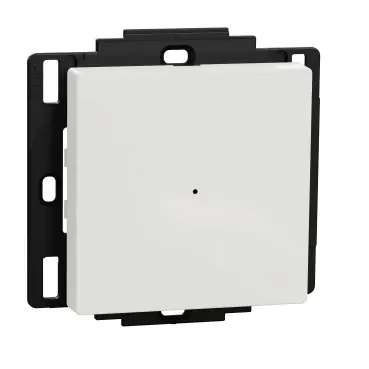
This guide provides instructions for the Exxact Connected Wireless Switch (1-gang/2-gang). The device is a battery-powered wireless switch used to control Zigbee devices such as lights, shutters, and moments via the Wiser app. Key tasks include pairing the device with a Wiser Gateway, configuring button functions, and performing maintenance like battery replacement.
Safety information
DANGER: Hazard of electric shock, explosion, or arc flash. When installing the device on a wall box or an existing switch outlet combination, always isolate the 230 V AC cables by applying an adhesive silver foil on the fixing plate.
About the device
The Wireless Switch is designed to control groups of Zigbee devices. Features include:
- Control of lighting and shutter groups.
- Triggering moments (e.g., Movie Night).
- Low battery notifications.
Note: Construction materials may cause interference affecting signal range.
Pairing the device with Wiser Gateway
Before use, the device must be paired with the Wiser Gateway using the Wiser app.
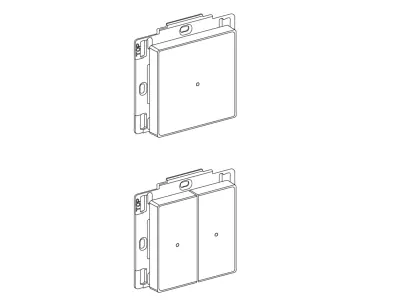
Manual pairing
- Insert the battery into the device.
- On the Wiser app Home page, tap +.
- Select Wiser Hub and choose Add Device.
- Select Add Device with Install Code (recommended) or Add Device without Install Code.
- Short press the top right push button 3 times.
- Confirm the LED is blinking orange in the app and tap Start configuration.
- A solid green LED indicates successful pairing.
Auto scan
- Remove the rockers to see the LED.
- Tap Auto scan in the app and confirm.
- Enable location and Wi-Fi permissions.
- Short press the top right push button 3 times to initiate discovery.
Configuring the device
You can customize the device in the Wiser app by selecting the device on the Home page and tapping the edit icon. You can change the device icon, rename the device, or update its location.
Using the device
The control panel allows you to assign lighting groups, shutter groups, or moments to the push buttons.
Lighting group
Assign lighting groups to top/bottom keys. Single press the top key to turn on and the bottom key to turn off. For dimmers, long press the top key to increase brightness and the bottom key to decrease it.
Shutter group
Assign shutter groups to keys. Long press the top key to open, long press the bottom key to close. Single press either key to stop movement.
Moments
Create moments to group multiple actions. Assign a moment to any key; single press the key to trigger the moment.
Replacing the battery
- Remove the device from the fixing plate by sliding it upwards.
- Rotate the device 180 degrees to access the battery cover.
- Press and hold the cover, then slide it to remove.
- Replace the old battery with a new CR2032 battery, ensuring the plus (+) symbol faces outward.
- Secure the battery cover.
Troubleshooting
If the LED blinks red, the battery is low or drained; replace the battery. If the device appears offline in the app, it may be disconnected from the network; press any push button to wake the device.
Technical Data
- Battery: CR2032
- Battery life: Up to 5 years
- IP rating: IP20
- Operating frequency: 2405-2480 MHz
- Communication protocol: Zigbee 3.0
- Operating temperature: -5 °C to 45 °C
Manufacturer information
Schneider Electric
Practical help
Common problems
LED blinks red
Battery is low or drained. Replace the CR2032 battery.
Device displays offline in the app
Battery may be low or the device is disconnected. Press any push button to wake the device.
Before use
- Insert the CR2032 battery into the device.
- Ensure the Wiser app is installed on your mobile device.
- Isolate 230V AC cables if installing on a wall box.
- Ensure the device is within range of the Zigbee network.
Specs in practice
- Communication
- Zigbee 3.0 protocol.
Images and diagrams
- Pairing sequence: Short press the top right push button 3 times.
- Reset sequence: Short press the top right button 3 times, then press and hold for >10 seconds.
Model compatibility
- Requires Wiser Gateway for operation.
- Compatible with Zigbee devices (lights, shutters).

Manual page author
David Miller
Documentation analyst
Organizes user manual content into clear summaries, with attention to model details, product context, and everyday usability.