Smart Home / Smart Relays
User Guide for Pairing Shelly BLU Devices
A comprehensive guide on how to pair Shelly BLU devices with a Bluetooth-enabled Shelly gateway. This manual covers the configuration process in the Shelly Smart Control app, including enabling the Bluetooth gateway function, updating...
Quick answers from the manual
Quick answer
- To pair a Shelly BLU device, you must first configure a Bluetooth-enabled Shelly device as a gateway in the Shelly Smart Control app, enable the 'Bluetooth gateway' function in the device's network settings, and ensure the firmware is up to date. p. 1, 6, 7
Key actions
- Enable Bluetooth Gateway function p. 6
- Update firmware p. 7
First start
- Add gateway device to app p. 2, 3, 4
Where to find it in the PDF
- Gateway Configuration p. 1, 2, 3, 4
- Enabling Gateway Function p. 6
- Pairing BLU Device p. 8, 9, 10
Table of contents
Manual images
Click an image to enlargeQuick guide from the manual
This guide explains how to configure a Bluetooth-enabled Shelly device (such as the Shelly Plus 1PM or Shelly BLU Gateway) to function as a gateway for Shelly BLU devices, which cannot connect directly to Wi-Fi. Ensure your gateway device is installed and powered on before beginning.
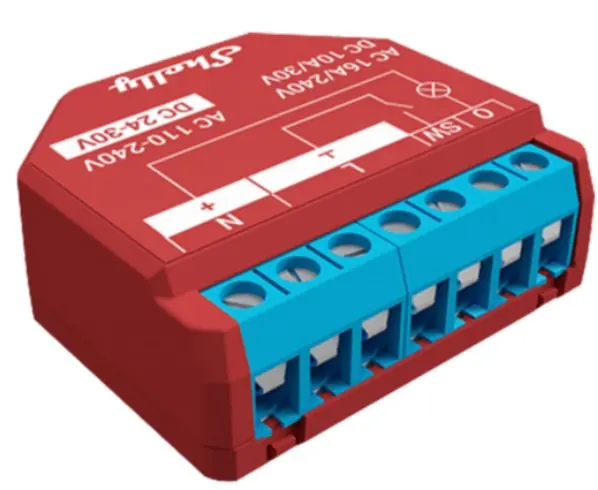
Initial Setup
To begin the configuration, ensure you have the Shelly Smart Control application installed on your mobile phone and that Bluetooth is enabled.
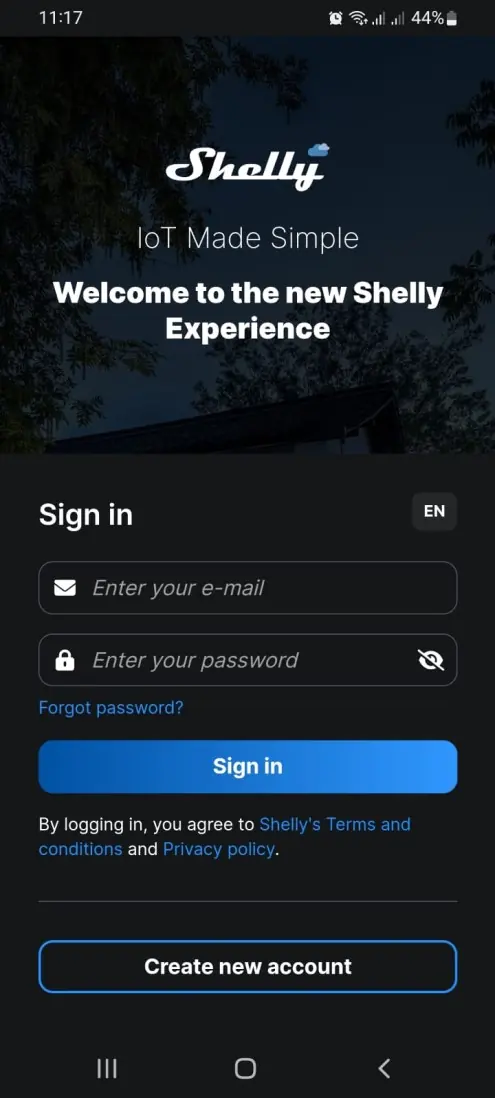
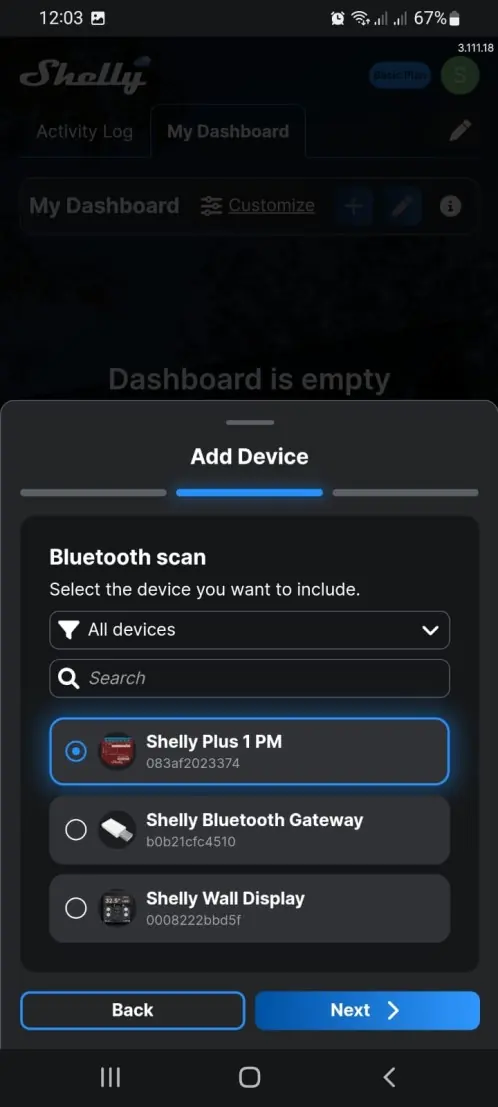
- Open the Shelly Smart Control app and sign in.
- Select Add Device to start the process.
- Choose Add via Bluetooth.
- Select your device from the list and proceed to enter your Wi-Fi credentials.
- Assign a name, select a picture, and choose a room for the device.
Enabling Bluetooth Gateway
Once the device is added, you must enable the gateway function to allow BLU devices to connect.
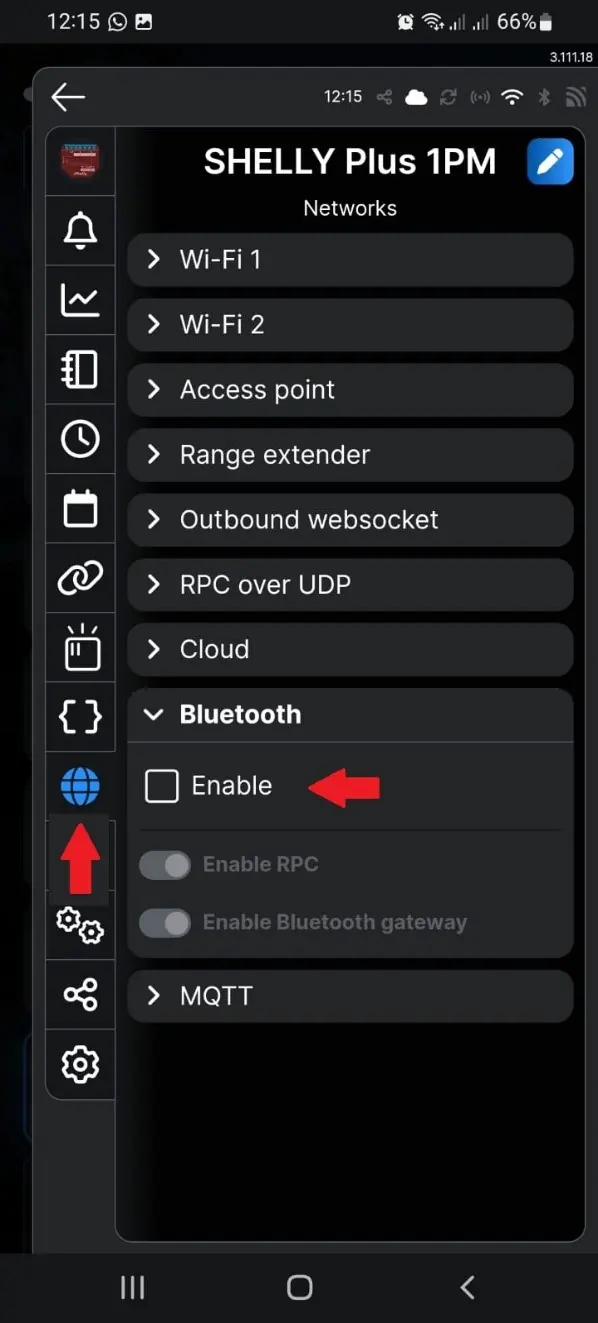
- Navigate to the device settings in the app.
- Go to Networks >Bluetooth.
- Toggle Enable to turn on Bluetooth.
- Ensure Enable Bluetooth gateway is toggled on.
- Confirm the changes and allow the device to reboot.
Firmware Update
It is critical to ensure your gateway device is running the latest firmware before adding any BLU devices.
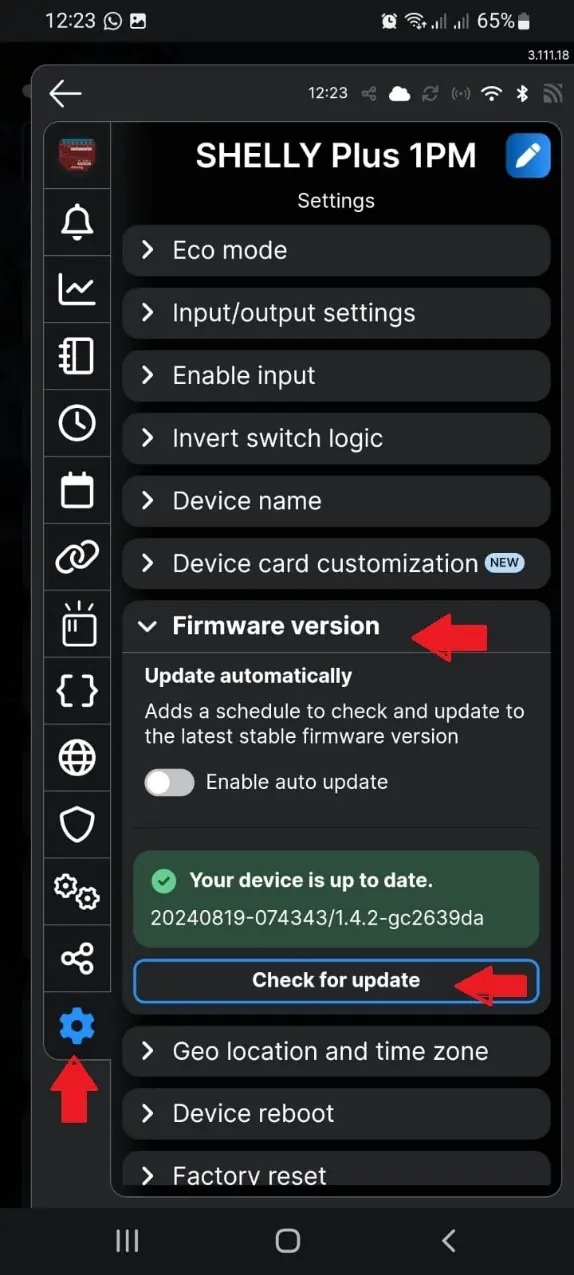
- Go to Settings >Firmware version.
- Select Check for update and install if an update is available.
Pairing BLU Devices
After the gateway is configured and updated, you can pair your BLU devices.
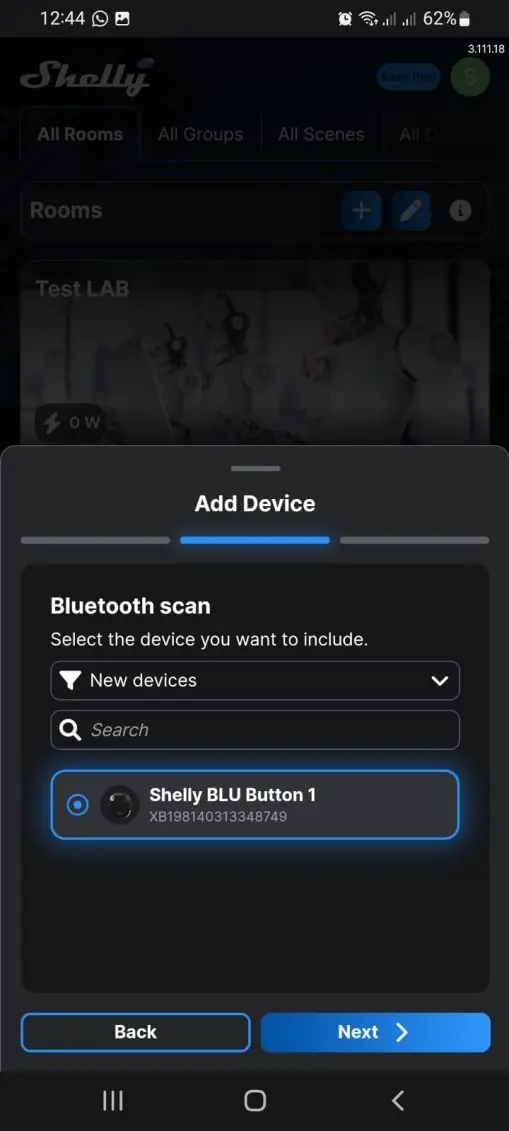
- Navigate back to the room view and select the + icon to add a new device.
- Press and hold the button on the BLU device you wish to add to initiate the pairing process.
- Select the device in the app and follow the prompts to name it and assign it to a room.
- The app will preselect the available Bluetooth Gateways; confirm and complete the setup.
Practical help
Common problems
BLU device not connecting to the network
Ensure the gateway device has the 'Bluetooth gateway' function enabled in the Networks settings and that the firmware is updated to the latest version.
Device not found during pairing
Ensure the BLU device is in pairing mode by pressing and holding its button, and verify that Bluetooth is enabled on your phone.
Before use
- Shelly Smart Control app installed on mobile phone
- Bluetooth enabled on mobile phone
- Gateway device installed and powered on
- Wi-Fi credentials available
- Gateway device firmware updated to the latest version
Images and diagrams
- The manual provides screenshots of the Shelly Smart Control app interface, illustrating the 'Add Device' flow, Bluetooth settings menu, and firmware update screen.
Model compatibility
- Requires a Bluetooth-enabled Shelly device (e.g., Shelly Plus 1PM, Shelly BLU Gateway) to act as a gateway.
- Shelly BLU devices cannot connect directly to Wi-Fi networks.

Manual page author
Michael Turner
Technical manual editor
Reviews PDF manuals for structure, safety notes, and practical product details so readers can find the right information quickly.