General / Other Manuals
User Manual for SIIG 04-1399A USB-C Laptop Stand with 4K Docking Station
Quick guide for the SIIG 04-1399A USB-C Laptop Stand and 4K Docking Station. Learn how to set up the stand, connect peripherals, and troubleshoot charging or display issues.
Table of contents
Manual images
Jump to the sectionQuick guide from the manual
The SIIG 04-1399A is a multifunctional USB-C laptop stand that integrates a 4K docking station. To ensure proper operation, your host laptop or tablet must support USB-C with DP Alt Mode and Power Delivery. The stand supports up to 100W power input, delivering 90W to the host device, with 10W reserved for the docking station's internal functions.
Features
- Video Output: Supports HDMI via DP Alt Mode (4K@30Hz for DP 1.2 hosts, 4K@60Hz for DP 1.4 hosts).
- Data Ports: Two USB-A 5Gbps ports with UASP support.
- Network: RJ-45 Gigabit Ethernet port (10/100/1000Mbps).
- Card Reader: SD & Micro SD 3.0 (UHS-I) card reader, supports simultaneous use.
- Charging: USB PD 3.0 support (100W input max, 90W charging output).
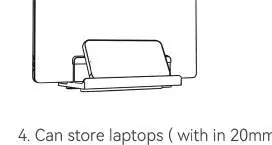
- Compatibility: Works with Windows, Mac, Chrome, and Android systems. Fits laptops and tablets under 14 inches.
System Requirements
Ensure your host device meets the following criteria:
- Available USB Type-C port (Thunderbolt 3 compatible).
- Support for DP Alt Mode (for video output).
- Support for Power Delivery (for charging).
Stand Setup
Follow these steps to prepare the stand for use:

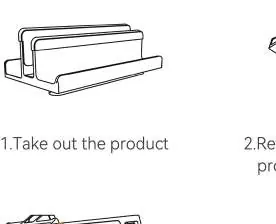
- Take the product out of the packaging.
- Reverse the product to access the bottom.
- Unfold the bracket arm: Rotate the bracket arm from the inside to the outside to a 90-degree angle.
- Adjust anti-skid: Flip the anti-skid opening on the stand arm to 105 degrees to secure your laptop or tablet.
- Storage: To fold, rotate the bracket arm from the outside to the inside back to the storage position.
Port Layout and Usage
The docking station features the following ports:
- SD & TF 3.0 Card Reader: Supports simultaneous reading.
- USB-A 5Gbps Port: For connecting peripherals like keyboards, mice, or USB drives.
- RJ-45 Ethernet Port: Connect to a router or switch for wired internet.
- HDMI Output: Connect to an HDMI display.
- USB-C Host Port: Connect to your laptop using the included USB-C to C cable.
- PD Charging Input: Connect your PD charger here to power the dock and charge your laptop.
Troubleshooting
- Laptop not charging at 90W: Ensure your laptop supports 90W charging. Verify that your USB-C cable supports E-Mark for charging over 60W.
- Using 100W charger but getting less: The docking station reserves 10W for its own operation, providing 90W to the host device.
- HDMI output has no signal: Ensure your host laptop's USB-C port supports DP Alt Mode.
Manufacturer information
SIIG, Inc.
Practical help
Common problems
Laptop not charging at 90W
Ensure your laptop supports 90W charging and that your USB-C cable supports E-Mark for charging over 60W.
HDMI output produces no signal
Verify that your host laptop's USB-C port supports DP Alt Mode.
Using 100W charger but only getting 90W
This is normal; the docking station reserves 10W for its own operation.
Before use
- Ensure your laptop/tablet has a USB-C port supporting DP Alt Mode and Power Delivery.
- Use the included USB-C to C cable for the host connection.
- Check that your laptop or tablet is under 14 inches for optimal fit.
- Ensure your PD charger is connected to the PD input port for laptop charging.
Images and diagrams
- Rotate the bracket arm from inside to outside to 90 degrees to unfold.
- Flip the anti-skid opening on the stand arm to 105 degrees for use.
Model compatibility
- Compatible with Windows, Mac, Chrome, and Android.
- Fits laptops or tablets under 14 inches.
- Requires USB-C port with DP Alt Mode and Power Delivery.

Manual page author
Michael Turner
Technical manual editor
Reviews PDF manuals for structure, safety notes, and practical product details so readers can find the right information quickly.