Lighting / LED Drivers
User Manual for Skydance 10-Key CCT Zigbee 3.0 Remote Controller R2(WZS)
Quick guide for the Skydance 10-Key CCT Zigbee 3.0 Remote Controller (R2(WZS)). Learn how to pair with the Tuya App, configure scenes, install the battery, and mount the remote.
Table of contents
Manual images
Click an image to enlargeQuick guide from the manual
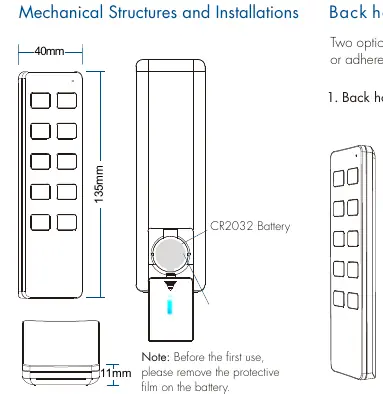
This remote controller is designed for use with Tuya Zigbee 3.0 systems. Before using the device, ensure you have a Tuya Zigbee gateway installed. The remote is powered by a CR2032 battery; remember to remove the protective film from the battery before the first use. Configuration of scenes (1-4) must be performed via the Tuya App.
Installation
Battery Installation: Open the battery compartment and remove the protective film from the CR2032 battery to activate the device.
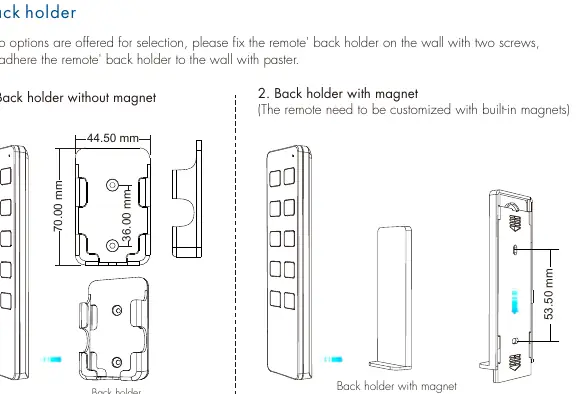
Wall Mounting: Two options are available for the back holder:
- With screws: Fix the back holder to the wall using two screws.
- With magnet: Adhere the back holder to the wall using a paster (requires a remote customized with built-in magnets).
Network Pairing
- Download the Tuya App and register an account.
- Search for and add your Tuya Zigbee gateway device.
- Press and hold the "Network pairing" button on the remote until the LED indicator flashes.
- The device will appear as "WZS-Scene Panel" in the Tuya App.
- Once pairing is successful, the indicator light will stay on for 2 seconds and then turn off.
Remote Association and Scene Settings
You can configure 8 scenes in the Tuya App, which correspond to lighting or linkage scenes.
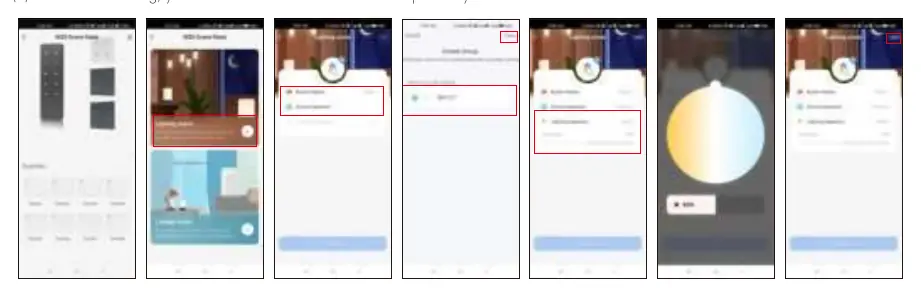
- Lighting Scene: Used for overall control of multiple lamps (e.g., adjusting brightness and color temperature for a room).
- Linkage Scene: Used for controlling different equipment together, such as lamps and curtains.
To set up a scene, select the scene number in the Tuya App, open the settings, add devices, adjust the required functions (ON/OFF, brightness, color temperature), and save. Scenes 1-4 in the app correspond to the S1-S4 keys on the remote.
Safety Information
- Read all instructions carefully before installation.
- When installing the battery, ensure correct positive and negative polarity.
- Remove the battery if the remote will not be used for a long time.
- Replace the battery if the remote distance becomes short or the signal insensitive.
- Handle the remote gently and avoid dropping it.
- For indoor and dry location use only.
Manufacturer information
Guangzhou Skydance Co., Ltd.
Practical help
Common problems
Remote distance becomes short or signal is insensitive.
Replace the CR2032 battery.
Remote is not working after unboxing.
Ensure the protective film on the battery has been removed.
Before use
- Remove the protective film from the CR2032 battery.
- Download and register the Tuya App.
- Ensure a Tuya Zigbee gateway is installed and connected.
- Check that the remote is within 30m of the gateway (barrier-free).
Images and diagrams
- Back holder: Illustrates two mounting methods: using screws or using a magnet.
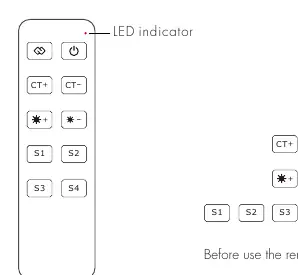
- Key function: Defines the buttons for On/Off, pairing, brightness, color temperature, and scene recall.
Model compatibility
- Requires a Tuya Zigbee gateway.
- Compatible with dual-color LED controllers or drivers.

Manual page author
Emily Carter
User documentation editor
Prepares concise manual descriptions and highlights the most useful setup, operation, and maintenance information for readers.