Smart Home / Smart Switches
Sonoff Dual R2 2-Gang Wi-Fi Smart Switch User Manual
Quick guide for the Sonoff Dual R2 2-Gang Wi-Fi Smart Switch. Includes installation, wiring diagrams, app pairing instructions, LED status indicators, and troubleshooting.
Quick answers from the manual
Quick answer
- The Sonoff Dual R2 is a 2-gang Wi-Fi smart switch. It requires a 2.4GHz Wi-Fi connection and is controlled via the eWeLink app. p. 1, 4
Key actions
- Wiring the device p. 2
- Pairing with eWeLink app p. 3
First start
- Power on the device to enter Quick Pairing mode automatically. p. 3
Problems and fixes
Device stays offline
Check Wi-Fi password, router distance, 2.4GHz network, or MAC filtering.
p. 10Maintenance and reset
- Delete the device in the eWeLink app to restore factory settings. p. 10
Technical specifications
| Parameter | Value | Meaning | Pages |
|---|---|---|---|
| Input/Output | 100-240V AC 50/60Hz | Voltage and frequency requirements | p. 4 |
| Max Load | 10A/2200W per gang, 15A/3500W total | Maximum power capacity | p. 4 |
Where to find it in the PDF
- Wiring Instructions p. 2
- Specifications p. 4
Table of contents
Manual images
Click an image to enlargeQuick guide from the manual
The Sonoff Dual R2 is a 2-gang Wi-Fi smart switch designed for remote control, scheduling, and voice control of home appliances. This document provides essential installation, wiring, and configuration instructions.
Safety and Installation
Warning: To avoid electric shock, please consult a dealer or a qualified professional for help when installing and repairing the device. Ensure the power is turned off before beginning any installation work.
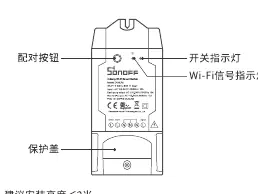
- The device weight is less than 1 kg.
- Installation height of less than 2 m is recommended.
- Ensure the neutral wire and live wire connections are correct.
Wiring Instructions
The device supports two main wiring configurations:
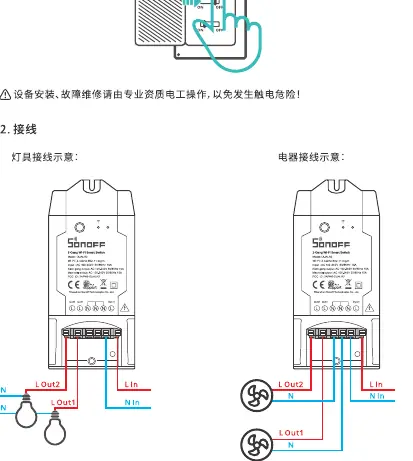
- Light fixture wiring: Connect the neutral (N) and live (L) wires from the power source to the input terminals, and connect the lights to the output terminals (L Out1, L Out2).
- Appliance wiring: Similar to light fixtures, connect the appliance neutral and live wires to the output terminals.
App Setup and Pairing
To control the device, you must use the eWeLink app.
Quick Pairing Mode
- Download the eWeLink app from the App Store or Google Play.
- Power on the device. It will enter Quick Pairing mode (Touch) by default during the first use.
- The Wi-Fi LED indicator will flash in a cycle of two short and one long flash.
- Tap "+" in the app and select "Quick Pairing", then follow the on-screen prompts.
Compatible Pairing Mode
If Quick Pairing fails, use the Compatible Pairing Mode:
- Long press the pairing button for 5 seconds until the Wi-Fi LED flashes in a cycle of two short and one long flash, then release.
- Long press the button again for 5 seconds until the LED flashes quickly.
- In the app, select "Compatible Pairing Mode".
- Connect your phone to the Wi-Fi hotspot named "ITEAD-******" with the password "12345678", then return to the app to complete the process.
Wi-Fi LED Indicator Status
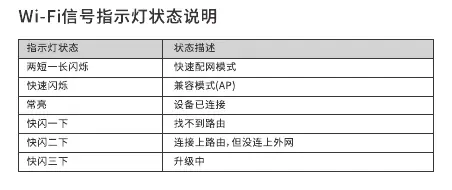
- Flashes (one long, two short): Quick Pairing Mode.
- Keeps on: Device connected successfully.
- Flashes quickly: Compatible Pairing Mode.
- Flashes quickly once: Unable to discover the router.
- Flashes quickly twice: Connected to the router but failed to connect to the server.
- Flashes quickly three times: Upgrading.
Troubleshooting
If the device stays "Offline":
- Wait 1-2 minutes for the device to connect.
- If it remains offline, check the Wi-Fi password, distance to the router, and ensure you are using a 2.4GHz network (5GHz is not supported).
- Check if MAC address filtering is enabled on your router and disable it if necessary.
- If the issue persists, try creating a Wi-Fi hotspot with your mobile phone to test the connection.
Specifications
- Model: DUALR2
- Input/Output: 100-240V AC 50/60Hz
- Max Load: 10A/2200W per gang, 15A/3500W total
- Wi-Fi: IEEE 802.11 b/g/n 2.4GHz
- Operating Temperature: -10°C to 40°C
- Dimensions: 114.5 x 52 x 32 mm
Practical help
Common problems
Device stays offline
Check Wi-Fi password, ensure 2.4GHz network is used, check distance to router, or disable MAC address filtering.
Failed to connect to server
Check network stability. If the LED flashes twice quickly, the network may be unstable.
Before use
- Turn off power before installation
- Ensure 2.4GHz Wi-Fi network is available
- Download eWeLink app
- Verify neutral and live wire connections
- Ensure installation height is under 2m
Specs in practice
- Operating Temperature
- Device functions between -10°C and 40°C
Images and diagrams
- Wiring diagram shows correct connection for lights and appliances
- LED indicator table helps diagnose connection status
Model compatibility
- Requires 2.4GHz Wi-Fi network
- Not compatible with 5GHz Wi-Fi
- Compatible with Android and iOS

Manual page author
David Miller
Documentation analyst
Organizes user manual content into clear summaries, with attention to model details, product context, and everyday usability.