Sports / Fitness
Spirit 1000ENT Screen Mirroring Guide
Learn how to use wireless and wired screen mirroring on your Spirit 1000ENT treadmill console. Follow step-by-step instructions for connecting your phone, using the floating panel, and troubleshooting common connection issues.
Table of contents
Quick Guide to Screen Mirroring
The Spirit 1000ENT console allows you to mirror your smartphone screen to the treadmill display. You can connect wirelessly via WiFi or use a wired HDMI connection. Note that the console does not have built-in speakers; please use Bluetooth headphones for audio.
Wireless Screen Mirroring
To connect your phone wirelessly:
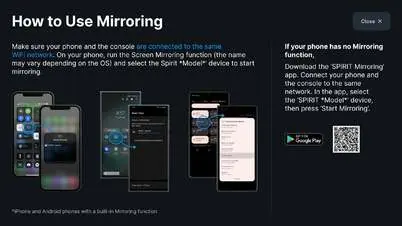
- Press the Media tab on the bottom of the console screen.
- Select How it Works under the Mirroring section and follow the on-screen prompts.
- Scan the QR code displayed on the screen to join the network, or open your phone's WiFi settings to connect manually.
- Run the Screen Mirroring function on your phone and select the console device to start.
- If your phone lacks a built-in mirroring function, scan the QR code to download the EZCast app and connect through the app.
Wired Screen Mirroring
For a wired connection, use the HDMI port located in the right corner of the machine console's underside:
- iPhone: Use a Lightning to HDMI adapter and an HDMI cable to connect your phone to the console.
- Android: Use a USB-C to HDMI adapter and an HDMI cable, or a direct USB-C to HDMI cable. Ensure your Android smartphone supports video output over USB-C.
Using the Floating Panel
Once content is displayed, use the Floating Panel to manage your experience:
- Navigation: Touch the panel's top edge to drag it to a preferred location on the screen.
- Full Screen: Press Hide Panels to remove stats and tabs for a full-screen view. Press Show Panels to restore them.
- Minimize: Use the arrow button on the right side of the panel to hide or show text labels.
- Return: Press All Media to return to the content source selection.
Important Limitations
- Paid Streaming Apps: Apps such as Netflix, HBO, and Disney+ do not allow wireless screen mirroring.
- Network: Your device must be connected to the same WiFi network as the console for wireless mirroring to function.
- Subscriptions: A subscription may be required to access some apps.
Practical help
Common problems
Wireless mirroring not working with streaming apps
Paid TV streaming apps (e.g., Netflix, HBO, Disney+) do not allow wireless screen mirroring.
Device not connecting
Ensure both your phone and the console are connected to the same WiFi network.
No audio output
The console is not equipped with a speaker. Please use Bluetooth headphones for audio playback.
Before use
- Ensure your phone and console are connected to the same WiFi network.
- For wired connections, verify you have the correct adapter (Lightning or USB-C to HDMI).
- Check that your Android phone supports video output over USB-C.
- Locate the HDMI port on the right corner of the console's underside.
Specs in practice
- HDMI Port Location
- Located on the right corner of the machine console's underside.
Images and diagrams
- The floating panel allows you to navigate, pause, and hide/show controls during your workout.
- The Media tab is the primary entry point for both wireless and wired mirroring options.
Model compatibility
- Some apps may require a separate subscription.
- Wireless mirroring functionality depends on the phone's operating system.

Manual page author
Emily Carter
User documentation editor
Prepares concise manual descriptions and highlights the most useful setup, operation, and maintenance information for readers.