Electronics / Monitor Accessories
Privacy Filter Installation Guide for StarTech.com 14G
Quick-start guide for installing StarTech.com 14G privacy filters. Includes step-by-step instructions for adhesive strips, mounting tabs, and flip-up/flip-over installation methods.
Table of contents
Manual images
Click an image to enlargeQuick guide from the manual
This guide provides installation instructions for StarTech.com privacy filters. Before beginning, ensure you have removed all protective films from the privacy filter. Choose the installation method that best suits your display type:
- Adhesive Strips: Recommended for bezel-less displays or when permanent installation is desired.
- Mounting Tabs: Recommended for displays with raised bezels or when frequent removal of the filter is required.
- Flip-Up/Flip-Over: Allows the filter to be lifted or flipped over the lid without removing it.
Method 1: Adhesive Strips
- Clean the screen thoroughly using the provided wiping cloth.
- Determine the side of the filter that should face outward. Place the filter on a clean, flat surface with the outward-facing side down.
- Remove the adhesive strips from the transparent lining.
- Align the strips along the top, bottom, left, and right edges of the filter and apply firm pressure.
- Remove the protective backing from the adhesive strips.
- Attach the filter to the screen, starting from the bottom and working towards the top.
- Apply gentle pressure to the locations where the strips were installed.
- Clean any fingerprints from the filter using the wiping cloth.
Method 2: Mounting Tabs
- Clean the screen and bezels using the wiping cloth.
- Separate the mounting tabs and remove the protective backing.
- Install one short and one long mounting tab on the left bezel. Repeat for the right bezel.
- Install one short mounting tab on the bottom bezel. Note: Depending on display size, additional tabs may be required.
- Slide the privacy filter between the installed mounting tabs and the screen.
- Clean any fingerprints from the filter using the wiping cloth.
Method 3: Flip-Up and Flip-Over
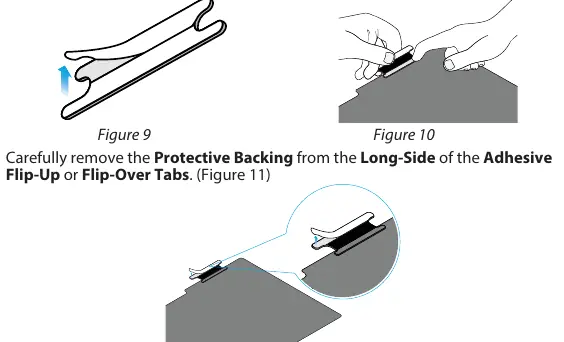
- Clean the screen and bezels using the wiping cloth.
- Remove the protective backing from the short side of the adhesive flip-up or flip-over tabs.
- Align and space the tabs evenly around the corners of the top edge of the filter. Apply firm pressure to affix them to the screen side of the filter.
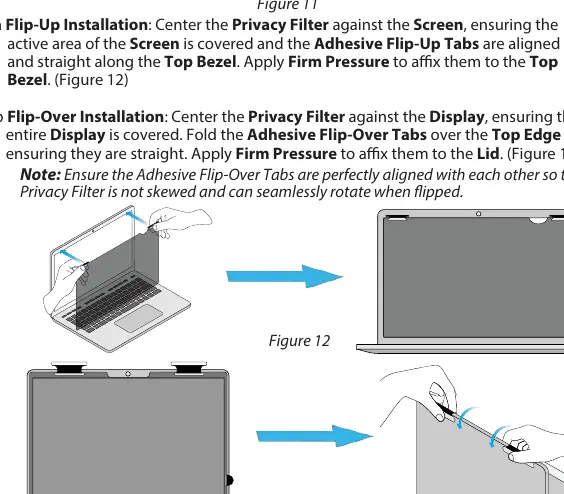
- Remove the protective backing from the long side of the tabs.
- For Flip-Up: Center the filter against the screen, ensuring the active area is covered and tabs are aligned along the top bezel. Apply firm pressure to affix to the top bezel.
- For Flip-Over: Center the filter against the display. Fold the tabs over the top edge and apply firm pressure to affix them to the lid. Ensure tabs are perfectly aligned so the filter is not skewed.
- (Optional) Affix the adhesive lifting-tab to the bottom edge to easily lift or flip the filter.
Official resources from the manual
Practical help
Common problems
Filter is skewed or misaligned
Ensure the adhesive flip-over tabs are perfectly aligned with each other during installation.
Filter does not stay in place
Ensure the screen and bezels are thoroughly cleaned of oils and dust before applying adhesive strips or tabs.
Filter is difficult to remove
If frequent removal is needed, use the Mounting Tabs method instead of Adhesive Strips.
Before use
- Clean the screen and bezels with the provided wiping cloth.
- Remove all protective films from the privacy filter.
- Identify if your display is bezel-less (use Adhesive Strips) or has raised bezels (use Mounting Tabs).
- Check if the privacy screen is reversible and choose the side that best fits your application.
Specs in practice
- Adhesive Strips
- Best for bezel-less displays or permanent, low-removal installations.
- Mounting Tabs
- Best for displays with raised bezels; allows for easy removal and re-insertion.
- Flip-Up/Flip-Over Tabs
- Allows the filter to remain attached to the laptop lid while being lifted or flipped out of the way.
Images and diagrams
- Figures 1-4 illustrate the application of adhesive strips to the filter and screen.
- Figures 5-8 show the placement of mounting tabs on the display bezels.
- Figures 9-15 demonstrate the preparation and installation of flip-up/flip-over tabs and the use of the lifting tab.
Model compatibility
- Not all installation methods are available for all privacy filters.
- Additional mounting tabs may need to be installed on the side or bottom bezels depending on display size.

Manual page author
Michael Turner
Technical manual editor
Reviews PDF manuals for structure, safety notes, and practical product details so readers can find the right information quickly.