Electronics / Monitor Accessories
StarTech.com 129N-USBC-KVM-DOCK USB-C Dual Monitor KVM Docking Station User Guide
Quick-start guide for the StarTech.com 129N-USBC-KVM-DOCK. Learn how to connect peripherals, displays, and host computers, and how to use the KVM switching feature for efficient dual-computer management.
Table of contents
Quick Guide from the Manual
This document provides the essential setup and operation instructions for the StarTech.com USB-C Dual Monitor KVM Dock. The device allows you to share peripherals, displays, and a network connection between two host computers. Key features include 90W Power Delivery to the active host and 45W to the non-active host, along with USB 3.2 Gen 2 connectivity.
Package Contents
- 1x USB-C Docking Station
- 2x 3 ft (1m) USB-C Host Cables
- 1x Universal Power Adapter
- 1x Quick-Start Guide
Device Overview
The docking station features three sides with various ports and controls:
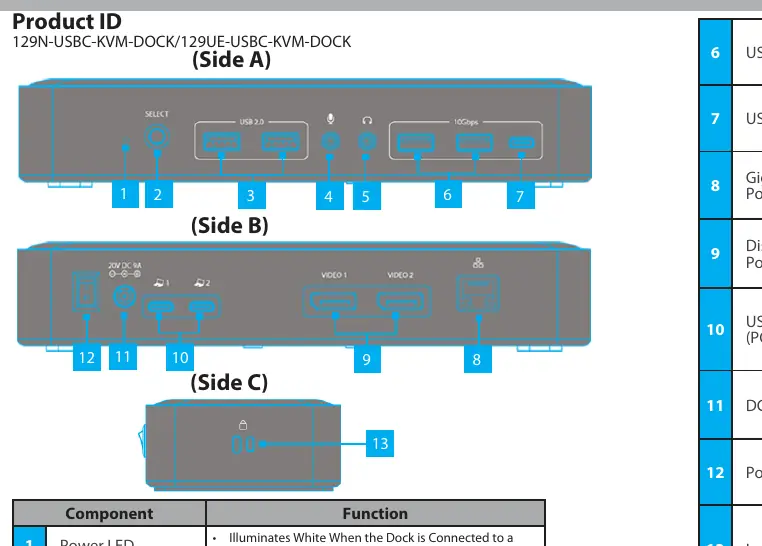
- Side A: Includes the Power LED, Port Selection Button (to switch between PC 1 and PC 2), USB-A 2.0 Data Ports, Microphone Jack, and 3.5mm Audio Port.
- Side B: Includes the DC 20V Power Port, USB-C Host Ports (PC 1 & PC 2), DisplayPort Video Ports, and Gigabit Ethernet Port.
- Side C: Includes the Lock Slot for security.
Installation
- Connect the Power Adapter from an AC outlet to the DC 20V Port on the dock.
- Connect your USB peripheral devices to the USB-A and USB-C Data Ports.
- Connect an RJ-45 network cable (CAT 5e or better) to the Gigabit Ethernet Port.
- Connect up to two DisplayPort displays to the DisplayPort Video Ports.
- Connect a USB-C Host Cable to each of the USB-C Host Ports (PC 1 & PC 2) on the dock, and connect the other end to your host computers.
Driver Installation: If you are running Windows with internet access, the device should be detected automatically. For non-Windows operating systems or if automatic installation fails, visit www.startech.com/129N-USBC-KVM-DOCK, navigate to the Drivers/Downloads tab, and follow the instructions in the provided Driver Package.
Operation
To switch between connected computers, press the Port Selection Button located on the dock. The connected displays, USB peripherals, and LAN connection will toggle to the selected computer. Note that all connected host computers supporting USB Power Delivery will receive power regardless of which port is active: the active port receives 90W, and the non-active port receives 45W.
Requirements
- Two host computers with USB-C ports.
- USB-C Host Cables (included).
Official resources from the manual
Practical help
Common problems
Drivers not installing automatically
Visit www.startech.com/129N-USBC-KVM-DOCK, download the driver package for your operating system, and follow the included installation guide.
Dock not powering on
Ensure the power adapter is securely connected to the DC 20V port and the power switch is in the On position.
Before use
- Verify you have two host computers with USB-C ports.
- Ensure you have the included USB-C host cables.
- Confirm your displays support DisplayPort.
- Check that your network cable is CAT 5e or better.
- Ensure the power adapter is connected to a wall outlet.
Specs in practice
- USB-A Data Ports (Side A)
- USB 2.0 (480Mbps), supports 5V/0.5A (2.5W) power.
- USB-A/C Data Ports (Side C)
- USB 3.2 Gen 2 (10Gbps), supports 5V/0.9A (4.5W) power.
- Power Delivery
- Active port receives 90W; non-active port receives 45W.
Images and diagrams
- Side A: Power LED, Port Selection Button, USB 2.0 ports, Audio/Mic jacks.
- Side B: Power input, USB-C Host ports, DisplayPort outputs, Ethernet port.
- Side C: Security lock slot.
Model compatibility
- Requires host computers with USB-C ports.
- Drivers must be installed on all host computers connected to the dock.
- Windows with internet access usually detects and installs drivers automatically.

Manual page author
Michael Turner
Technical manual editor
Reviews PDF manuals for structure, safety notes, and practical product details so readers can find the right information quickly.