Electronics / USB Hubs & Docking
User Guide for StarTech.com 107B-USB-HDMI Dual HDMI Adapter
Quick-start guide for the StarTech.com 107B-USB-HDMI adapter. Learn how to install drivers, connect dual HDMI displays, and configure settings for Windows, Chrome OS, and macOS.
Table of contents
Manual images
Click an image to enlargeQuick guide from the manual
This guide provides instructions for setting up the StarTech.com 107B-USB-HDMI adapter. The device allows you to connect two HDMI displays to a single USB-A or USB-C port on your computer. For the latest drivers, software, and technical specifications, visit www.StarTech.com/107B-USB-HDMI.
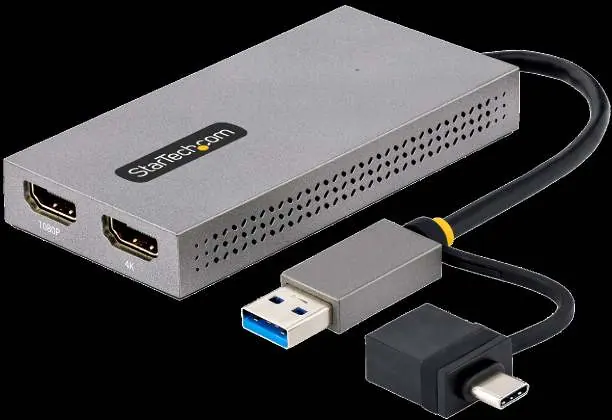
Package contents
- 1x USB-A/USB-C to Dual HDMI Adapter
- 1x Quick-Start Guide
Installation
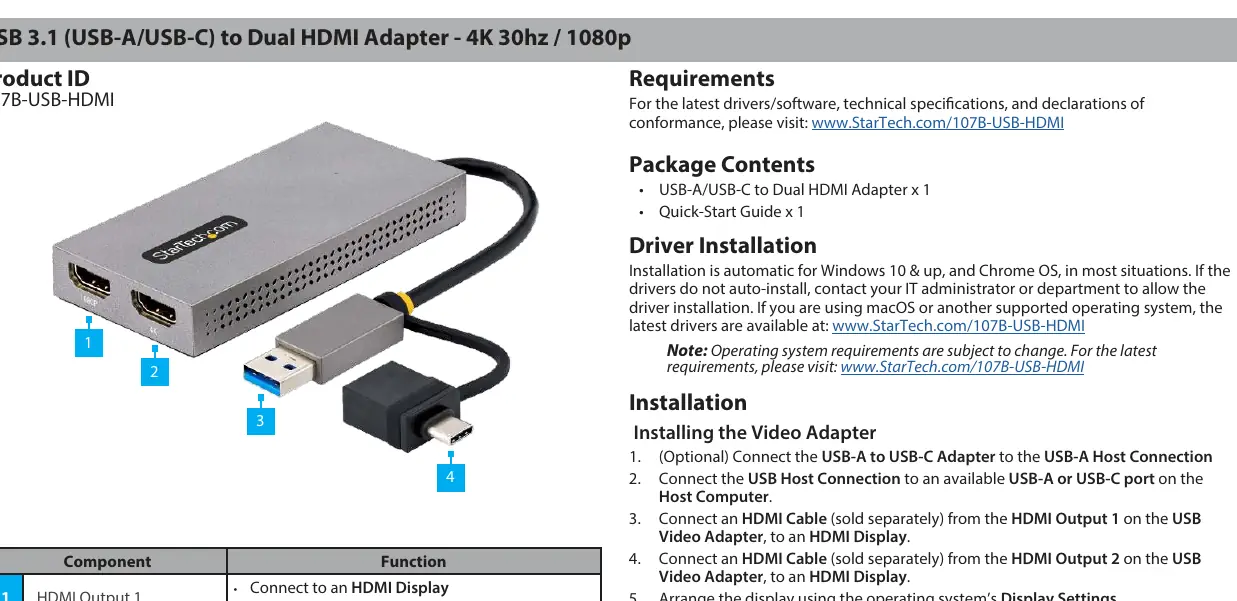
- Optional: If your computer uses a USB-C port, connect the included USB-A to USB-C Adapter to the USB-A Host Connection on the device.
- Connect the USB Host Connection to an available USB-A or USB-C port on your host computer.
- Connect an HDMI cable (sold separately) from HDMI Output 1 on the adapter to your first HDMI display.
- Connect an HDMI cable (sold separately) from HDMI Output 2 on the adapter to your second HDMI display.
- Configure your display arrangement using your operating system's Display Settings.
Driver installation
Installation is automatic for Windows 10 and up, and Chrome OS in most situations. If the drivers do not auto-install, contact your IT administrator or department to allow the installation. If you are using macOS or another supported operating system, download the latest drivers from www.StarTech.com/107B-USB-HDMI.
Operation on macOS
Intel Based Mac Devices: To change screen rotation or other settings, use the operating system's Display Settings.
M1/M2 Based Mac Devices: To mirror or extend connected displays, use the InstantView App. This app is accessible by single-clicking the InstantView App icon in the Menu bar. To change screen rotation or other settings, right-click or double-click the InstantView App icon in the Menu bar to access available settings.
Regulatory compliance
This device complies with part 15 of the FCC Rules and Industry Canada licence-exempt RSS standards. It is a Class B digital device designed to provide reasonable protection against harmful interference in residential installations.
Official resources from the manual
Practical help
Common problems
Drivers do not auto-install
Contact your IT administrator or department to allow driver installation, or download the latest drivers from www.StarTech.com/107B-USB-HDMI.
Cannot change display settings on M1/M2 Mac
Use the InstantView App by right-clicking or double-clicking the icon in the Menu bar to access settings.
Before use
- Ensure your computer has an available USB-A or USB-C port.
- Have two HDMI cables ready (sold separately).
- Verify your operating system is Windows 10+, Chrome OS, or macOS.
- Check for the latest drivers at the support website if auto-installation fails.
Specs in practice
- HDMI Output 1
- Supports resolutions up to 1080p.
- HDMI Output 2
- Supports resolutions up to 4K 30Hz.
- USB-A to USB-C Adapter
- Included accessory to enable connection to USB-C ports.
Images and diagrams
- The adapter features two HDMI ports (labeled 1 and 2), a USB-A host connector, and an included USB-A to USB-C adapter.
- HDMI Output 1 supports 1080p, while HDMI Output 2 supports 4K 30Hz.
Model compatibility
- Compatible with Windows 10 and up, Chrome OS, and macOS.
- M1/M2 Mac devices require the InstantView App for display management.

Manual page author
Emily Carter
User documentation editor
Prepares concise manual descriptions and highlights the most useful setup, operation, and maintenance information for readers.