Electronics / Televisions
User Manual for TCL 10L Smartphone
Comprehensive user guide for the TCL 10L smartphone. Learn how to set up your device, manage calls and contacts, use the camera, configure network settings, and troubleshoot common issues.
Table of contents
Manual images
Click an image to enlargeQuick guide from the manual
This guide provides essential information for operating your TCL 10L. Before first use, ensure the battery is fully charged using the provided USB-C cable and charger. The device supports Nano-SIM cards and microSD cards for storage expansion. You can power on the device by holding the Power key and follow the on-screen instructions to complete the initial setup.
Getting started
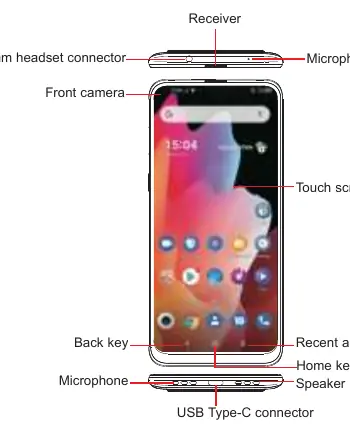
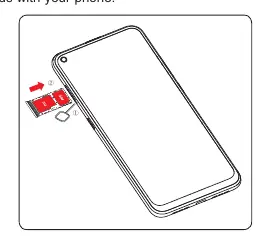
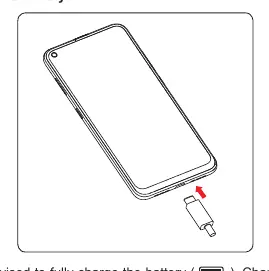
To insert a SIM or microSD card, use the provided SIM pin to open the tray on the side of the device. Place the card into the tray and slide it back into the slot. The device supports hot-swapping for SIM cards. To charge, connect the USB-C cable to the port at the bottom of the phone.
Home screen and navigation
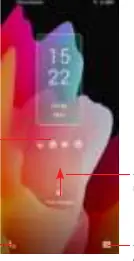
The Home screen allows quick access to applications and widgets. Use standard touch gestures: touch to select, long press for options, drag to move items, and swipe to scroll. The Status bar at the top displays notifications and system status. Drag down to access the notification panel and quick settings.
Calls and contacts
Use the Phone app to make calls, access call logs, and manage contacts. You can save contacts to the phone or sync them from email accounts. The device supports conference calls and voicemail management. To add a contact, open the Contacts app and tap the add icon.
Multimedia applications
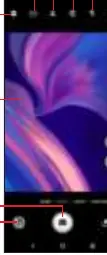
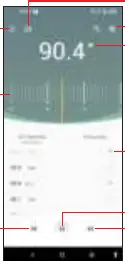
The device features a versatile camera system. Use the Camera app to take photos and videos. Modes include Auto, Portrait, Super Macro, and Pro. The Gallery app allows you to view, edit, and share your media. You can also listen to the radio by connecting headphones, which act as an antenna.
Settings and customization
Access the Settings menu to configure your device. Key settings include:
- Networks & internet: Manage Wi-Fi, cellular data, and hotspot settings.
- Bluetooth & device connection: Pair devices and manage connections.
- Display: Adjust brightness, dark mode, and eye comfort settings.
- Security: Set up screen locks, fingerprint, and face recognition.
- System: Manage updates, language, date/time, and factory resets.
Troubleshooting
If you encounter issues, try these steps:
- Phone won't switch on: Charge for at least 20 minutes.
- Phone frozen: Press and hold the Power key to force a reset.
- Network issues: Check SIM card validity and network coverage.
- Battery drains fast: Ensure full charge time (minimum 144 minutes).
Manufacturer information
TCL
Practical help
Common problems
Phone won't switch on
Charge for at least 20 minutes to ensure minimum battery power.
Phone is frozen or in a boot loop
Press and hold the Power key to force a reset.
Cannot connect to network
Verify SIM card validity, check network coverage, or try moving to a different location.
Battery drains too fast
Ensure the phone is fully charged (minimum 144 minutes) and close background applications.
Cannot connect to computer via USB
Ensure the USB port is functional, drivers are installed, and the computer supports MTP mode.
Before use
- Charge the battery using the provided USB-C cable.
- Insert Nano SIM card and/or microSD card into the tray.
- Power on the device by holding the Power key.
- Follow on-screen setup instructions to configure the device.
- Ensure the protective lens cover is removed from the camera.
Images and diagrams
- Keys and connectors layout showing microphone, USB-C port, headset jack, and buttons.
- SIM/microSD card tray insertion procedure.
- Home screen navigation and status bar indicators.
- Camera interface controls and modes.
Model compatibility
- Supports Nano-SIM cards only.
- microSD cards are sold separately.
- Some features may require specific network operator support.
- Smart key functionality may be replaced by Google Assistant in some regions.

Manual page author
Emily Carter
User documentation editor
Prepares concise manual descriptions and highlights the most useful setup, operation, and maintenance information for readers.