Computers / Tablets
User Manual for TCL NXT Paper 10s Tablet
Quick start guide for the TCL NXT Paper 10s tablet. Learn about device controls, navigation, MicroSD card installation, and stylus usage.
Table of contents
Manual images
Click an image to enlargeQuick guide from the manual
This document provides essential setup and usage information for the TCL NXT Paper 10s tablet. It covers basic device controls, navigation, and important usage tips for the included stylus.
Device controls
The tablet features physical buttons and ports for operation:
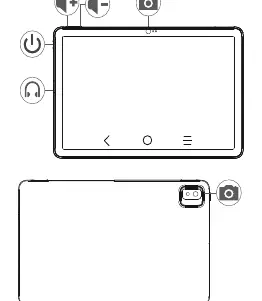
- Power key: Located on the side of the device, used to turn the tablet on or off.
- Volume keys: Located near the power key to adjust sound levels.
- Camera: Located on the front and back of the device.
Navigation
The tablet uses an on-screen navigation bar to control the interface:
- Back: Returns to the previous screen.
- Home: Returns to the main home screen.
- Recent apps: Displays a list of recently used applications.
Setup and installation
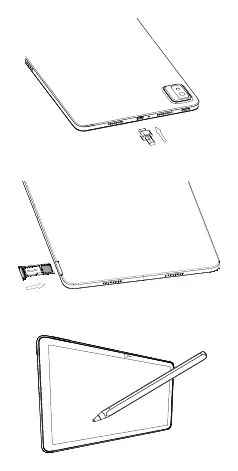
To expand storage, insert a MicroSD card into the designated slot on the side of the tablet. Ensure the card is oriented correctly as shown in the device diagrams.
Stylus usage
The tablet comes with a passive P-Pen, which provides basic interactive functionality. For a premium experience and access to advanced features, it is recommended to purchase the TCL A-Pen (active stylus).
Safety and eye protection
To protect your eyesight, avoid using the tablet in environments where the ambient light is either too strong or too weak.
Manufacturer information
TCL
Practical help
Common problems
Stylus functionality is limited
The included P-Pen is a passive stylus offering only basic interaction. Purchase the TCL A-Pen for premium features and advanced functionality.
Before use
- Ensure the tablet is fully charged before first use.
- Insert a MicroSD card if you require additional storage.
- Adjust your environment's lighting to avoid eye strain.
- Identify the power and volume buttons on the side of the device.
Images and diagrams
- The power key and volume buttons are located on the top/side edge of the tablet.
- The navigation bar at the bottom of the screen contains icons for Back, Home, and Recent apps.
- The MicroSD card slot is located on the side edge of the device.
- The stylus is used by touching the screen surface.
Model compatibility
- Compatible with TCL A-Pen for advanced stylus features.

Manual page author
Emily Carter
User documentation editor
Prepares concise manual descriptions and highlights the most useful setup, operation, and maintenance information for readers.