Computers / Tablets
User Manual for TCL TAB 10S 5G Tablet
Quick guide for the TCL TAB 10S 5G tablet. Learn how to set up your device, manage calls, use the camera, adjust settings, and troubleshoot common issues.
Table of contents
Manual images
Click an image to enlargeQuick guide from the manual
This guide provides essential information for operating your TCL TAB 10S 5G tablet. For detailed features and advanced settings, refer to the full user manual available at tcl.com.
Device overview
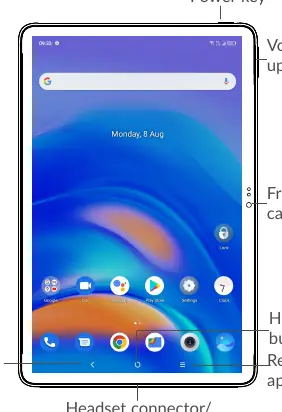
The tablet features a power key, volume up/down keys, a front camera, and a headset/USB Type-C connector. The screen supports various touch gestures including tapping, dragging, sliding, flicking, pinching/spreading, and rotating.
Getting started
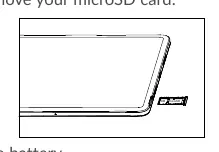
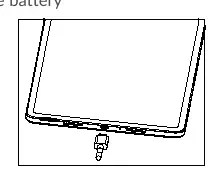
To set up your tablet, insert a microSD card into the designated slot. It is recommended to fully charge the battery before first use. Charging status is indicated by a percentage on the screen.
Powering the device
- Power on: Hold the Power key until the tablet powers on.
- Power off: Press and hold the Power key and Volume up key simultaneously until options appear, then select Power off.
- Lock/Unlock: Press the Power key to lock or wake the screen. You can set up screen locks like PIN, pattern, or password in Settings.
Phone and contacts
The tablet supports phone calls and contact management. You can make calls using the dial pad or by selecting contacts from your list. The device also supports conference calls and voicemail management.
Multimedia
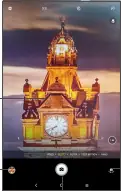
The camera app allows you to take photos and videos. You can switch between front and rear cameras, use zoom gestures, and access burst shot modes. The Photos app acts as a media player and gallery for managing your images and videos.
Settings and customization
Access the Settings menu to configure:
- Network: Wi-Fi, Bluetooth, Mobile network, and Hotspot settings.
- Display: Brightness, Dark mode, Eye comfort mode, and NXTVISION visual enhancement.
- Sound: Volume, ringtones, and Do Not Disturb mode.
- Security: Screen lock, Face lock, and Find My Device.
- System: Software updates (FOTA), language settings, and backup options.
Troubleshooting
If your tablet is frozen or won't turn on, charge it for at least 20 minutes. If issues persist, perform a forced reboot by holding the Power key and Volume up key for at least 10 seconds. For severe issues, you may need to perform a factory reset via Settings, but ensure you back up your data first as this will erase all information.
Official resources from the manual
Manufacturer information
TCL
Practical help
Common problems
Tablet won't turn on or is frozen
Charge for at least 20 minutes. If still unresponsive, hold the Power key and Volume up key for 10 seconds to force a reboot.
Battery drains too fast
Adjust screen brightness, turn off unused connections (Wi-Fi, Bluetooth, GPS), and close background applications.
Cannot connect to network
Verify network coverage, check if the SIM card is valid and correctly inserted, or try moving to a different location.
Tablet becomes warm during use
This is normal during complex tasks like gaming or streaming. Stop the activity to allow the CPU to cool down.
Before use
- Insert microSD card
- Fully charge the battery
- Set up Google account
- Configure screen lock (PIN, pattern, or password)
- Check for system updates
Images and diagrams
- The device features a Power key and Volume up/down keys on the side.
- The bottom edge houses the USB Type-C/Headset connector.
- The front camera is located on the bezel.
- Navigation is handled via on-screen buttons: Back, Home, and Recent apps.
Model compatibility
- Requires CTIA certified adapters for charging.
- Supports microSD memory cards for storage expansion.
- Compatible with standard Bluetooth 5.1 devices.

Manual page author
Emily Carter
User documentation editor
Prepares concise manual descriptions and highlights the most useful setup, operation, and maintenance information for readers.