Documents / Warranty Safety
User Manual for Teltonika FMC003 Advanced OBDII Tracker
Quick guide for the Teltonika FMC003 Advanced OBDII tracker. Learn how to install the SIM card, connect the device, configure settings via SMS or PC, and understand LED indicators.
Table of contents
Manual images
Jump to the sectionQuick Start Guide
The Teltonika FMC003 is an advanced OBDII tracker. To begin, you must insert a Micro-SIM card and connect the internal battery. The device can be configured via the Teltonika Configurator software on a Windows PC or by sending specific SMS commands. Ensure the vehicle ignition is off before mounting the device.
Device Overview
The device features an OBDII connector for vehicle integration. Internally, it contains a Micro-SIM slot, a battery socket, and a Micro-USB port for configuration. Two LEDs (Navigate and Status) provide visual feedback on the device's operation.
Installation
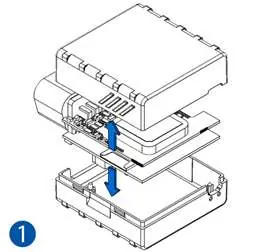
- Cover Removal: Gently remove the FMC003 cover using a plastic pry tool from both sides.
- SIM Card Insertion: Insert the Micro-SIM card into the slot. Ensure the cut-off corner is pointing forward. If a PIN is required, it must be disabled or configured later via the Teltonika Configurator.
- Battery Connection: Connect the battery to the socket, ensuring it does not obstruct other components.
- Closing: Attach the device cover back securely.
PC Connection and Configuration
To configure the device via PC:
- Power up the FMC003 using a DC voltage source (10–30 V).
- Connect to a PC using a Micro-USB cable or Bluetooth.
- If using USB, you must install the Teltonika COM port drivers.
- If using Bluetooth, the default password is 5555.
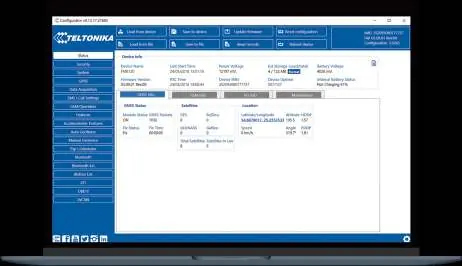
- Use the Teltonika Configurator software (requires MS .NET Framework 4.6.2) to modify settings.
- Always click Save to device after making changes.
SMS Configuration
You can quickly configure the device by sending an SMS command. Note that two space symbols must be inserted before the SMS text.
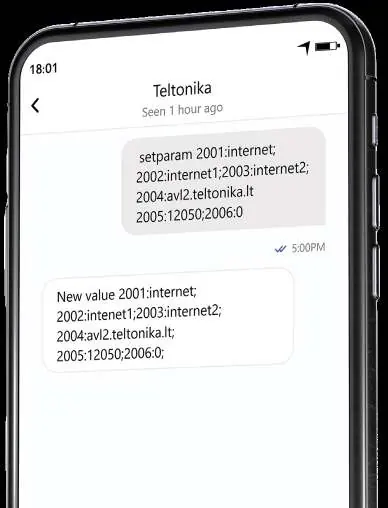
Command Format: setparam 2001:APN;2002:APN_username;2003:APN_password;2004:Domain;2005:Port;2006:0
- 2001: APN
- 2002: APN username
- 2003: APN password
- 2004: Domain
- 2005: Port
- 2006: Data sending protocol (0 for TCP, 1 for UDP)
LED Indications
Navigation LED:
- Permanently on: GNSS signal not received.
- Blinking every second: Normal mode, GNSS working.
- Blinking fast: Firmware is being flashed.
Status LED:
- Blinking every second: Normal mode.
- Blinking every two seconds: Sleep mode.
- Blinking fast: Modem activity.
Safety Information
- The device uses a SELV limited power source (10–30 V DC).
- Before unmounting the device from the vehicle, ensure the ignition is OFF.
- The device is susceptible to water and humidity; do not expose it to harsh environments.
- Do not disassemble the device if it is damaged.
- Dispose of batteries at local recycling centers; do not mix with household waste.
Practical help
Common problems
Device not connecting to PC
Ensure you have installed the correct COM port drivers and that the device is powered via a 10-30V DC source.
Bluetooth connection fails
Ensure the device is in range and use the default password '5555'.
GNSS signal not received
Check the Navigation LED; if it is permanently on, the device is not receiving a signal.
Before use
- Ensure you have a Micro-SIM card with PIN request disabled.
- Download the latest Teltonika Configurator software.
- Install the required COM port drivers for Windows.
- Verify your vehicle's OBDII connector location.
- Ensure the vehicle ignition is off before installation.
Specs in practice
- Input voltage range
- 10-30V DC with overvoltage protection, suitable for standard vehicle power systems.
- Back-up battery
- 170 mAh Li-Po battery for emergency operation when disconnected from vehicle power.
- Operating temperature
- -40°C to +85°C (without battery), suitable for extreme automotive environments.
- Ingress Protection
- IP41 rating, providing protection against solid objects over 1mm and dripping water.
Images and diagrams
- Top view shows the OBDII connector, status LEDs, and internal SIM/battery slots.
- Pinout diagram details the 16-pin OBDII connector layout.
Model compatibility
- Requires Windows OS with MS .NET Framework 4.6.2.
- Supports various OBD protocols including ISO 9141-2, ISO 14230-4, and ISO 15765-4.

Manual page author
Michael Turner
Technical manual editor
Reviews PDF manuals for structure, safety notes, and practical product details so readers can find the right information quickly.