General / Other Manuals
Thrustmaster T-LCM Pedals Calibration Tool Guide
A comprehensive guide to using the Thrustmaster T-LCM Pedals Calibration Tool. Learn how to adjust dead zones, brake force, and save settings to your pedal set.
Table of contents
Manual images
Jump to the sectionQuick guide from the manual
This guide provides instructions for the Thrustmaster T-LCM Pedals Calibration Tool (V2.15). The tool allows you to customize dead zones and brake force settings, which are saved directly to the pedal set's internal memory.
System Requirements and Connection
The calibration tool requires Windows 10. For the tool to function, the pedal set must be connected directly to your PC using the removable USB cable.
Calibration Process
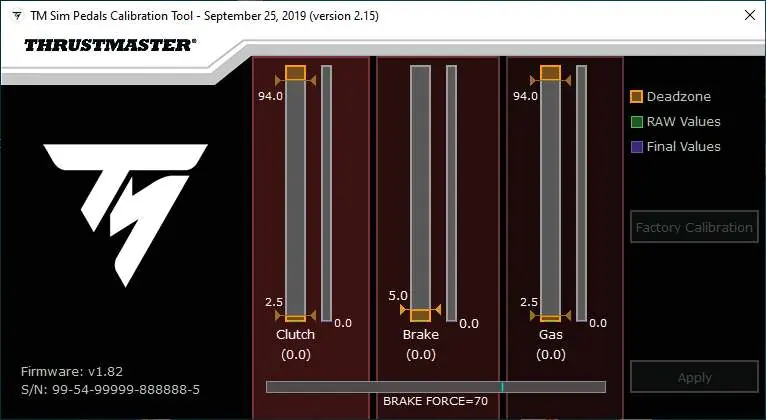
Download and launch the calibration tool. Select the slider you wish to modify by left-clicking it with your mouse. You can adjust the values using the mouse pointer or the four arrow keys on your keyboard.
Adjusting Accelerator Pedal
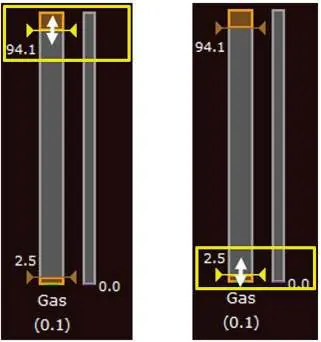
You can adjust the dead zone at the end of the pedal's travel and the dead zone at the beginning of the pedal's travel to your preference.
Adjusting Clutch Pedal
Similar to the accelerator, you can adjust the dead zone at the end of the pedal's travel and the dead zone at the beginning of the pedal's travel.
Adjusting Brake Pedal
You can adjust the dead zone at the beginning of the pedal's travel. Additionally, you can adjust the electronic Brake Force:
- Increase the value to increase the pressure force required to reach the end of travel.
- Decrease the value to decrease the pressure force required to reach the end of travel.
Saving Settings
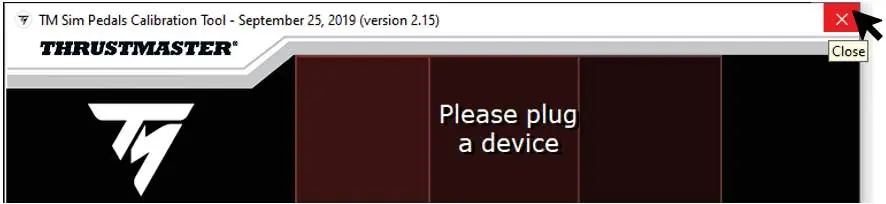
Once you have made your adjustments, click APPLY in the lower right-hand corner of the window. When the prompt appears, disconnect the USB cable to save your settings to the pedal set's internal memory. To avoid conflicts with games, exit the software by clicking the X in the top right-hand corner.
Resetting to Factory Settings
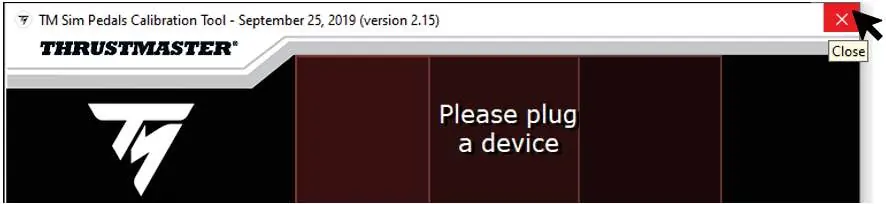
To return to default settings, click RESET TO FACTORY. When the prompt appears, disconnect the USB cable to save your choice. Exit the software by clicking the X in the top right-hand corner.
Practical help
Common problems
Settings not saving
Ensure you click APPLY and then unplug the USB cable as instructed by the on-screen prompt.
Software conflicts with games
Close the calibration tool using the 'X' button in the top right corner before launching your games.
Pedals not detected by the tool
Ensure the pedal set is connected directly to the PC via the removable USB cable.
Before use
- Ensure Windows 10 is installed.
- Connect the pedal set directly to the PC using the provided USB cable.
- Download and install the latest calibration tool software.
Images and diagrams
- Calibration sliders: Used to adjust dead zones and brake force.
- Apply button: Saves current settings to the pedal's internal memory.
- Reset to Factory: Reverts all settings to default values.
Model compatibility
- Requires Windows 10.
- Pedals must be connected via USB for calibration.
- After calibration, pedals can be connected via USB to PC or RJ12 to a Thrustmaster wheel base.

Manual page author
Michael Turner
Technical manual editor
Reviews PDF manuals for structure, safety notes, and practical product details so readers can find the right information quickly.