Power / USB Chargers
User Guide for Twelve South PlugBug 120W International Charger
Quick start guide and user manual for the Twelve South PlugBug 120W. Learn how to use international adapters, set up Apple Find My, manage power allocation, and replace the battery.
Table of contents
Manual images
Click an image to enlargeQuick Start Guide
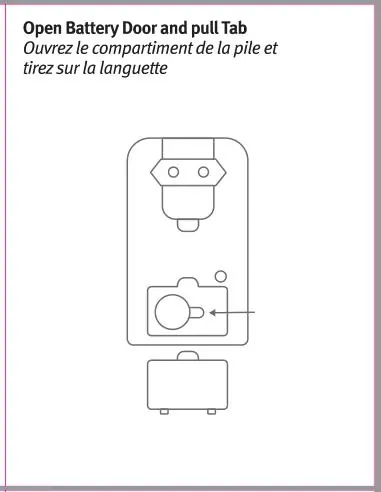
Before using your PlugBug 120W, ensure you have removed the battery tab from the battery compartment. This device is designed for international travel and includes multiple plug adapters.
What's in the Box
The package includes the PlugBug Travel 120 unit and a set of international plug adapters:
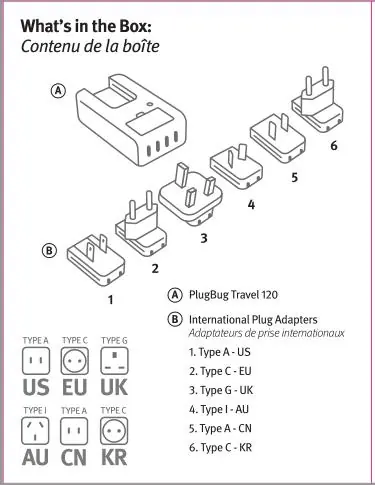
- Type A (US)
- Type C (EU)
- Type G (UK)
- Type I (AU)
- Type A (CN)
- Type C (KR)
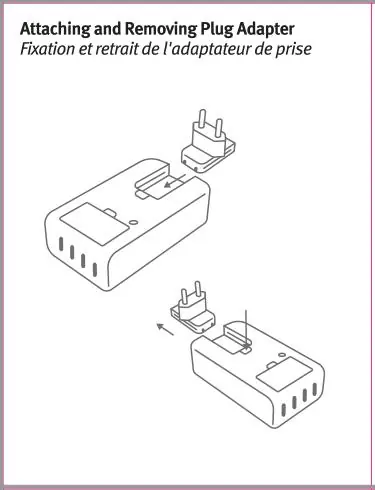
Attaching and Removing Plug Adapters
To attach an adapter, slide it onto the main unit until it clicks into place. To remove, follow the reverse procedure as indicated by the release mechanism on the device.
Powering On and Off
To turn on: Press and hold the button for 3 seconds. The device will beep to confirm it is powered on.
To turn off: Double-click the device first, then quickly press the button 5 times within 2 seconds. A long beep will sound to confirm it is powered off.
Apple Find My Setup
The PlugBug 120W supports Apple Find My. Please refer to the dedicated PlugBug Find My setup guide for detailed pairing instructions with your Apple ID.

Resetting the Device
If you need to pair the device with a new Apple ID, you must reset it:
- Remove the PlugBug from the Find My app.
- Quickly press the button twice. A chime will sound.
- Press and hold the button for about 5 seconds after the second confirmation chime.
- Press and hold again for another 3 seconds until you hear a prompt sound.
The device is now reset and ready for new pairing.
Battery Replacement
The device uses a CR2032 battery. To replace it:
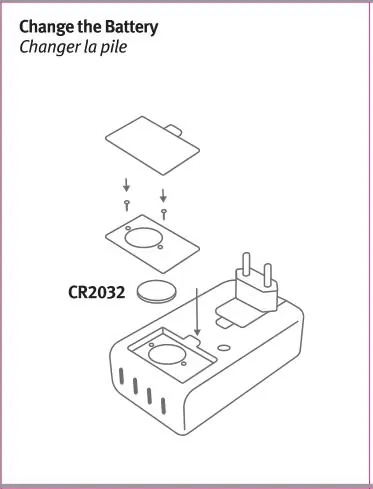
- Press the battery compartment clip to remove the rear cover.
- Use a screwdriver to unscrew the two metal screws on the middle partition.
- Open the partition and replace the CR2032 battery.
- Secure the compartment cover.
Dynamic Power Allocation
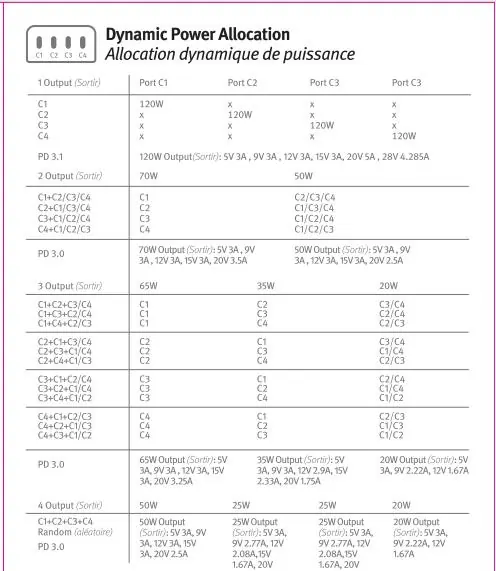
The PlugBug 120W features dynamic power allocation across its four ports (C1-C4). The total power output adjusts automatically based on the number and type of devices connected. Refer to the power allocation table in the manual for specific output combinations (e.g., 120W, 70W, 65W, 50W, 35W, 25W, 20W) depending on which ports are in use.
Safety Information
- For information technology and office equipment use only.
- Do not use if the outer enclosure or plug is damaged.
- Do not expose to liquids, moisture, or extreme weather.
- Keep out of reach of children to prevent ingestion of the button battery.
- Maximum ambient temperature: 25°C / 77°F.
- Always unplug when not in use.
Practical help
Common problems
Device will not turn on
Ensure the battery tab has been removed and the CR2032 battery is installed correctly.
Cannot pair with new Apple ID
Perform a factory reset by removing the device from the Find My app, pressing the button twice, then holding for 5 seconds followed by another 3 seconds.
Battery compartment does not close securely
Stop using the product immediately, remove the batteries, and keep them away from children.
Before use
- Remove the battery pull tab from the compartment.
- Select the correct international plug adapter for your destination.
- Ensure the power socket is easily accessible.
- Verify that the device is not damaged before use.
Specs in practice
- Dynamic Power Allocation
- The charger intelligently distributes power (up to 120W total) across ports C1-C4 based on the connected devices.
- Battery Type
- Uses a standard CR2032 3.0V coin cell battery.
Images and diagrams
- The device features a modular design allowing for the attachment of various international plug types.
- The battery compartment is located on the rear of the unit and requires a screwdriver to access.
Model compatibility
- Designed for information technology and office equipment.
- Not intended for use by persons with reduced physical, sensory, or mental capabilities without supervision.

Manual page author
Michael Turner
Technical manual editor
Reviews PDF manuals for structure, safety notes, and practical product details so readers can find the right information quickly.