Power / Car Chargers
User Manual for Ugreen 1x4 HDMI Amplifier Splitter 40202
Quick guide and user manual for the Ugreen 1x4 HDMI Amplifier Splitter (Model 40202). Includes connection instructions, EDID management, troubleshooting, and technical specifications.
Quick answers from the manual
Quick answer
- The Ugreen 1x4 HDMI Amplifier Splitter (40202) allows you to distribute one HDMI source signal to four displays. Connect the source to the HDMI IN port, displays to the HDMI OUT ports, and power the unit using the included 5V adapter. p. 3
Key actions
- Connect the power adapter and press the power button to turn on the device. p. 3
- Adjust the EDID switch to control output resolution. p. 5
First start
- Connect the HDMI source to the 'HDMI IN' port and displays to 'HDMI OUT' ports, then connect the power supply. p. 3
Problems and fixes
No power
Check power plug connection and ensure the power button is set to 'ON'.
p. 4
No image or blurry picture
Verify display is on, HDMI cable is connected correctly, and cable is certified/undamaged.
p. 4Technical specifications
| Parameter | Value | Meaning | Pages |
|---|---|---|---|
| Resolution | 4K x 2K @ 30Hz | Maximum supported resolution. | p. 4 |
| Power | 5V DC / 1A | Power input requirements. | p. 4 |
Where to find it in the PDF
- Product Overview p. 2
- Connection and Operation p. 3
- Specifications p. 4
- EDID Management p. 5
Table of contents
Manual images
Click an image to enlargeQuick guide from the manual
To set up your Ugreen 1x4 HDMI Amplifier Splitter, follow these steps:
- Connect your HDMI source device (e.g., laptop, STB, game console) to the HDMI IN port using an HDMI cable.
- Connect your displays (e.g., TV, monitor, projector) to the HDMI OUT ports (1-4) using HDMI cables.
- Connect the included power adapter to the DC 5V port and plug it into a power outlet.
- Press the power button to turn on the splitter.
- Ensure the EDID switch is set according to your display requirements.
Product overview
The device features the following ports and indicators:
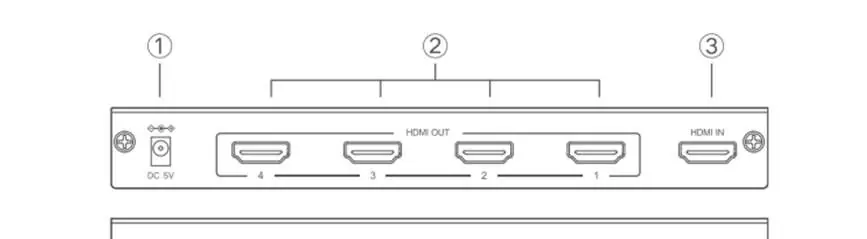
- DC 5V: Power input port.
- HDMI OUT (1-4): Output ports for displays.
- HDMI IN: Input port for the source device.
- ON/OFF: Power button.
- Indicators: Power LED (red), HDMI Input LED (green), HDMI Output LEDs (green).
- EDID Switch: Used to manage resolution settings.
Connection and operation
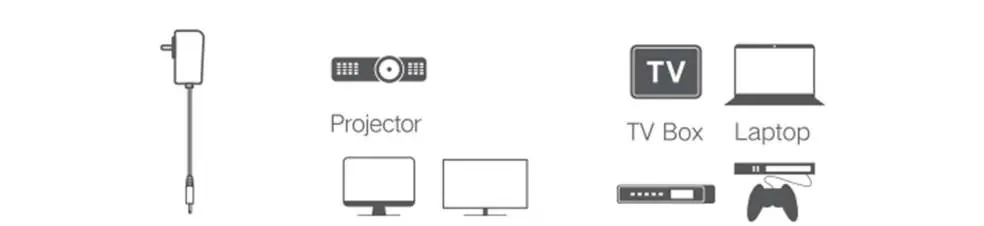
The splitter distributes a single HDMI signal to up to four displays. Ensure you use high-quality HDMI cables. The maximum cable length depends on the resolution (e.g., up to 24m for 4K@30Hz and up to 40m for 1080p@60Hz). Always use the provided power adapter to ensure stable operation.
EDID management
The EDID DIP switch allows you to control the resolution output:
- 00: Automatic mode; compares resolutions of all connected displays and selects the optimal one.
- 01: Forces all outputs to 1080P@60Hz.
- 10: Forces all outputs to 4K@30Hz.
- 11: Copies resolution from the device connected to HDMI OUT 1. If unavailable, defaults to 1080P@60Hz.
Troubleshooting
If you encounter issues, check the following:
- No power: Ensure the power plug is securely inserted and the power button is in the 'ON' position.
- No image or blurry picture: Verify the display is powered on and set to the correct input. Check that HDMI cables are securely connected, certified, and undamaged.
Specifications
- HDCP: 1.4 and backward compatible.
- Resolution: Up to 4K x 2K @ 30Hz.
- Audio Formats: DTS, DTS-HD, Dolby TrueHD, Dolby AC-3, LPCM7.1, DSD.
- Power Supply: 5V DC / 1A.
- Operating Temperature: 0°C to 40°C.
Manufacturer information
UGREEN
Practical help
Common problems
No power
Check if the power plug is securely inserted into the outlet and the power button is in the 'ON' position.
No image or blurry picture
Ensure the TV/display is powered on and connected to the correct source. Verify that the HDMI cable is certified, undamaged, and fully inserted into the port.
Before use
- Ensure the power adapter is connected to a 5V outlet.
- Verify HDMI cables are of sufficient quality and length for the desired resolution.
- Ensure the source device is powered on.
- Check the EDID switch settings for your display configuration.
- Ensure the device is kept away from moisture.
Specs in practice
- 4K x 2K @ 30Hz
- Maximum supported resolution and refresh rate.
Images and diagrams
- The device features a rear panel with a DC 5V power port, four HDMI output ports, and one HDMI input port.
- The front panel contains the power button, status indicators for power and HDMI connections, and an EDID DIP switch.
Model compatibility
- Supports backward compatibility for HDCP and resolution.
- Cable length requirements vary by resolution (e.g., 0.75-12m for 4K input, 0.75-20m for 1080p input).

Manual page author
David Miller
Documentation analyst
Organizes user manual content into clear summaries, with attention to model details, product context, and everyday usability.