Computers / Tablets
User Manual for UMAX VisionBook 10Wi Pro
Quick start guide and user manual for the UMAX VisionBook 10Wi Pro tablet. Learn how to charge, connect the keyboard, use Windows 10 gestures, manage microSD cards, and perform system resets.
Table of contents
Manual images
Click an image to enlargeQuick guide from the manual
This guide provides essential instructions for operating your UMAX VisionBook 10Wi Pro. Before first use, ensure the tablet is charged for at least 30 minutes. Use only the supplied power adapter to avoid damage. The tablet runs on Windows 10 and supports touch gestures, external keyboards, and microSD storage.
Device Overview
The tablet features several ports and buttons for connectivity and control:
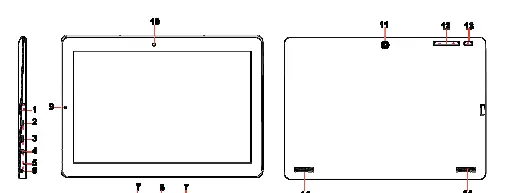
- MicroSD slot: For reading and writing files.
- HDMI port: Connect to external monitors or TVs.
- Micro-USB port: For data transfer and USB devices (requires OTG cable).
- DC-In socket: For charging the battery.
- Audio port (3.5 mm): For headphones or microphones.
- Power button: Press and hold to turn on/off; press once to sleep/wake the screen.
- Volume buttons: Adjust system volume.
Charging the Tablet
The tablet has a built-in rechargeable battery. To charge:
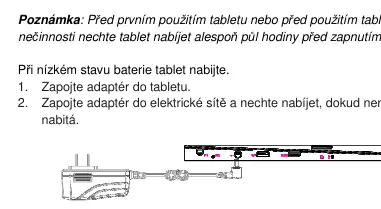
- Plug the power adapter into the DC-In socket.
- Connect the adapter to an electrical outlet.
- Charge until the battery is full. A fully discharged battery takes approximately 4-5 hours to charge.
Note: The LED indicator lights red while charging and orange when fully charged. Charge in ambient temperatures between 0°C and 35°C.
Keyboard Connection
The tablet is designed to be used with the included dedicated keyboard:
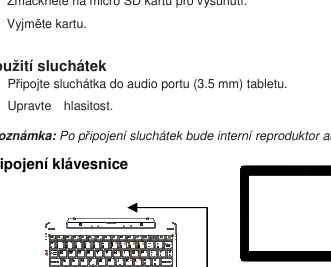
- Place the keyboard on a stable surface.
- Align the magnetic contacts on the keyboard with the slots at the bottom of the tablet.
- The keyboard is plug-and-play and powered by the tablet.
Warning: The maximum angle between the tablet and the keyboard is 120 degrees. Exceeding this angle may damage the device.
MicroSD Card Usage
To insert a card, align the pins toward the slot and push until it clicks. To remove:
- Click the 'Safely Remove Hardware' icon in the notification area.
- Select 'Eject SD Card'.
- Press the card to release it and slide it out.
Caution: Always use the 'Safely Remove Hardware' function before ejecting to prevent data loss.
Windows 10 Basics
The tablet supports multi-touch gestures:
- Touch: Select items, start apps, input text.
- Touch and Hold: Open context menus or view details.
- Swipe/Slide: Scroll through pages or close apps.
- Zoom: Use two fingers to pinch or spread to zoom in/out.
Maintenance and Reset
If the tablet is not working correctly, you can reset it:
- Go to All Settings >Update and Security >Recovery.
- Select Reset this PC and choose Get started.
- Follow the on-screen prompts to keep or remove your files.
Caution: Resetting erases all data, including account configurations and apps. Back up your data before proceeding.
Technical Support
For assistance, contact the service center:
Infoline: +420 800 118 629Email: [email protected] Center: ConQuest entertainment a. s, Hloubětínská 11, 198 00 Praha 9
Practical help
Common problems
Tablet will not turn on
Charge the tablet for at least 30 minutes before attempting to turn it on, especially if it has been idle for a long time.
Keyboard is not detected
Ensure the magnetic connector is properly aligned with the tablet's bottom slots. The keyboard is powered by the tablet.
MicroSD card error or data loss
Always use the 'Safely Remove Hardware' option in the notification area before physically removing the card.
Before use
- Charge the tablet for at least 30 minutes before first use.
- Ensure the ambient temperature is between 0°C and 35°C during charging.
- Use only the supplied power adapter.
- Verify that the microSD card contacts are facing the slot before insertion.
Specs in practice
- Charging time
- Approximately 4-5 hours for a fully discharged battery.
- Keyboard angle
- Maximum 120 degrees; do not force beyond this limit.
- LED indicator
- Red = Charging; Orange = Fully charged.
Images and diagrams
- Ports 1-6 include microSD, HDMI, Micro-USB, DC-In, Microphone, and Audio jack.
- Buttons 12-13 control volume and power functions.
Model compatibility
- Supports Windows 10.
- Keyboard has no internal battery; it is powered by the tablet.

Manual page author
David Miller
Documentation analyst
Organizes user manual content into clear summaries, with attention to model details, product context, and everyday usability.