Computers / Tablets
User Manual for Hyundai HYTAB PLUS 10WB1 Tablet
Quick start guide and user manual for the Hyundai HYTAB PLUS 10WB1 tablet. Learn how to set up, connect to Wi-Fi, manage apps, transfer files, and troubleshoot common issues.
Table of contents
Manual images
Click an image to enlargeQuick Start Guide
To power on your tablet, press and hold the power button for 2-3 seconds. To power off or restart, press and hold the power button for 2 seconds and select the desired option on the screen. If the tablet is frozen, perform a forced shutdown by holding the power button for 5 seconds. To enter Sleep Mode, press the power button once while the tablet is on.
Battery Maintenance: The tablet features a rechargeable Li-ion battery. It is recommended to drain the battery completely once a month if the tablet is used only occasionally.
Home Screen and Navigation
The bottom menu on the home screen provides quick navigation:
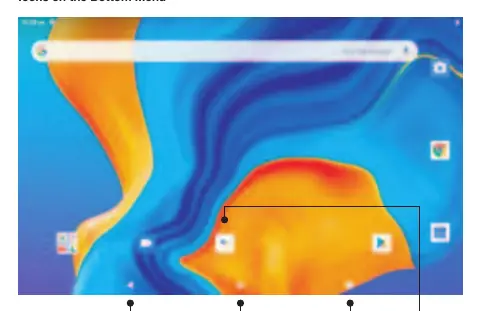
- Back: Returns to the previous screen.
- Home Screen: Returns to the main home screen.
- Recent Activities: Displays recently used apps.
- Apps Collection: Opens the list of installed applications.
Settings and Customization
You can customize your tablet by tapping and holding an empty section of the home screen to access Wallpapers, Widgets, and Home Settings. Swipe down from the top of the screen to access Quick Settings, which allows you to toggle Wi-Fi, Bluetooth, Do Not Disturb, Auto-rotate, and Airplane Mode.
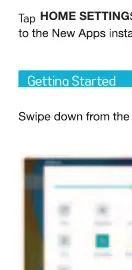
Detailed settings can be accessed via the Settings icon, allowing you to manage Network & Internet, Connected devices, Apps & notifications, Battery, Display, Sound, Storage, Security, and System preferences.
Network and Connectivity
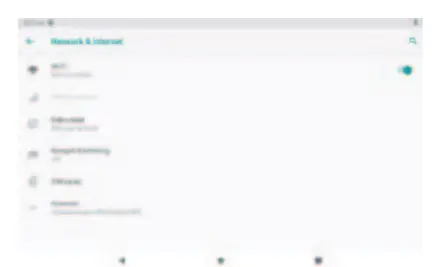
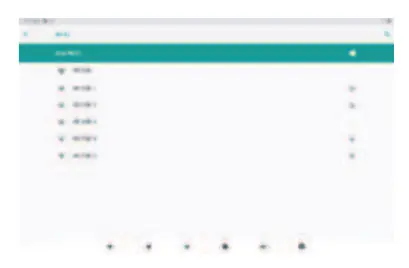
Wi-Fi Connection: Go to Settings > Network & Internet, turn on Wi-Fi, select your network, and enter the password.
Bluetooth Pairing: Go to Connected devices > Bluetooth, turn it on, and select Pair new device. Follow the on-screen prompts to pair with your device.
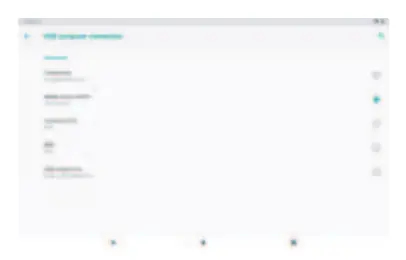
Connecting to a Computer: Connect the tablet via USB cable. In Quick Settings, select the USB notification and choose 'Transfer files' or 'Transfer photos (PTP)' to manage files between devices.
External Storage: Insert a microSD card into the slot. When prompted, select 'Use as portable storage' to move files between the card and the tablet.
App Management
To download apps, open the Play Store from the home screen and log in to your Google account. To manage apps, you can move them by dragging, remove them from the home screen, or uninstall them. To clear app cache, go to Settings > Apps & notifications > [App Name] > Storage > Clear Cache.
Specifications
The Hyundai HYTAB PLUS 10WB1 features a 10.1-inch display with 800x1280 resolution, powered by an Allwinner A100 chipset, 2GB RAM, and 32GB ROM. It includes a 5000mAh battery, 5MP rear camera, 2MP front camera, and runs on Android 10.
Troubleshooting
If the tablet does not power on, charge it for 30 minutes, check if it is in sleep mode, or use the reset button with a pin. If the tablet is not detected by a computer, ensure you have selected the correct USB transfer mode (Transfer files/photos). If Wi-Fi fails, restart your router and verify the password.
Manufacturer information
Hyundai
Practical help
Common problems
Tablet does not power on
Charge for 30 minutes, check if in sleep mode, perform a forced shutdown (hold power for 5s), or use the reset button.
Tablet does not charge
Ensure the USB cable is properly connected and try a different cable or adapter.
Tablet not detected by computer
Ensure the tablet is on and select 'Transfer files' or 'Transfer photos (PTP)' in the USB settings notification.
Wi-Fi connection issues
Ensure Wi-Fi is enabled, verify the password, or restart the router.
Insufficient storage
Delete unused apps, clear app cache regularly, or install a microSD card.
Before use
- Charge the tablet for 30 minutes before first use
- Ensure you have a Wi-Fi network available
- Have a Google account ready for app downloads
- Insert a microSD card if extra storage is needed
Images and diagrams
- Home screen bottom menu icons: Back, Home, Recent Activities, Apps Collection
- Quick Settings panel for Wi-Fi, Bluetooth, and Airplane mode
Model compatibility
- Supports microSD cards for storage expansion
- Requires Wi-Fi for internet connectivity
- Compatible with standard USB charging (5V 2A)

Manual page author
David Miller
Documentation analyst
Organizes user manual content into clear summaries, with attention to model details, product context, and everyday usability.