Computers / Tablets
User Manual for Hyundai 10WB3 Tablet
Quick guide for the Hyundai 10WB3 tablet. Learn how to set up your device, manage apps, configure network settings, use the camera, and maintain your tablet for optimal performance.
Table of contents
Manual images
Click an image to enlargeQuick Start Guide
This guide provides essential information for operating your Hyundai 10WB3 tablet. Before first use, ensure the battery is fully charged. The device supports SIM and memory card installation for expanded functionality and storage. Familiarize yourself with the notification panel and quick toggles to manage connectivity and system settings efficiently.
Assembling Your Tablet
- Unpacking: Ensure the box contains the tablet, user manual, and adapter.
- Charging: Charge the device using the provided travel adapter or a PC via USB cable. A full battery icon appears when charging is complete while the device is off.
- SIM Card: Insert the SIM card with gold contacts facing into the device.
- Memory Card: Insert the memory card with gold contacts facing downwards. Note that some brands may not be fully compatible.
Getting Started
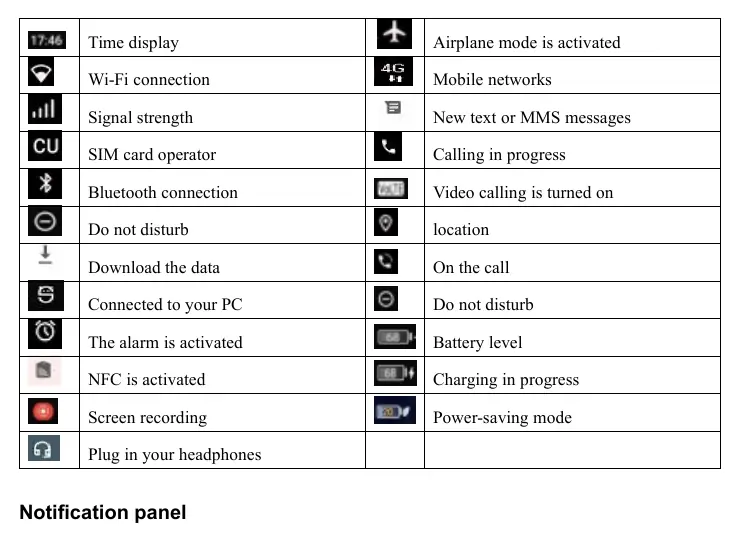
- Powering On/Off: Press and hold the power key for about 5 seconds to turn on. To restart or shut down, press and hold the power key or use the shutdown button in the status bar.
- Airplane Mode: Enable via Settings or the notification panel to disable wireless and network services.
- Home Screen: Navigate through multiple panels by scrolling left or right. Long press to customize wallpaper and styles.
- Task Bar: Located at the top of the screen, it displays indicator icons, battery level, and time.
Customization and Settings
- Auto-rotation: Toggle via the notification panel or Settings > Display > Advanced.
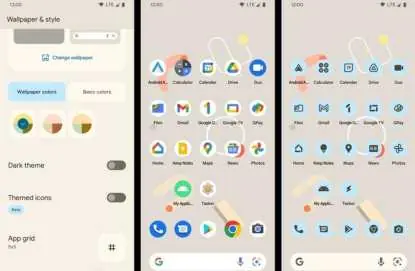
- Wallpaper & Style: Long press on the home screen to access wallpaper settings and theme options.
- Display Size: Adjust font size via Settings > Display > Advanced.
- Language & Input: Configure system and app-specific languages in Settings > System.
Security and Privacy
- Screen Lock: Set up security via Settings > Secure > Screen Lock. Options include Swipe, Pattern, PIN, or Password.
- Privacy: Manage app permissions and view permission usage history in the Privacy Information Center.
- Reset: Perform a factory reset via Settings > System > Reset options. Warning: This erases all data.
Communication Features
- Phone: Use the Phone app to dial numbers, access contacts, and manage call settings like volume, ringtones, and call forwarding.
- Messages: Create and send text or MMS messages. MMS can include pictures, videos, and emoticons.
- Email: Set up multiple email accounts via the Email app.
Entertainment and Tools
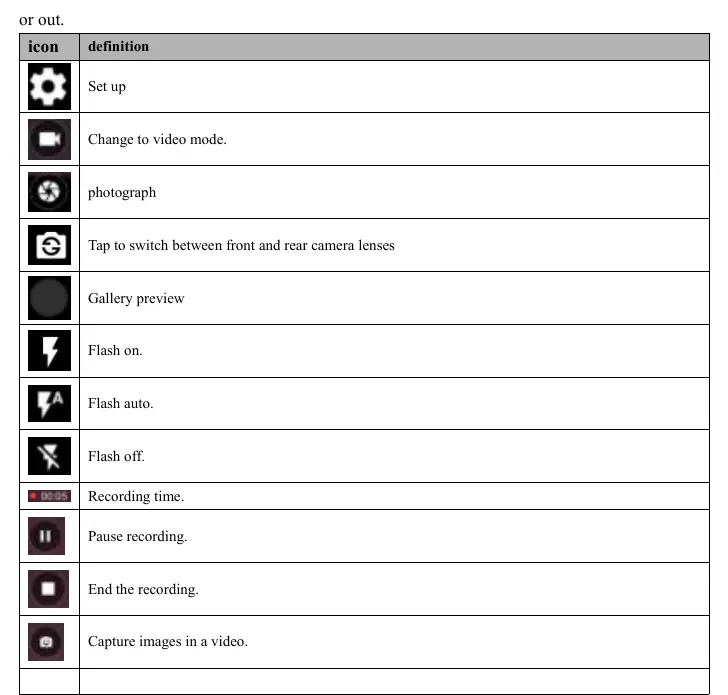
- Camera: Capture photos and videos. Use on-screen icons to switch lenses, adjust flash, and toggle video mode.
- FM Radio: Plug in headphones to listen to the radio. Use the interface to scan channels and record broadcasts.
- Tools: Includes Calendar for event management, Alarm Clock, File Manager for data organization, and a Calculator.
Connectivity
- USB Connection: Connect to a PC to transfer files. Select 'transfer files' in the notification panel after connecting.
- Wi-Fi: Enable in Settings to search for and connect to wireless networks.
- Bluetooth: Pair with other devices via Settings > Connected devices.
Safety and Maintenance
- Safety Precautions: Turn off the device in aircrafts, near explosive atmospheres, and follow medical device interference guidelines (maintain 8 inches distance from pacemakers).
- Care: Keep the device dry, avoid extreme temperatures (-10°C to 50°C), and use only approved accessories.
Manufacturer information
Hyundai
Practical help
Common problems
Device will not turn on
Ensure the battery is sufficiently charged.
Cannot transfer files to PC
Connect via USB cable, open the notification panel, and select 'transfer files'.
Screen rotates unexpectedly
Open the notification panel and disable 'Auto-rotate'.
Memory card not recognized
Ensure the card is inserted correctly (gold contacts facing down) and try a different brand if the issue persists.
Before use
- Charge the battery fully before the first use.
- Insert the SIM card with gold contacts facing into the device.
- Insert the memory card with gold contacts facing downwards.
- Ensure you have a Google account for device setup.
- Check that you are using approved chargers and cables.
Specs in practice
- Operating Temperature
- -10°C to 50°C. Do not use outside this range.
- Body-worn distance
- Maintain at least 0.5 cm distance from the body.
Images and diagrams
- Notification Panel: Slide down to access quick toggles like Wi-Fi, Bluetooth, and brightness.
- Camera Interface: Use on-screen icons to switch between photo/video modes, flash settings, and lens switching.
Model compatibility
- Some memory card brands may not be fully compatible.
- Peer-to-peer functionality is supported but limited to US frequencies.

Manual page author
Emily Carter
User documentation editor
Prepares concise manual descriptions and highlights the most useful setup, operation, and maintenance information for readers.